Movies
| Title | Director | Release Year | Genre | Rating |
|---|---|---|---|---|
| {movie.title} | {movie.director} | {movie.release_year} | {movie.genre} | {movie.rating} |
Movies
| Title | Director | Release Year | Genre | Rating |
|---|---|---|---|---|
| {movie.title} | {movie.director} | {movie.release_year} | {movie.genre} | {movie.rating} |
Movies
| Title | Director | Release Year | Genre | Rating |
|---|---|---|---|---|
| {movie.title} | {movie.director} | {movie.release_year} | {movie.genre} | {movie.rating} |
Movies
| Title | Director | Release Year | Genre | Rating |
|---|---|---|---|---|
| {{ movie.title }} | {{ movie.director }} | {{ movie.release_year }} | {{ movie.genre }} | {{ movie.rating }} |
Your Profile
12User Information
16Session Information
47
49
            {JSON.stringify(session, null, 2)}
50
51
Welcome to Nhost Next.js Demo
11Hello, {session.user?.displayName || session.user?.email}!
16You are not signed in.
20Sign In
1620 Don't have an account? Sign Up 21
22Check Your Email
2325 We've sent a verification link to {email} 26
2728 Please check your email and click the verification link to activate 29 your account. 30
3133 Back to Sign In 34
35Sign Up
4246 Already have an account? Sign In 47
48Email Verification
17 18Verification failed
20{message}
21 22 {urlParams.length > 0 && ( 23URL Parameters:
25 {urlParams.map(([key, value]) => ( 26122 My Todos 123 {!showAddForm && ( 124 132 )} 133
134No todos yet
346347 Create your first todo to get started! 348
349{todo.details}
435File Upload
253Upload a File
257 258Your Files
318 319 {#if deleteStatus} 320No files yet
349Upload your first file to get started!
350| Name | 357Type | 358Size | 359Actions | 360
|---|---|---|---|
| {file.name} | 366{file.mimeType} | 367{formatFileSize(file.size || 0)} | 368
369
370
384
393
394
|
395
Your Profile
12User Information
16Session Information
40{{ JSON.stringify(session, null, 2) }}
42
Welcome to Nhost Vue Demo
5Hello, {{ user?.displayName || user?.email }}!
9You are not signed in.
12Sign In
4 5 40 41
43
Don't have an account?
Sign Up
4Check Your Email
5 6 17 18 66 67
69
Already have an account?
Email Verification
4 5Verifying your email...
8 913 ✓ Successfully verified! 14
15You'll be redirected to your profile page shortly...
1620 Verification failed 21
22{{ error }}
23 2426 URL Parameters: 27
289 My Todos 10 19
20No todos yet
9091 Create your first todo to get started! 92
93{{ todo.details }}
181File Upload
5Upload a File
9 10Your Files
78 79No files yet
108Upload your first file to get started!
109| Name | 115Type | 116Size | 117Actions | 118
|---|---|---|---|
| {{ file.name }} | 123{{ file.mimeType }} | 124{{ formatFileSize(file.size || 0) }} | 125
126
127
143
152
153
|
154
400 Bad Request
Verify You Email
Hi, ${displayName}! Please click the link to verify your email:
``` # Postmark Integration [Section titled “Postmark Integration”](#postmark-integration) Alternatively, you can use postmark’s native integration and leverage postmark’s templates. To do so, you need to: 1. Configure SMTP settings like below: ```toml [provider.smtp] host = 'postmark' password = '{{ secrets.POSTMARK_API_KEY }}' sender = 'myapp@mydomain.com' ``` Caution It is very important that the `host` is set exactly to `postmark`. 2. In postmark you need to create three templates for each locale with the following alias: * $locale.email-confirm-change * $locale.email-verify * $locale.password-reset For instance: * en.email-confirm-change * en.email-verify * en.password-reset * se.email-confirm-change * se.email-verify * se.password-reset Additionally, if you want to use the [passwordless sign-in](/products/auth/sign-in-magic-link) or OTP sign-in emails, you need to create the following templates as well: * $locale.signin-passwordless * $locale.signin-otp * $locale.elevate-otp After these two steps have been completed, the Auth service will leverage these templates instead of the ones described in the previous section. Note Postmark templates should have access to the same variables as described [previously](#template-variables) # Gravatar > Fetch user profiles automatically from gravatar ## Gravatar [Section titled “Gravatar”](#gravatar) If Gravatar is enabled, Nhost Auth will use the user’s email address to fetch their Gravatar profile picture. If the user doesn’t have a Gravatar profile picture, a default image will be used. There are two options for Gravatars. ### Default Image [Section titled “Default Image”](#default-image) If the user doesn’t have a Gravatar profile picture, a default image will be used. You can choose between the following options: * `404`: Do not load any image if none is associated with the email hash, instead return an HTTP 404 (File Not Found) response. * `mp`: (mystery-person) a simple, cartoon-style silhouetted outline of a person (does not vary by email hash). * `identicon`: a geometric pattern based on an email hash. * `monsterid`: a generated ‘monster’ with different colors, faces, etc. * `wavatar`: generated faces with differing features and backgrounds. * `retro`: awesome generated, 8-bit arcade-style pixelated faces. * `robohash`: a generated robot with different colors, faces, etc. * `blank`: a transparent PNG image. ### Rating [Section titled “Rating”](#rating) Gravatar images are rated by default. You can choose between the following options: * `g`: suitable for display on all websites with any audience type. * `pg`: may contain rude gestures, provocatively dressed individuals, lesser swear words or mild violence. * `r`: may contain such things as harsh profanity, intense violence, nudity, or hard drug use. * `x`: may contain hardcore sexual imagery or extremely disturbing violence. # JSON Web Tokens (JWTs) > Configure how Nhost Auth signs JWT access tokens using symmetric keys, asymmetric keys, or an external signing service. ## Introduction [Section titled “Introduction”](#introduction) JSON Web Tokens (JWT) are encoded strings designed to securely transmit information between parties in the form of a JSON object. Each JWT consists of three parts: * header * payload * signature JWTs are commonly used for authentication post-login. The server generates a token containing user claims (like identity and permissions) that subsequent requests can include to prove authorization. Here’s how JWTs typically work in an authentication flow: 1. User logs in with credentials (username/password) 2. Server validates credentials and generates a signed JWT containing user information and permissions 3. Server sends the JWT to the client, which stores it (usually in browser storage) 4. For subsequent requests, the client includes the JWT in the Authorization header 5. Server verifies the token’s signature and grants access based on the encoded permissions The main advantage is that the server doesn’t need to store session information - all necessary data is contained within the token itself, making it ideal for stateless authentication. Note For more information about JSON Web Tokens, visit [jwt.io](https://jwt.io). ## JWT Configuration [Section titled “JWT Configuration”](#jwt-configuration) You can configure your project to use three different kinds of JWTs: * JWTs signed with symmetric keys * JWTs signed with asymmetric keys * JWTs signed externally via a third-party service Note Currently we default to using symmetric keys for signing JWTs. However, we plan to change this to use asymmetric keys in the near future. ### Symmetric Keys [Section titled “Symmetric Keys”](#symmetric-keys) With symmetric keys, your project uses a single key for both signing and verifying JWTs. This key is stored in the project’s configuration and is responsible for signing JWTs. When a client sends a JWT to the server, the server uses the same key to verify the JWT’s signature. If you need to verify JWTs in a different service, the same key can be used for verification. Since the same key is used for both signing and verification, it is crucial to keep it secret, as sharing it with others can compromise the security of your JWTs. Below you can see an example of a symmetric key configuration: * nhost.toml ```toml [[hasura.jwtSecrets]] type = 'HS256' key = 'f03d5f5a0ed055e3fcbc0a3639405aca0511e6abe6d60e40d1fff610c6248f2a' ``` * dashboard 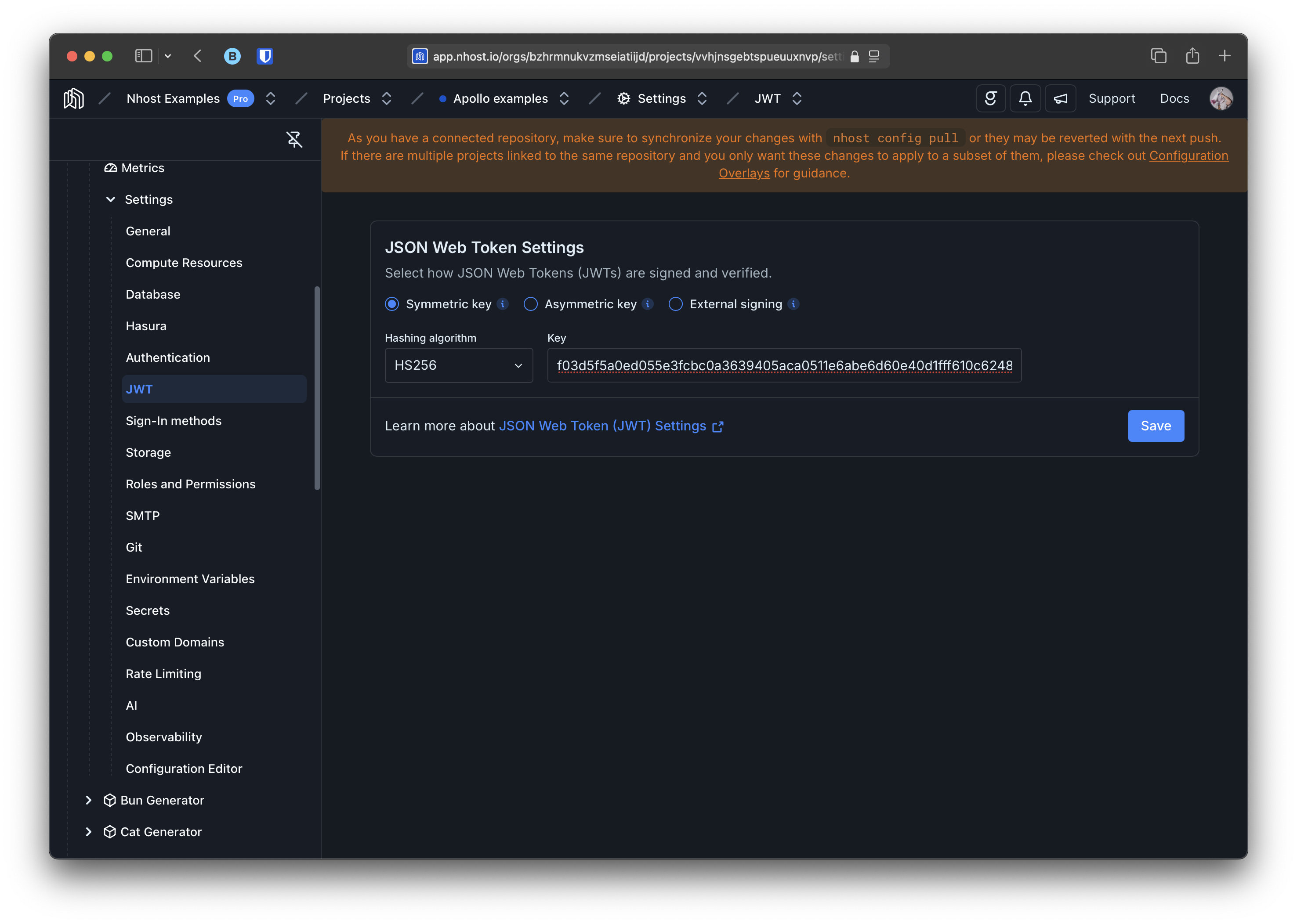 Note We recommend using a [secret](/platform/cloud/secrets) to configure the key. In addition to `HS256`, you can also use `HS384` and `HS512` for extra security. To quickly generate a key, you can use the following command: * HS256 ```shell openssl rand -base64 32 ``` * HS384 ```shell openssl rand -base64 48 ``` * HS512 ```shell openssl rand -base64 64 ``` ### Asymmetric Keys [Section titled “Asymmetric Keys”](#asymmetric-keys) With asymmetric keys, your project uses a pair of public and private keys for signing and verifying JWTs. The private key, stored securely in the project’s configuration, is used to sign the JWTs. The public key, on the other hand, is made available to clients and is used to verify the JWTs. When a client sends a JWT to the server, the server uses the public key to validate the JWT’s signature. If verification is needed in a different service, the public key can be used without compromising security. Since the public key is only used for verification and the private key for signing, sharing the public key is safe and does not jeopardize the security of your JWTs. Below you can see an example of an asymmetric key configuration: * nhost.toml ```toml [[hasura.jwtSecrets]] type = "RS256" kid = "bskhwtelkajsd" key = "" -----BEGIN PUBLIC KEY----- MIIBIjANBgkqhkiG9w0BAQEFAAOCAQ8AMIIBCgKCAQEAqSFS8Kx9LuiYpIms+NoZ (omitted for brevity) jwIDAQAB -----END PUBLIC KEY----- "" signingKey = "" -----BEGIN PRIVATE KEY----- MIIEvgIBADANBgkqhkiG9w0BAQEFAASCBKgwggSkAgEAAoIBAQCpIVLwrH0u6Jik (omitted for brevity) s6fJmz3ZeArPI8KFSI3Q2xqm -----END PRIVATE KEY----- "" ``` * dashboard 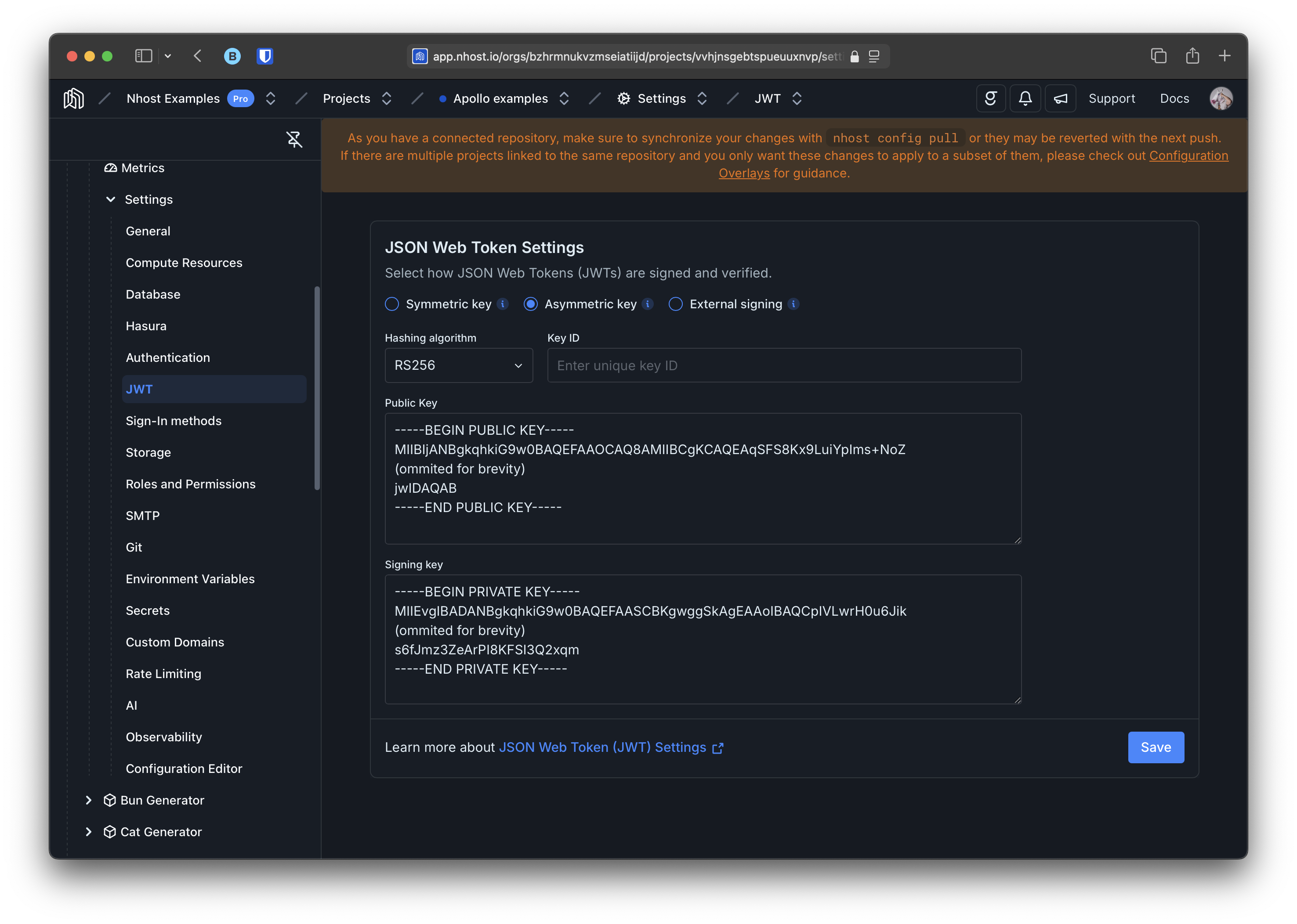 In addition to `RS256`, you can also use `RS384` and `RS512` for extra security. To quickly generate a key pair, you can use the following commands: * RS256 ```shell # Generate a private key openssl genpkey -algorithm RSA -out jwt_private.pem -pkeyopt rsa_keygen_bits:2048 # Generate a public key from the private key openssl rsa -pubout -in jwt_private.pem -out jwt_public.pem ``` * RS384 ```shell # Generate a private key openssl genpkey -algorithm RSA -out jwt_private.pem -pkeyopt rsa_keygen_bits:3072 # Generate a public key from the private key openssl rsa -pubout -in jwt_private.pem -out jwt_public.pem ``` * RS512 ```shell # Generate a private key openssl genpkey -algorithm RSA -out jwt_private.pem -pkeyopt rsa_keygen_bits:4096 # Generate a public key from the private key openssl rsa -pubout -in jwt_private.pem -out jwt_public.pem ``` You can then copy the contents of `jwt_private.pem` into the `signingKey` field and the contents of `jwt_public.pem` into the `key` field. The `kid` value in your configuration can be any unique string of your choice and must be distinct for each key. It is used to identify the correct key when verifying JWTs through the JWKS endpoint. ### External Signing [Section titled “External Signing”](#external-signing) If you are using a third party service like Auth0 or Clerk you can configure your project to use their JWK endpoint to verify JWTs. Below you can see an example of an external signing configuration: * nhost.toml ```toml [[hasura.jwtSecrets]] jwk_url = "https://mythirdpartyservice.com/jwks.json" ``` Alternatively, you can configure the public key directly: ```toml [[hasura.jwtSecrets]] type = "RS256" key = "" -----BEGIN PUBLIC KEY----- MIIBIjANBgkqhkiG9w0BAQEFAAOCAQ8AMIIBCgKCAQEAqSFS8Kx9LuiYpIms+NoZ (omitted for brevity) jwIDAQAB -----END PUBLIC KEY----- "" ``` * dashboard 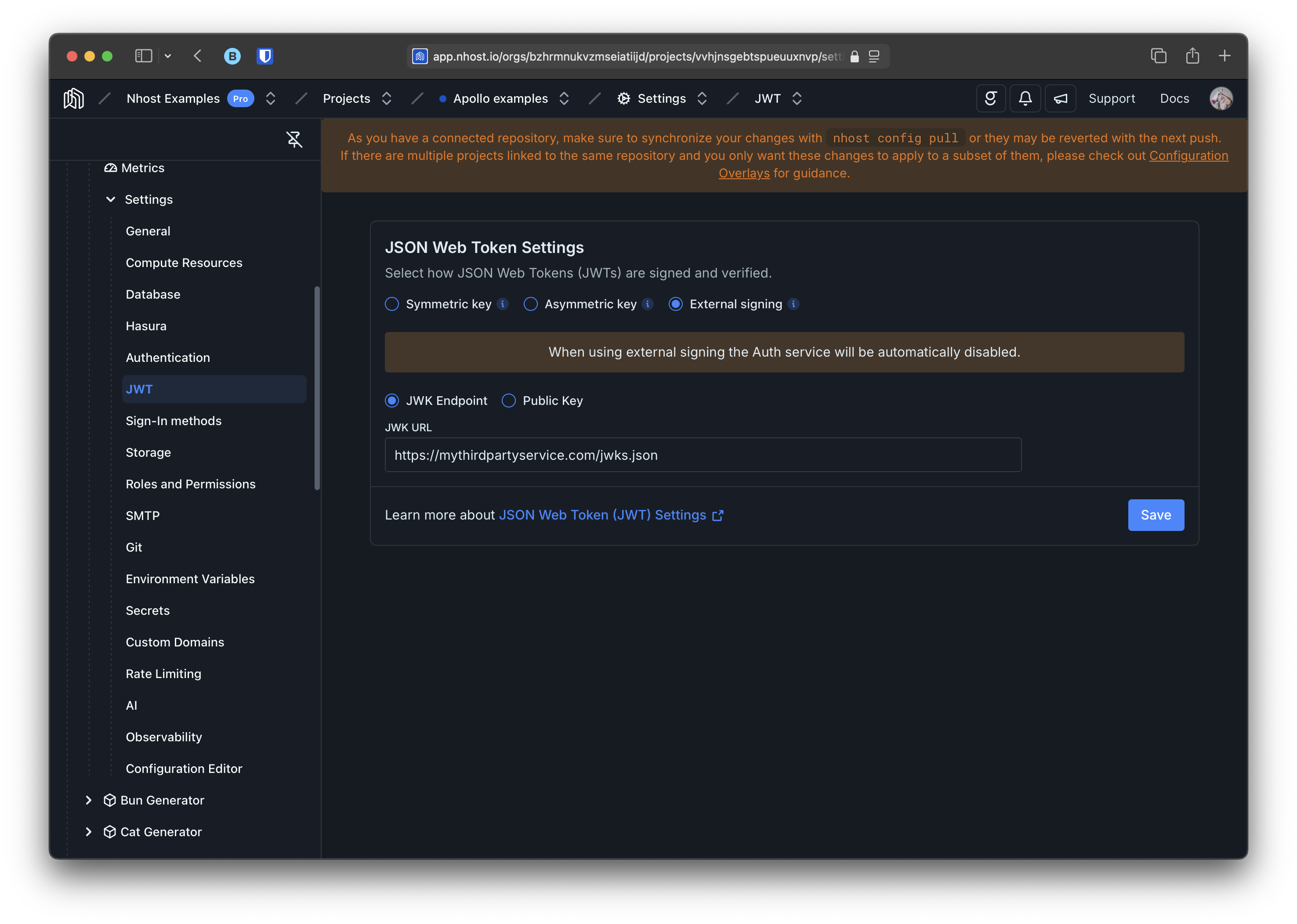 Note When using external signing the Auth service will be automatically disabled. ### Claims Mapping and Namespace [Section titled “Claims Mapping and Namespace”](#claims-mapping-and-namespace) When verifying tokens — especially those issued by an external provider — you can remap their claims onto the session variables your permissions expect, and control where those claims are read from. The `claims_namespace` defaults to `https://hasura.io/jwt/claims` (a [retained identifier](/products/graphql/configuration#naming-conventions) kept for compatibility) and can be overridden with `claims_namespace` or `claims_namespace_path`. Use `claims_map` to project individual claims from a literal value or a JSON path within the token. * nhost.toml ```toml [[hasura.jwtSecrets]] jwk_url = "https://my-auth-server.com/.well-known/jwks.json" issuer = "https://my-auth-server.com" [[hasura.jwtSecrets.claims_map]] claim = "x-some-claim" value = "some-value" [[hasura.jwtSecrets.claims_map]] claim = "x-other-claim" path = "$.user.claim.id" default = "default-value" ``` * Schema ```cue #JWTSecret: ({ type: "HS384" | "HS512" | *"HS256" key: string } | { type: "RS256" | "RS384" | "RS512" key: string signingKey?: string kid?: string } | { jwk_url: #Url | *null }) & { claims_format?: "stringified_json" | *"json" audience?: string issuer?: string allowed_skew?: uint32 header?: string } & { claims_map?: [...#ClaimMap] } & ({ claims_namespace: string | *"https://hasura.io/jwt/claims" } | { claims_namespace_path: string } | *{}) #ClaimMap: { claim: string { value: string } | { path: string default?: string } } ``` The complete `#JWTSecret` schema, with every field and default, is documented in the [configuration reference](/reference/configuration#jwtsecret). ## Verify a JWT [Section titled “Verify a JWT”](#verify-a-jwt) To verify JWTs inside Nhost Functions (for both symmetric and asymmetric keys), see the [JWT Verification guide](/products/functions/guides/jwt-verification). ## Custom Claims [Section titled “Custom Claims”](#custom-claims) You can attach extra information to your JWTs in the form of custom claims. These claims can be used for authorization purposes in your application. For more details on how to add custom claims to your JWTs and how to use them, see the [Permissions Variables](/products/graphql/permissions/permission-variables) documentation. # Multi-Factor Authentication (MFA) > Learn how to add TOTP-based multi-factor authentication to your application for enhanced security. Multi-Factor Authentication adds an extra layer of security by requiring a verification code from an authenticator app (e.g., [Authy](https://authy.com/), [Google Authenticator](https://en.wikipedia.org/wiki/Google_Authenticator)) in addition to the user’s email and password. ## Configuration [Section titled “Configuration”](#configuration) To enable MFA, navigate to **Auth -> Settings -> Authentication** and enable **Multi-Factor Authentication**. You can also configure it using the `nhost.toml` file: nhost.toml ```toml [auth.totp] enabled = true ``` ## Enabling MFA [Section titled “Enabling MFA”](#enabling-mfa) Once MFA is enabled for your project, individual users can activate it on their account. This is a two-step process: ### Step 1: Generate TOTP Secret [Section titled “Step 1: Generate TOTP Secret”](#step-1-generate-totp-secret) Request a TOTP secret and QR code for the user to scan with their authenticator app: ```js const response = await nhost.auth.changeUserMfa(); // Display the QR code image for the user to scan const imageUrl = response.body.imageUrl; // Or show the totpSecret for manual entry const totpSecret = response.body.totpSecret; ``` ### Step 2: Verify and Activate [Section titled “Step 2: Verify and Activate”](#step-2-verify-and-activate) After the user scans the QR code, they enter the 6-digit verification code from their authenticator app to confirm activation: ```js await nhost.auth.verifyChangeUserMfa({ activeMfaType: 'totp', code: '123456', // 6-digit code from authenticator app }); ``` ### Activation Flow [Section titled “Activation Flow”](#activation-flow) ```mermaid sequenceDiagram autonumber actor U as User participant C as Client participant A as Nhost Auth participant G as Authenticator App U-->A: Authenticated C->>+A: GET /mfa/totp/generate A->>-C: QR code image URL + TOTP secret C->>U: Display QR code U->>+G: Scan QR code G->>-U: 6-digit TOTP code C->>+A: POST /user/mfa Note right of C: TOTP code + activeMfaType: "totp" A->>A: Verify code and activate MFA A->>-C: OK ``` ## Signing In with MFA [Section titled “Signing In with MFA”](#signing-in-with-mfa) When a user with MFA enabled signs in with email and password, the server returns a `ticket` instead of a session. The client must then prompt for a TOTP code and verify it to complete sign-in. ### Step 1: Initial Sign-In [Section titled “Step 1: Initial Sign-In”](#step-1-initial-sign-in) ```js const response = await nhost.auth.signInEmailPassword({ email: 'joe@example.com', password: 'secret-password', }); if (response.body?.mfa) { // MFA is required — store the ticket and prompt for TOTP const ticket = response.body.mfa.ticket; // Navigate to MFA verification page } ``` ### Step 2: Verify TOTP Code [Section titled “Step 2: Verify TOTP Code”](#step-2-verify-totp-code) ```js const response = await nhost.auth.verifySignInMfaTotp({ ticket: ticket, // from step 1 otp: '123456', // 6-digit code from authenticator app }); // response.body.session contains the access + refresh tokens ``` ### Sign-In with MFA Flow [Section titled “Sign-In with MFA Flow”](#sign-in-with-mfa-flow) ```mermaid sequenceDiagram autonumber actor U as User participant C as Client participant A as Nhost Auth participant G as Authenticator App U->>C: Enter email + password C->>+A: POST /signin/email-password A->>-C: MFA ticket C->>U: Prompt for TOTP code U->>+G: Open authenticator app G->>-U: 6-digit TOTP code U->>C: Enter TOTP code C->>+A: POST /signin/mfa/totp Note right of C: ticket + TOTP code A->>A: Verify TOTP A->>-C: Session (access + refresh tokens) ``` ## Disabling MFA [Section titled “Disabling MFA”](#disabling-mfa) Users can disable MFA by providing a current TOTP code from their authenticator app: ```js await nhost.auth.verifyChangeUserMfa({ activeMfaType: '', // empty string disables MFA code: '123456', // current 6-digit code from authenticator app }); ``` # OAuth2 / OIDC Provider > Use your Nhost project as an OAuth2 and OpenID Connect Identity Provider for third-party applications Nhost Auth can act as an OAuth2 Authorization Server and OpenID Connect Identity Provider. This lets third-party applications — wikis, dashboards, MCP servers, internal tools — authenticate users through your Nhost project using standard OAuth2/OIDC flows. ```mermaid sequenceDiagram participant App as Third-Party App participant Auth as Nhost Auth participant Consent as Your Consent Page App->>Auth: Redirect to /oauth2/authorize Auth->>Consent: Redirect with request_id Consent->>Consent: User authenticates & approves Consent->>Auth: POST /oauth2/login Auth->>App: Redirect with authorization code App->>Auth: Exchange code for tokens Auth->>App: Access token, ID token, refresh token ``` ## What It Supports [Section titled “What It Supports”](#what-it-supports) * **Three client types** — confidential (with secret), public (no secret, PKCE required), and URL-based (CIMD) * **Scopes** — `openid`, `profile`, `email`, `phone`, `offline_access`, `graphql` * **RSA-signed JWT tokens** — access tokens and ID tokens signed with RSA (RS256, RS384, or RS512), with a JWKS endpoint for verification ## Standards Compliance [Section titled “Standards Compliance”](#standards-compliance) | Standard | Description | | -------------------------------------------------------------------------------- | ---------------------------------------------------------------------------- | | [RFC 6749](https://datatracker.ietf.org/doc/html/rfc6749) | OAuth 2.0 Authorization Framework — Authorization Code grant | | [RFC 6750](https://datatracker.ietf.org/doc/html/rfc6750) | OAuth 2.0 Bearer Token Usage | | [RFC 7009](https://datatracker.ietf.org/doc/html/rfc7009) | Token Revocation — Refresh token revocation | | [RFC 7517](https://datatracker.ietf.org/doc/html/rfc7517) | JSON Web Key (JWK) — JWKS endpoint for public signing keys | | [RFC 7519](https://datatracker.ietf.org/doc/html/rfc7519) | JSON Web Token (JWT) — RSA-signed access and ID tokens | | [RFC 7636](https://datatracker.ietf.org/doc/html/rfc7636) | PKCE — Proof Key for Code Exchange (S256 only) | | [RFC 7662](https://datatracker.ietf.org/doc/html/rfc7662) | Token Introspection — Check token validity | | [RFC 8414](https://datatracker.ietf.org/doc/html/rfc8414) | Authorization Server Metadata — Discovery endpoints | | [RFC 9207](https://datatracker.ietf.org/doc/html/rfc9207) | Issuer Identification — `iss` parameter in authorization responses | | [RFC 9728](https://datatracker.ietf.org/doc/html/rfc9728) | Client ID Metadata Document — URL-based client IDs for MCP and similar tools | | [OpenID Connect Core 1.0](https://openid.net/specs/openid-connect-core-1_0.html) | ID tokens, UserInfo, Discovery, standard claims | ## Prerequisites [Section titled “Prerequisites”](#prerequisites) * An **[RSA signing key](/products/auth/jwt#asymmetric-keys)** must be configured. Other algorithms are not supported when the OAuth2 provider is enabled. * The OAuth2 provider must be **explicitly enabled** via configuration. ## Configuration [Section titled “Configuration”](#configuration) * Dashboard Go to your project’s dashboard, then **Auth** → **Settings** → **OAuth2 Provider**. 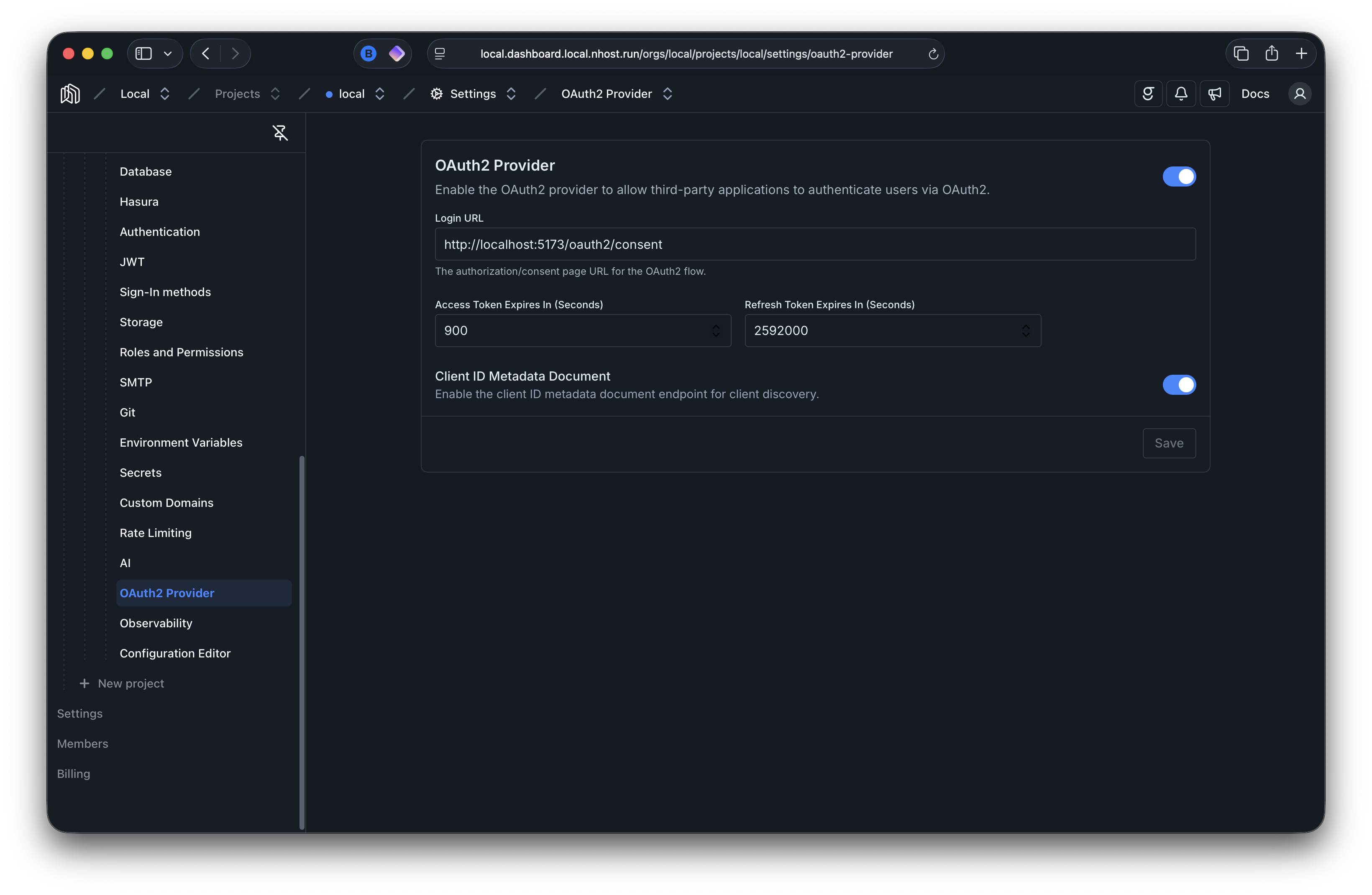 * nhost.toml ```toml [auth.oauth2Provider] # Enable the OAuth2/OIDC provider enabled = true # default: false # URL where users are redirected for login and consent # You need to implement this page yourself, check our guides for details loginURL = 'https://example.com/oauth2/login' [auth.oauth2Provider.accessToken] # Access token lifetime in seconds expiresIn = 900 # default: 900 - 15 minutes [auth.oauth2Provider.refreshToken] # Refresh token lifetime in seconds expiresIn = 2592000 # default: 2592000 - 30 days [auth.oauth2Provider.clientIdMetadataDocument] # Enable URL-based client IDs per RFC 9728, used by MCP and similar tools enabled = true # default: false ``` ## Next Steps [Section titled “Next Steps”](#next-steps) ### [Managing Clients](/products/auth/oauth2-provider/managing-clients) [Create and manage OAuth2 clients via GraphQL](/products/auth/oauth2-provider/managing-clients) ### [Authorization Code Flow](/products/auth/oauth2-provider/authorization-flow) [Understand the flow and build your consent page](/products/auth/oauth2-provider/authorization-flow) ### [Tokens and Scopes](/products/auth/oauth2-provider/tokens-and-scopes) [Understand token formats, scopes, and claims](/products/auth/oauth2-provider/tokens-and-scopes) # Authorization Code Flow > Understand the OAuth2 authorization code flow and build your consent page When a third-party app wants to authenticate one of your users, it triggers the Authorization Code flow. This is a standard OAuth2 flow where three parties are involved: | Party | Who | Role | | --------------------- | ----------------------------------------------- | -------------------------------------------------- | | **Third-Party App** | The external service (e.g. a wiki, an MCP tool) | Initiates the flow and receives tokens | | **Nhost Auth** | Your Nhost project’s auth service | Validates requests, issues codes and tokens | | **Your Consent Page** | A page **you build** in your frontend | Authenticates the user and collects their approval | ```mermaid sequenceDiagram participant App as Third-Party App participant Auth as Nhost Auth participant Consent as Your Consent Page App->>Auth: Redirect to /oauth2/authorize Auth->>Auth: Validate client, redirect_uri, scopes Auth->>Consent: Redirect with request_id Consent->>Auth: GET /oauth2/login?request_id=(includes codeChallenge) A->>-P: 302 Redirect to provider authorization P->>P: User authorizes application P->>+A: Callback with authorization code Note over A: Exchange code for provider tokens
Create/update user
Generate authorization code A->>-C: 302 Redirect to redirectTo with ?code=... C->>C: Consume verifier from localStorage C->>+A: POST /token/exchange Note right of C: code + codeVerifier A->>A: Validate S256(codeVerifier) == codeChallenge A->>-C: Session (access + refresh tokens) ``` ## Implementation Steps [Section titled “Implementation Steps”](#implementation-steps) ### 1. Generate the Provider Sign-In URL [Section titled “1. Generate the Provider Sign-In URL”](#1-generate-the-provider-sign-in-url) Use `signInProviderURL()` to generate the OAuth authorization URL with a PKCE `codeChallenge`: ```tsx import { generatePKCEPair } from '@nhost/nhost-js/auth'; const handleSocialSignIn = async (provider: 'github' | 'google' | 'apple') => { const { verifier, challenge } = await generatePKCEPair(); localStorage.setItem('nhost_pkce_verifier', verifier); const url = nhost.auth.signInProviderURL(provider, { redirectTo: `${window.location.origin}/verify`, codeChallenge: challenge, }); window.location.href = url; }; ``` ### 2. OAuth Provider Authorization [Section titled “2. OAuth Provider Authorization”](#2-oauth-provider-authorization) When the user is redirected to the OAuth provider (e.g., GitHub, Google), they will: 1. See a consent screen asking to authorize your application 2. Grant or deny permission to access their profile information 3. Be redirected back to Nhost Auth’s callback URL ### 3. Nhost Auth Callback Processing [Section titled “3. Nhost Auth Callback Processing”](#3-nhost-auth-callback-processing) Nhost Auth receives the callback from the OAuth provider at `/v1/signin/provider/{provider}/callback` and performs the following: 1. **Validates the OAuth state** to prevent CSRF attacks 2. **Exchanges the authorization code** for access and refresh tokens from the provider 3. **Fetches the user’s profile** from the provider 4. **Creates or updates the user** in your Nhost database 5. **Generates an authorization code** bound to the PKCE challenge 6. **Redirects to your client application** with `?code=...` ### 4. Handle the Redirect [Section titled “4. Handle the Redirect”](#4-handle-the-redirect) After successful authentication, Nhost redirects back to your `redirectTo` URL with a `code` query parameter: ```plaintext https://your-app.com/verify?code=abc123... ``` Exchange this code for a session using the stored PKCE verifier. See [Handling the Verification Redirect](/products/auth/pkce#handling-the-verification-redirect) for the complete implementation. ```tsx const params = new URLSearchParams(location.search); const code = params.get('code'); const codeVerifier = localStorage.getItem('nhost_pkce_verifier'); localStorage.removeItem('nhost_pkce_verifier'); await nhost.auth.tokenExchange({ code, codeVerifier }); ``` #### Error Handling [Section titled “Error Handling”](#error-handling) On error, the URL will contain error parameters: ```plaintext https://your-app.com/verify?error=access_denied ``` Common error scenarios include: * User denied authorization at the OAuth provider * Invalid OAuth request configuration * Error from the OAuth provider * Provider account already linked to another user ### 5. Session Management [Section titled “5. Session Management”](#5-session-management) Once you’ve exchanged the authorization code for a session, the Nhost SDK automatically manages: * **Access token** - Short-lived JWT for API requests (default: 15 minutes) * **Refresh token** - Used to obtain new access tokens (default: 30 days) * **Automatic token refresh** - The SDK refreshes tokens before expiration ## Security Considerations [Section titled “Security Considerations”](#security-considerations) ### PKCE Protection [Section titled “PKCE Protection”](#pkce-protection) PKCE prevents authorization code interception attacks by binding the authorization code to the client that initiated the request. The code can only be exchanged by presenting the original `codeVerifier` that matches the `codeChallenge` sent during initiation. ### CSRF Protection [Section titled “CSRF Protection”](#csrf-protection) Nhost automatically handles CSRF protection using the OAuth `state` parameter. Each sign-in request generates a unique state value that is validated during the callback. ### Redirect URL Validation [Section titled “Redirect URL Validation”](#redirect-url-validation) For security, Nhost validates that the `redirectTo` URL matches either your clientUrl or one of your configured allowed redirect URLs. Configure these in your Nhost project under **Auth → Settings → Authentication**. ### Custom Domains [Section titled “Custom Domains”](#custom-domains) To use your own domain for the OAuth callback URL instead of the default Nhost domain, refer to the [custom domains](/platform/cloud/custom-domains) documentation. ## Provider-Specific Setup [Section titled “Provider-Specific Setup”](#provider-specific-setup) Each OAuth provider requires specific configuration. Refer to the provider-specific guides for detailed setup instructions: * [Apple](/products/auth/providers/sign-in-apple) * [Azure AD / Entra ID](/products/auth/providers/sign-in-azuread) * [Bitbucket](/products/auth/providers/sign-in-bitbucket) * [Discord](/products/auth/providers/sign-in-discord) * [Facebook](/products/auth/providers/sign-in-facebook) * [GitHub](/products/auth/providers/sign-in-github) * [GitLab](/products/auth/providers/sign-in-gitlab) * [Google](/products/auth/providers/sign-in-google) * [LinkedIn](/products/auth/providers/sign-in-linkedin) * [Spotify](/products/auth/providers/sign-in-spotify) * [Strava](/products/auth/providers/sign-in-strava) * [Twitch](/products/auth/providers/sign-in-twitch) * [Windows Live](/products/auth/providers/sign-in-windowslive) * [WorkOS](/products/auth/providers/sign-in-workos) ## API Reference [Section titled “API Reference”](#api-reference) For detailed API documentation, see: * [signInProviderURL()](/reference/javascript/nhost-js/auth#signinproviderurl) in the JavaScript SDK reference * [GET /v1/signin/provider/{provider}](/reference/auth/get-signin-provider-%7Bprovider%7D) in the API reference * [GET /v1/signin/provider/{provider}/callback](/reference/auth/get-signin-provider-%7Bprovider%7D-callback) in the API reference # Sign In with Spotify > Enable Spotify OAuth social login with Nhost Auth — create a Spotify app, set redirect URIs, and authenticate users.  ## Create Spotify Account [Section titled “Create Spotify Account”](#create-spotify-account) * Create a new [Spotify account](https://www.spotify.com/) if you don’t have one already. ## Create Spotify App [Section titled “Create Spotify App”](#create-spotify-app) * Go to the [Spotify Developer Dashboard](https://developer.spotify.com/dashboard/). * Click on CREATE AN APP. * Fill in an App name and App description. * Check the box to agree Spotify’s [Developer Terms of Service](https://developer.spotify.com/terms) and [Branding Guidelines](https://developer.spotify.com/branding-guidelines). ## Configure OAuth Callback URL [Section titled “Configure OAuth Callback URL”](#configure-oauth-callback-url) * Click EDIT SETTINGS. * A modal appears. * Fill in **Redirect URIs** with your **OAuth Callback URL** from Nhost. * Click ADD to add the OAuth callback URL. * Click SAVE. ## Configure Nhost [Section titled “Configure Nhost”](#configure-nhost) * Click SHOW CLIENT SECRET in the Spotify App Dashboard. * Copy and paste the **Client ID** and **Client Secret** from Spotify to your Nhost OAuth settings for Spotify. * Click the checkbox “**I have pasted the redirect URI into Spotify”**. * Click **Confirm settings**. ## Sign In Users [Section titled “Sign In Users”](#sign-in-users) Once you’ve configured Spotify as an OAuth provider in Nhost, you can sign in users using the Spotify provider. See the [OAuth Provider Sign-In Guide](/products/auth/providers/sign-in-provider) for detailed implementation instructions including the complete OAuth flow, error handling, and session management. # Sign In with Strava > Add Strava OAuth social login with Nhost Auth — register an API application, configure access, and sign in athletes. Note Due to Strava API updates, email is no longer returned and is intentionally left blank. ## Create Strava Account [Section titled “Create Strava Account”](#create-strava-account) * Create a new [Strava Account](https://www.strava.com/register/free) if you don’t have one already. ## Create Strava OAuth App [Section titled “Create Strava OAuth App”](#create-strava-oauth-app) * Create a new OAuth application [(direct link)](https://www.strava.com/settings/api) by: * Click on your avatar in the top right of the navbar. * Select Settings. * On the left Sidebar, Select My API Application. ## Strava OAuth App Information. [Section titled “Strava OAuth App Information.”](#strava-oauth-app-information) * Enter a Application Name. * Enter the Redirect URI. ## Configure Nhost [Section titled “Configure Nhost”](#configure-nhost) * Click Generate a new client secret to generate an OAuth client secret. * Copy and paste the **Client ID** and **Client Secret** from Strava to your Nhost OAuth settings for Strava. Make sure the OAuth provider is enabled in Nhost. * Click the checkbox “**I have pasted the redirect URI into Strava”**. * Click **Confirm settings**. ## Sign In Users [Section titled “Sign In Users”](#sign-in-users) Once you’ve configured Strava as an OAuth provider in Nhost, you can sign in users using the Strava provider. See the [OAuth Provider Sign-In Guide](/products/auth/providers/sign-in-provider) for detailed implementation instructions including the complete OAuth flow, error handling, and session management. # Sign In with Twitch > Enable Twitch OAuth social login with Nhost Auth — register an application, set redirect URLs, and sign in users.  ## Create Twitch Account [Section titled “Create Twitch Account”](#create-twitch-account) * Create a new [Twitch account](https://twitch.tv/) if you don’t have one already. ## Create Twitch App [Section titled “Create Twitch App”](#create-twitch-app) * Sign in to the [Twitch Developer Console](https://dev.twitch.tv/console). * Click on **Register Your Application**. * Fill in a **Twitch application name**. * Copy and paste the callback URL from your Nhost OAuth settings for Twitch to the input field under **OAuth Redirect URLs** and click **Add** to the right of the input field. * Select an application **Category**. E.g. *Application Integration*. * Click **Create**. ## Get Twitch Application Client ID and Client Secret [Section titled “Get Twitch Application Client ID and Client Secret”](#get-twitch-application-client-id-and-client-secret) * Click on **Manage** on your newly created Twitch application. * Copy the **Client ID** and paste it into your Nhost OAuth settings for Twitch. * Click on **New Secret** to generate a new client secret. * Copy the **Client Secret** and paste it into your Nhost OAuth settings for Twitch. ## Sign In Users [Section titled “Sign In Users”](#sign-in-users) Once you’ve configured Twitch as an OAuth provider in Nhost, you can sign in users using the Twitch provider. See the [OAuth Provider Sign-In Guide](/products/auth/providers/sign-in-provider) for detailed implementation instructions including the complete OAuth flow, error handling, and session management. # Sign In with WindowsLive > Add Windows Live (Microsoft) OAuth social login with Nhost Auth — configure an Azure app and sign in Microsoft users. ## Create WindowsLive Account [Section titled “Create WindowsLive Account”](#create-windowslive-account) * Create a new [WindowsLive Account](https://portal.azure.com/) if you don’t have one already. ## Create WindowsLive OAuth App [Section titled “Create WindowsLive OAuth App”](#create-windowslive-oauth-app) * Create a new OAuth application [(direct link)](https://portal.azure.com/#view/Microsoft_AAD_RegisteredApps/ApplicationsListBlade) by: * Click on New Registration. * Enter a Name. * Select the supported account types. * Select the supported platform which is **Web**. * Select the Redirect URI. ## WindowsLive OAuth App Information. [Section titled “WindowsLive OAuth App Information.”](#windowslive-oauth-app-information) * Inside essentials dropdown, click on secret near the Client Credentials Field. * Click on new client secret. * Enter a Description. * Select the expiry date from the dropdown. ## Configure Nhost [Section titled “Configure Nhost”](#configure-nhost) * Click Generate a new client secret to generate an OAuth client secret. * Copy and paste the **Client ID** and **Client Secret** from WindowsLive to your Nhost OAuth settings for WindowsLive. Make sure the OAuth provider is enabled in Nhost. * Click the checkbox “**I have pasted the redirect URI into WindowsLive”**. * Click **Confirm settings**. ## Sign In Users [Section titled “Sign In Users”](#sign-in-users) Once you’ve configured WindowsLive as an OAuth provider in Nhost, you can sign in users using the WindowsLive provider. See the [OAuth Provider Sign-In Guide](/products/auth/providers/sign-in-provider) for detailed implementation instructions including the complete OAuth flow, error handling, and session management. # Sign In with WorkOS > Configure WorkOS with Nhost Auth for enterprise SSO and SAML — connect WorkOS OAuth and sign in organization users.  ## Create WorkOS Account [Section titled “Create WorkOS Account”](#create-workos-account) * Go to [WorkOS’s website](https://workos.com/). * Click on **Sign In** in the top menu and create a WorkOS account. ## Get the Client ID [Section titled “Get the Client ID”](#get-the-client-id) * In the WorkOS dashboard, click on **Configuration** in the left menu. * Copy the **Client ID**, which starts with `project_`. * Paste the **Client ID** in the **Client ID** field in the WorkOS settings in the Nhost Dashboard. ## Set correct Redirect URI [Section titled “Set correct Redirect URI”](#set-correct-redirect-uri) * In the WorkOS dashboard, click on **Configuration** in the left menu. * Click on **Edit Redirect URIs** in the Redirect URIs section. * Add the **Redirect URL** from the Nhost Dashboard to the list of Redirect URIs. * Set the newly added redirect URI as the **Default Redirect URI**. * Click on **Close**. ## Get the Client Secret [Section titled “Get the Client Secret”](#get-the-client-secret) * In the WorkOS dashboard, click on **API Keys** in the left menu. * Click on the eye icon next to the **Client Secret** to reveal it. * Copy the **Client Secret**, which stars with `sk_`. * Paste the **Client Secret** in the **Client Secret** field in the WorkOS settings in the Nhost Dashboard. ## Get Organization ID [Section titled “Get Organization ID”](#get-organization-id) * In the WorkOS dashboard, click on **Organizations** in the left menu. * Click on **Create an Organization**. * Fill in the organization details and click on **Create Organization**. * Click on the newly created organization. * Copy the **Organization ID**, which stars with `org_`. * Paste the **Organization ID** in the **Organization ID** field in the WorkOS settings in the Nhost Dashboard. * Click **Save** in the Nhost Dashboard to save all WorkOS settings. The WorkOS configuration is now completed with Nhost. See the [WorkOS documentation](https://workos.com/docs/) to learn more about how to configure WorkOS. ## Sign In Users [Section titled “Sign In Users”](#sign-in-users) Once you’ve configured WorkOS as an OAuth provider in Nhost, you can sign in users using the WorkOS provider. See the [OAuth Provider Sign-In Guide](/products/auth/providers/sign-in-provider) for detailed implementation instructions including the complete OAuth flow, error handling, and session management. # OAuth Provider Access Tokens > Access and refresh OAuth provider tokens to interact with external APIs When users authenticate with [OAuth providers](/products/auth/providers) through Nhost, you can access the provider’s access and refresh tokens. This enables your application to make API calls directly to external services (like Google Drive, GitHub repositories, or Spotify playlists) on behalf of your users. ## How Provider Token Management Works [Section titled “How Provider Token Management Works”](#how-provider-token-management-works) After a user completes OAuth authentication, you can retrieve and manage the provider’s tokens to interact with their external accounts: ```mermaid sequenceDiagram autonumber actor U as User participant F as Frontend participant A as Auth participant P as OAuth Provider Note over U,P: Initial OAuth Sign-In U->>+F: Complete OAuth sign-in F->>+A: GET /signin/provider/{provider}/callback/tokens Note right of A: Bearer token required A->>A: Retrieve stored provider session A->>-F: Provider tokens (access, refresh, expiresIn) F->>F: Store tokens securely deactivate F Note over U,P: Using Provider Access Token U->>+F: Request action requiring provider API F->>+P: API call with provider access token P->>-F: API response F->>-U: Result Note over U,P: Refreshing Expired Token F->>F: Detect token expiration F->>+A: POST /token/provider/{provider} Note right of A: Include refresh token A->>+P: Request new access token P->>-A: New access token (+ optional new refresh token) A->>-F: Updated tokens F->>F: Update stored tokens ``` ### The Token Flow [Section titled “The Token Flow”](#the-token-flow) 1. **OAuth Completion**: After the user successfully authenticates with an OAuth provider, they are redirected back to your application 2. **Token Retrieval**: Your frontend immediately calls `/signin/provider/{provider}/callback/tokens` with the user’s Nhost authentication token to retrieve the provider’s tokens 3. **Secure Storage**: The provider’s access token, refresh token, and expiration time are stored securely in your application 4. **Provider API Calls**: Your application uses the provider’s access token to make API calls to the external service on behalf of the user 5. **Token Refresh**: When the access token expires, your application uses the refresh token to obtain a new access token without requiring the user to re-authenticate ## Retrieving Provider Tokens [Section titled “Retrieving Provider Tokens”](#retrieving-provider-tokens) After a successful OAuth sign-in, retrieve the provider’s session to access their tokens. ```javascript import { createClient } from '@nhost/nhost-js' const nhost = createClient({ subdomain: 'myapp', region: 'us-east-1' }) // Immediately after OAuth callback completes const resp = await nhost.auth.getProviderTokens('google') // Store tokens securely localStorage.setItem('google_access_token', resp.body.accessToken) if (resp.body.refreshToken) { localStorage.setItem('google_refresh_token', resp.body.refreshToken) } // Use provider token to call Google APIs const userInfo = await fetch('https://www.googleapis.com/oauth2/v2/userinfo', { headers: { 'Authorization': `Bearer ${resp.body.accessToken}` } }) ``` **Important Notes:** * This method must be called **immediately** after the OAuth callback completes * The provider session is stored temporarily and is cleared during this call * Subsequent calls will fail without re-authenticating with the provider * Requires the user to be authenticated with Nhost ## Refreshing Provider Tokens [Section titled “Refreshing Provider Tokens”](#refreshing-provider-tokens) Provider access tokens typically expire after a short period (often 1 hour). Use the refresh token to obtain a new access token without user interaction. ```javascript import { createClient } from '@nhost/nhost-js' const nhost = createClient({ subdomain: 'myapp', region: 'us-east-1' }) // Retrieve stored refresh token const storedRefreshToken = localStorage.getItem('google_refresh_token') // Refresh the provider tokens const resp = await nhost.auth.refreshProviderToken('google', { refreshToken: storedRefreshToken }) // Update stored tokens localStorage.setItem('google_access_token', resp.body.accessToken) if (resp.body.refreshToken) { // Some providers rotate refresh tokens localStorage.setItem('google_refresh_token', resp.body.refreshToken) } ``` **Important Notes:** * Some providers (like Google) rotate refresh tokens, returning a new one in the response * Always update your stored refresh token with the new value if provided * Token refresh can fail if the user revokes access or the refresh token expires * Handle these cases by prompting the user to re-authenticate ## Best Practices [Section titled “Best Practices”](#best-practices) **Immediate Retrieval** - Call the tokens endpoint immediately after OAuth callback to prevent session loss **Secure Storage** - Store provider tokens in secure storage appropriate for your platform (encrypted storage for mobile, httpOnly cookies or secure localStorage for web) **Proactive Refresh** - Use the `expiresIn` value to refresh tokens before they expire, preventing API call failures **Handle Rotation** - Always update your stored refresh token when a new one is returned, as some providers invalidate old refresh tokens **Graceful Errors** - Handle token refresh failures by prompting users to re-authenticate, as they may have revoked access through the provider’s settings **Token Isolation** - Store tokens per provider and per user to support multiple OAuth connections # Restricting Emails & Domains > Restrict sign-ups by email address or domain ## Allowed Emails and Domains [Section titled “Allowed Emails and Domains”](#allowed-emails-and-domains) Allowed Emails and Domains are used to restrict what email addresses and domains are valid when signing up and signing in. If both allowed emails and allowed domains are set a user can only sign up if their email address matches one of the allowed emails or one of the allowed domains. ## Blocked Emails and Domains [Section titled “Blocked Emails and Domains”](#blocked-emails-and-domains) Blocked Emails and Domains are used to block specific email addresses and domains from signing up and signing in. Note that even if a user’s email address matches any allowed email or domain, they will still be blocked if their email address matches any blocked email or domain. # Anonymous Sign-In > Learn how to let users try your application without creating an account, and how to convert them to permanent users. Anonymous sign-in creates a temporary user without requiring any credentials. This is useful for allowing users to try your application before committing to an account. ## Sign In [Section titled “Sign In”](#sign-in) ```js await nhost.auth.signInAnonymous(); ``` ## Deanonymization [Section titled “Deanonymization”](#deanonymization) Anonymous users can be converted to permanent accounts by linking an email address or a phone number. ### Email [Section titled “Email”](#email) The email deanonymization flow follows the same PKCE pattern as sign-up, using `deanonymizeUser`: ```js import { generatePKCEPair } from '@nhost/nhost-js/auth'; const { verifier, challenge } = await generatePKCEPair(); localStorage.setItem('nhost_pkce_verifier', verifier); // Deanonymize with email + password await nhost.auth.deanonymizeUser({ signInMethod: 'email-password', email: 'joe@example.com', password: 'secret-password', options: { redirectTo: `${window.location.origin}/verify`, }, codeChallenge: challenge, }); // Or deanonymize with passwordless email (magic link) await nhost.auth.deanonymizeUser({ signInMethod: 'passwordless', email: 'joe@example.com', options: { redirectTo: `${window.location.origin}/verify`, }, codeChallenge: challenge, }); ``` After the user verifies their email, the authorization code is [exchanged for a session](/products/auth/pkce#handling-the-verification-redirect). Both email pathways require [PKCE](/products/auth/pkce) via the `codeChallenge` parameter when email verification is required. ### SMS [Section titled “SMS”](#sms) [SMS deanonymization](/products/auth/otp/sms#deanonymize-with-sms) links a phone number without a `codeChallenge`. Requesting deanonymization stages the new phone number and user options while the user remains anonymous. The conversion completes through `/signin/passwordless/sms/otp`: after the OTP is verified, the staged options are applied and a non-anonymous session is returned. # Sign In with Email and Password > Learn about Email and Password authentication, including sign-up, sign-in, email verification, password reset, and email change flows. Sign In with Email and Password is enabled by default on all projects. ## Sign Up [Section titled “Sign Up”](#sign-up) To sign up a new user, use `signUpEmailPassword` with a valid email and password. ### Without Email Verification [Section titled “Without Email Verification”](#without-email-verification) When email verification is disabled, sign-up returns a session directly: ```js const response = await nhost.auth.signUpEmailPassword({ email: 'joe@example.com', password: 'secret-password', }); // response.body.session contains the access + refresh tokens ``` ### With Email Verification [Section titled “With Email Verification”](#with-email-verification) By default, newly registered users must verify their email before they can sign in. To change this, navigate to **Auth -> Settings -> Sign-In Methods -> Email and Password** and set **Require Verified Emails**. When email verification is enabled (the default), pass a `codeChallenge` for [PKCE](/products/auth/pkce) so the verification link can securely establish a session: ```js import { generatePKCEPair } from '@nhost/nhost-js/auth'; // Generate PKCE pair and store verifier for later const { verifier, challenge } = await generatePKCEPair(); localStorage.setItem('nhost_pkce_verifier', verifier); await nhost.auth.signUpEmailPassword({ email: 'joe@example.com', password: 'secret-password', options: { redirectTo: `${window.location.origin}/verify`, }, codeChallenge: challenge, }); ``` Note A newly registered user will receive an email with a verification link. Clicking the link redirects to your app with an authorization `code` that must be [exchanged for a session](/products/auth/pkce#handling-the-verification-redirect). #### Email Verification [Section titled “Email Verification”](#email-verification) The email verification email is sent automatically when the user signs up but, you can manually resend the verification email: ```js import { generatePKCEPair } from '@nhost/nhost-js/auth'; const { verifier, challenge } = await generatePKCEPair(); localStorage.setItem('nhost_pkce_verifier', verifier); await nhost.auth.userEmailSendVerificationEmail({ email: 'joe@example.com', options: { redirectTo: `${window.location.origin}/verify`, }, codeChallenge: challenge, }); ``` Tip It is possible to customize these automatic emails, learn how to [here](/products/auth/email-templates). ## Sign In [Section titled “Sign In”](#sign-in) After a user is registered and verified, they can sign in. Email/password sign-in returns a session directly without PKCE. ```js await nhost.auth.signInEmailPassword({ email: 'joe@example.com', password: 'secret-password', }); ``` Note Email/password sign-in also supports [Multi-Factor Authentication (MFA)](/products/auth/mfa). When MFA is enabled, the sign-in response returns a ticket instead of a session, and the user must provide a TOTP code to complete authentication. ## Password Reset [Section titled “Password Reset”](#password-reset) Users can request a password reset email. The reset flow uses PKCE to securely establish a session so the user can set a new password. ```js import { generatePKCEPair } from '@nhost/nhost-js/auth'; const { verifier, challenge } = await generatePKCEPair(); localStorage.setItem('nhost_pkce_verifier', verifier); await nhost.auth.userPasswordReset({ email: 'joe@example.com', options: { redirectTo: `${window.location.origin}/verify`, }, codeChallenge: challenge, }); ``` After the user clicks the reset link and the authorization code is [exchanged for a session](/products/auth/pkce#handling-the-verification-redirect), the user can set a new password: ```js await nhost.auth.changePassword({ newPassword: 'new-secret-password', }); ``` ## Change Password [Section titled “Change Password”](#change-password) An authenticated user can change their password directly: ```js await nhost.auth.changePassword({ newPassword: 'new-secret-password', }); ``` A user who has completed a [password reset](#password-reset) flow can also set a new password using the session established by the reset link. ## Change Email [Section titled “Change Email”](#change-email) An authenticated user can request an email change. A verification email is sent to the new address using PKCE to securely confirm the change. ```js import { generatePKCEPair } from '@nhost/nhost-js/auth'; const { verifier, challenge } = await generatePKCEPair(); localStorage.setItem('nhost_pkce_verifier', verifier); await nhost.auth.userEmailChange({ newEmail: 'new-joe@example.com', options: { redirectTo: `${window.location.origin}/verify`, }, codeChallenge: challenge, }); ``` # Sign In with a Magic Link > Sign users in with passwordless magic links emailed to them, secured with PKCE and no password required. Magic Links are a type of passwordless login that allow users to sign in by clicking a link emailed to them, rather than typing a password. Magic Links are disabled by default and can be enabled using the Nhost Dashboard under **Auth -> Settings -> Sign-In Methods -> Magic Link**. ## Sign In [Section titled “Sign In”](#sign-in) To sign in users with a Magic Link, use `signInPasswordlessEmail` with an email and a `codeChallenge` for [PKCE](/products/auth/pkce): ```js import { generatePKCEPair } from '@nhost/nhost-js/auth'; const { verifier, challenge } = await generatePKCEPair(); localStorage.setItem('nhost_pkce_verifier', verifier); await nhost.auth.signInPasswordlessEmail({ email: 'joe@example.com', options: { redirectTo: `${window.location.origin}/verify`, }, codeChallenge: challenge, }); ``` After the user clicks the magic link in their email, they’ll be redirected to your app with an authorization code. See [Handling the Verification Redirect](/products/auth/pkce#handling-the-verification-redirect) to exchange the code for a session. Note A user account is created the first time a Magic Link is used. Tip Users who have signed up with email and password can also sign in with a Magic Link. Tip It is possible to customize the email with the Magic Link, learn how to [here](/products/auth/email-templates). ### Sign In Flow [Section titled “Sign In Flow”](#sign-in-flow) ```mermaid sequenceDiagram autonumber actor U as User participant C as Client participant A as Nhost Auth participant E as SMTP Server C->>C: Generate PKCE pair (verifier + challenge) C->>C: Store verifier in localStorage U->>+A: POST /signin/passwordless/email Note right of U: email, codeChallenge opt No user found A->>A: Create user end A->>A: Generate ticket (stores codeChallenge) A-)E: Send magic link email A->>-U: OK E-)U: Receive email U->>+A: GET /verify (follow email link) A->>A: Verify email A->>A: Generate authorization code A->>-C: Redirect with ?code=... C->>C: Consume verifier from localStorage C->>+A: POST /token/exchange Note right of C: code + codeVerifier A->>A: Validate S256(codeVerifier) == codeChallenge A->>-C: Session (access + refresh tokens) ``` # Users > Manage user accounts in Nhost Auth, including default and allowed roles, metadata, and GraphQL permissions on the auth schema. ## Creating Users [Section titled “Creating Users”](#creating-users) Users are created using the sign-up or sign-in flows described under [Supported Methods](/products/auth#supported-methods). * **Avoid** creating users directly via GraphQL or the database, unless you are [importing users](#import-users) from an external system. * **Avoid** modifying the database schema for the `auth.users` table. * **Avoid** modifying the GraphQL root queries or fields for any of the tables in the `auth` schema. You’re allowed to: * Add and remove your GraphQL relationships for the `users` table and other tables in the `auth` schema. * Create, edit and delete permissions for the `users` table and other tables in the `auth` schema. ## Roles [Section titled “Roles”](#roles) Each user has one **default role** and a list of **allowed roles**. These roles are used to resolve permissions for requests to [GraphQL](/products/graphql/permissions) and [Storage](/products/storage/permissions). When the user makes a request, only one role is used to resolve permissions. The default role is used if no role is explicitly specified. Users can only make requests using the default role or one of the allowed roles. ### Default Role [Section titled “Default Role”](#default-role) The default role is used when no role is specified in the request. By default, users’ default role is `user`. You can change what the default role for new users should be at **Auth -> Settings -> Roles and Permissions**. ### Allowed Roles [Section titled “Allowed Roles”](#allowed-roles) Allowed roles are roles the user is allowed to use when making a request. Usually, you would change the role from `user` (the default role) to some other role because you want to use a different role to resolve permissions for a particular request. By default, users have two allowed roles: * `user` (default) * `me` You can change the default role for new users at **Auth -> Settings -> Roles and Permissions**. #### Assign Allowed Roles [Section titled “Assign Allowed Roles”](#assign-allowed-roles) It’s possible to give users a subset of allowed roles during signup. **Example:** Only set the `user` role (exclude the `me` role) for the user’s allowed roles: ```js await nhost.auth.signUp({ email: 'joe@example.com', password: 'secret-password' options: { allowedRoles: ['user'] } }) ``` ### Set Role for GraphQL Requests [Section titled “Set Role for GraphQL Requests”](#set-role-for-graphql-requests) When no role is specified, the user’s default role will be used: ```js await nhost.graphql.request(QUERY, {}) ``` If you want to make a GraphQL request using a specific role, you can do so by using the `x-hasura-role` header, like this: ```js await nhost.graphql.request( QUERY, {}, { headers: { 'x-hasura-role': 'me' } } ) ``` If the request is not part of the user’s allowed roles, the request will fail. ## Metadata [Section titled “Metadata”](#metadata) You can store custom information about the user in the `metadata` column of the `users` table. The `metadata` column is of type JSONB so any JSON data can be stored. **Example:** Add metadata to a user during sign-up: ```js await nhost.auth.signUp({ email: 'joe@example.com', password: 'secret-password', options: { metadata: { birthYear: 1989, town: 'Stockholm', likes: ['Postgres', 'GraphQL', 'Authentication', 'Storage', 'Serverless Functions'] } } }) ``` ## Get User Information using GraphQL [Section titled “Get User Information using GraphQL”](#get-user-information-using-graphql) **Example:** Get all users. ```graphql query { users { id displayName email metadata } } ``` **Example:** Get a single user. ```graphql query { user(id: "
(stripe-graphql-js) participant S as Stripe API C->>G: GraphQL query { stripe { customer { ... } } } G->>F: Forward remote schema query F->>F: Verify JWT / admin secret F->>F: Run isAllowed() check F->>S: Stripe API request S-->>F: Stripe data F-->>G: GraphQL response G-->>C: Unified response ``` Your client sends a single GraphQL query to the GraphQL engine. The engine identifies the `stripe` field as a Remote Schema and forwards it to the Nhost Function running `@nhost/stripe-graphql-js`. The function authenticates the request, checks permissions, fetches data from Stripe, and returns it through the GraphQL engine back to the client. ## Setup [Section titled “Setup”](#setup) 1. **Install the package** In your Nhost project, install the dependency: ```shell pnpm add @nhost/stripe-graphql-js ``` 2. **Create the serverless function** Create a file at `functions/graphql/stripe.ts`: ```ts import { createStripeGraphQLServer } from '@nhost/stripe-graphql-js'; const server = createStripeGraphQLServer(); export default server; ``` 3. **Add the Stripe secret key** First, store your Stripe secret key as a project secret. In the Nhost dashboard go to **Settings** > **Secrets**, or use the CLI: ```shell nhost secrets create STRIPE_SECRET_KEY sk_live_... ``` Then expose it as an environment variable in `nhost/nhost.toml`: ```toml [[global.environment]] name = 'STRIPE_SECRET_KEY' value = '{{ secrets.STRIPE_SECRET_KEY }}' ``` 4. **Register as a Remote Schema** Add the function as a Remote Schema in `nhost/metadata/remote_schemas.yaml`: ```yaml - name: stripe definition: url: '{{NHOST_FUNCTIONS_URL}}/graphql/stripe' timeout_seconds: 60 customization: {} ``` Or add it through the dashboard under **GraphQL** > **Remote Schemas**, using `{{NHOST_FUNCTIONS_URL}}/graphql/stripe` as the URL. ## Available Operations [Section titled “Available Operations”](#available-operations) ### Queries [Section titled “Queries”](#queries) All queries are namespaced under the `stripe` field: | Query | Arguments | Description | | ------------------ | ------------------------------------------------- | ----------------------------------------------------- | | `stripe.customer` | `id` (required) | Get a single customer by ID | | `stripe.customers` | `email`, `limit`, `startingAfter`, `endingBefore` | List customers with optional filtering and pagination | A customer object includes nested fields that resolve additional Stripe data: | Nested Field | Description | | ---------------- | ------------------------------------------------------------------------------------- | | `subscriptions` | Customer’s active subscriptions | | `invoices` | Customer’s invoices | | `paymentMethods` | Customer’s payment methods (accepts `type`, `limit`, `startingAfter`, `endingBefore`) | | `paymentIntents` | Customer’s payment intents | | `charges` | Customer’s charges | Additional root queries (admin only): | Query | Arguments | Description | | -------------------------- | --------------- | --------------------------- | | `stripe.connectedAccount` | `id` (required) | Get a connected account | | `stripe.connectedAccounts` | — | List all connected accounts | ### Mutations [Section titled “Mutations”](#mutations) | Mutation | Arguments | Description | | ----------------------------------- | ------------------------------------------------------------- | -------------------------------------- | | `stripe.createBillingPortalSession` | `customer` (required), `returnUrl`, `configuration`, `locale` | Create a Stripe Billing Portal session | ## Example Queries [Section titled “Example Queries”](#example-queries) ### Fetch a customer with subscriptions and payment methods [Section titled “Fetch a customer with subscriptions and payment methods”](#fetch-a-customer-with-subscriptions-and-payment-methods) ```graphql query { stripe { customer(id: "cus_ABC123") { id name email subscriptions { data { id status items { data { price { unitAmount currency product { name } } } } } } paymentMethods(type: card) { data { id card { brand last4 expMonth expYear } } } } } } ``` ### List invoices for a customer [Section titled “List invoices for a customer”](#list-invoices-for-a-customer) ```graphql query { stripe { customer(id: "cus_ABC123") { invoices { data { id status amountDue amountPaid currency created hostedInvoiceUrl invoicePdf } } } } } ``` ### Create a billing portal session [Section titled “Create a billing portal session”](#create-a-billing-portal-session) ```graphql mutation { stripe { createBillingPortalSession( customer: "cus_ABC123" returnUrl: "https://myapp.com/account" ) { url } } } ``` ## Authorization [Section titled “Authorization”](#authorization) By default, only admin requests (those with a valid admin secret header) are allowed. You can provide a custom `isAllowed` function to implement fine-grained access control: ```ts import { createNhostClient, withAdminSession, } from '@nhost/nhost-js'; import { Context, createStripeGraphQLServer } from '@nhost/stripe-graphql-js'; const nhost = createNhostClient({ subdomain: process.env['NHOST_SUBDOMAIN']!, region: process.env['NHOST_REGION']!, configure: [ withAdminSession({ adminSecret: process.env['NHOST_ADMIN_SECRET']!, }), ], }); const server = createStripeGraphQLServer({ isAllowed: async (stripeCustomerId: string, context: Context) => { const { isAdmin, userClaims } = context; // Admins can access any customer if (isAdmin) { return true; } // Otherwise, verify the user owns this Stripe customer. // For example, look up the mapping in your database: const userId = userClaims?.['x-hasura-user-id']; if (!userId) { return false; } // Query your database to check if this user owns the Stripe customer const resp = await nhost.graphql.request({ query: ` query ($userId: uuid!, $stripeCustomerId: String!) { users(where: { id: { _eq: $userId }, metadata: { _contains: { stripeCustomerId: $stripeCustomerId } } }) { id } } `, variables: { userId, stripeCustomerId }, }); return (resp.body.data?.users?.length ?? 0) > 0; }, }); export default server; ``` The `isAllowed` function receives: * **`stripeCustomerId`**: The Stripe customer ID being accessed * **`context`**: An object containing: * `isAdmin` — Whether the request has admin privileges * `userClaims` — The decoded [JWT claims](/products/auth/jwt) (includes `x-hasura-user-id`, `x-hasura-default-role`, `x-hasura-allowed-roles`). The function is called for customer-scoped queries and mutations. Admin-only queries like `connectedAccounts` check `isAdmin` directly. ## Configuration [Section titled “Configuration”](#configuration) The `createStripeGraphQLServer` function accepts these options: | Option | Type | Default | Description | | -------------- | ------------------------------------------------------------ | ---------- | -------------------------------------------------------------------------------------------------------------------------------- | | `isAllowed` | `(stripeCustomerId, context) => boolean \| Promise