

File Uploads in React Native
Learn how to implement file upload functionality with storage buckets and permissions while building a complete file management system with Nhost and React Native
React Native file uploads storage buckets file management mobile storage Nhost storageThis part builds upon the previous GraphQL operations part by demonstrating how to implement file upload functionality with proper storage permissions. You’ll learn how to create storage buckets, configure upload permissions, and implement complete file management operations in a React Native application.
Full-Stack React Native Development with Nhost
Section titled “Full-Stack React Native Development with Nhost”Prerequisites
Section titled “Prerequisites”- Complete the GraphQL Operations part first
- The project from the previous part set up and running
What You’ll Build
Section titled “What You’ll Build”By the end of this part, you’ll have:
- A personal bucket so users can upload their own private files
- File upload functionality
- File management interface for viewing and deleting files
- Security permissions ensuring users can only access their own files
Step-by-Step Guide
Section titled “Step-by-Step Guide”Create a Personal Storage Bucket
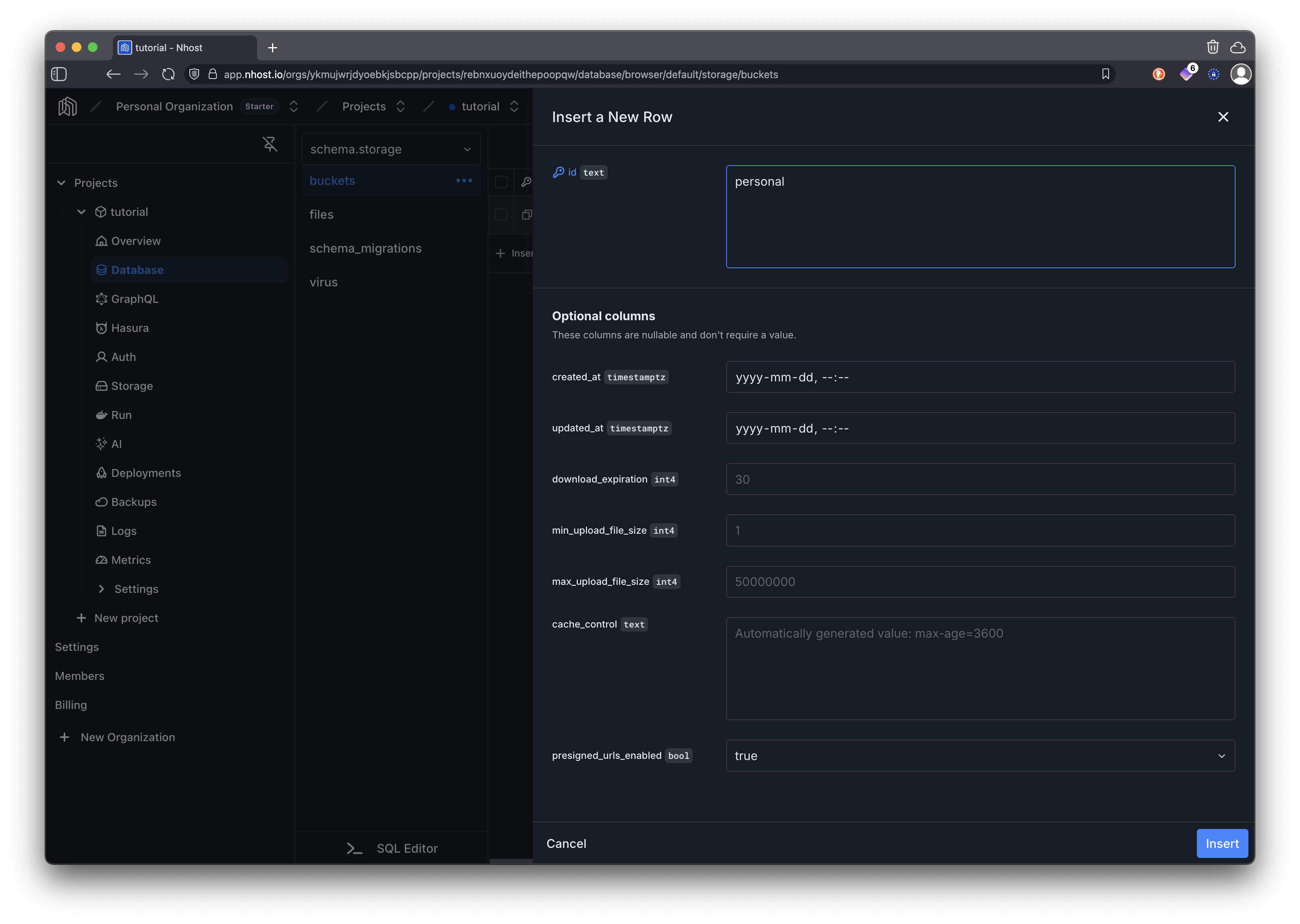
Section titled “Create a Personal Storage Bucket”First, we’ll create a storage bucket where users can upload their personal files.
In your Nhost project dashboard:
- Navigate to Storage
- Click New Bucket in the sidebar
- Set the name to
personaland click Save
Configure Storage Permissions
Section titled “Configure Storage Permissions”Now we need to set up permissions for the storage bucket to ensure the user role can only upload, view, and delete their own files.
In the dashboard, navigate to Storage and click Permissions to open the permission grid.
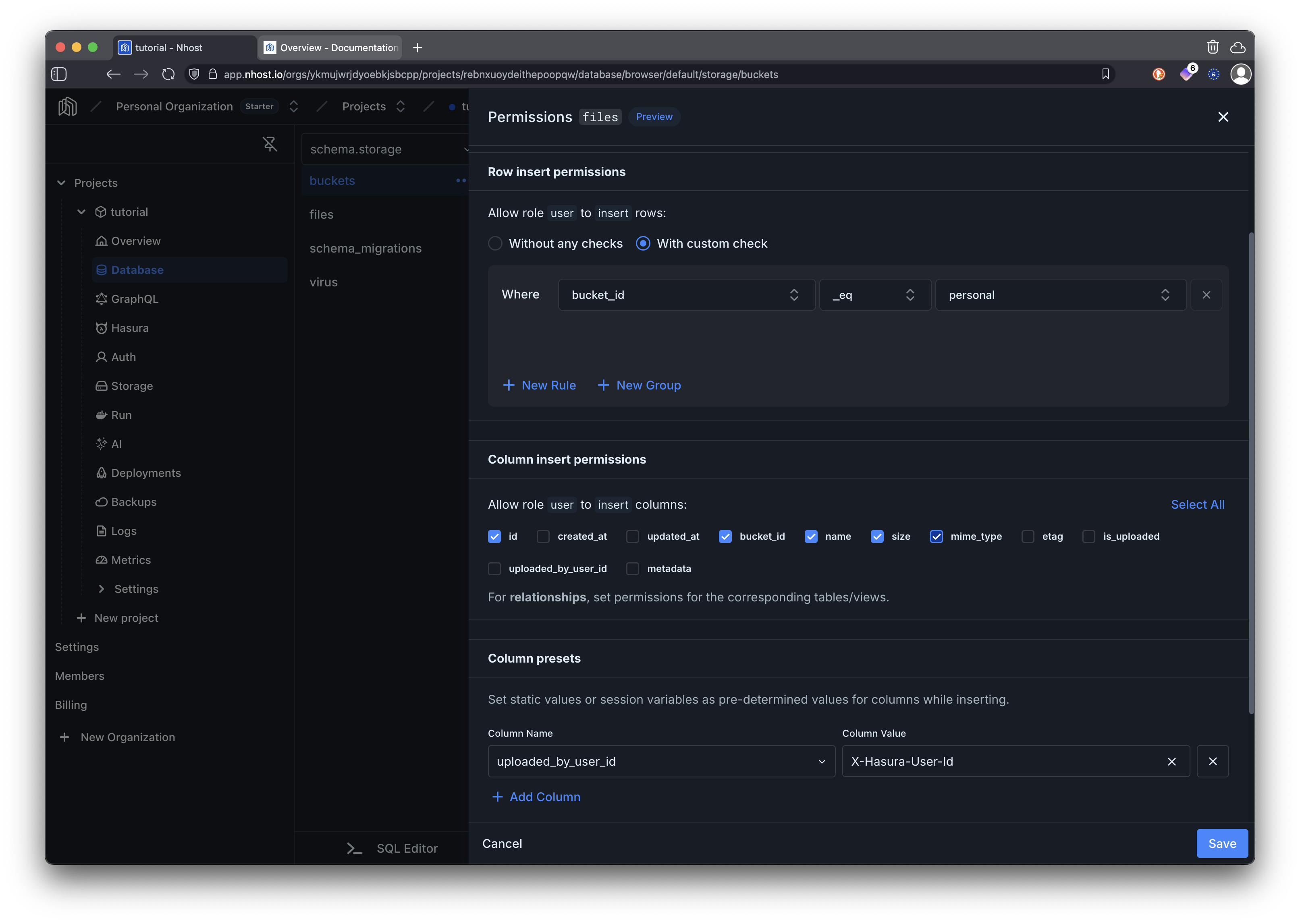
Click the Upload cell for the user role.
- Select With custom check and add a rule:
bucket_idequalspersonal - Enable the Uploader identity toggle — this automatically sets
uploaded_by_user_idto the current user’s ID on every upload, so you can reference it in Download and Delete rules.
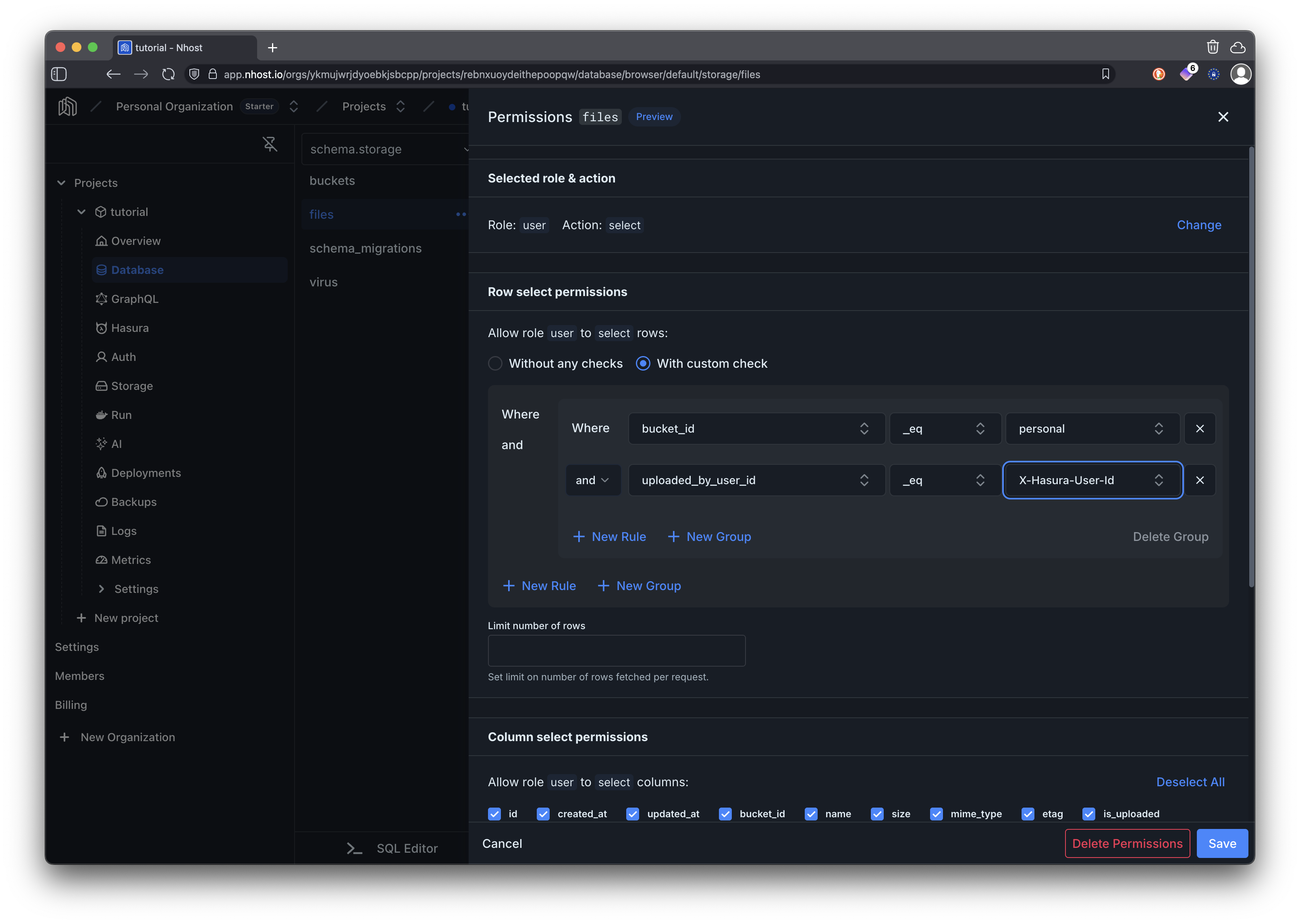
Click the Download cell for the user role.
- Select With custom check and add two rules combined with AND:
bucket_idequalspersonaluploaded_by_user_idequalsX-Hasura-User-Id
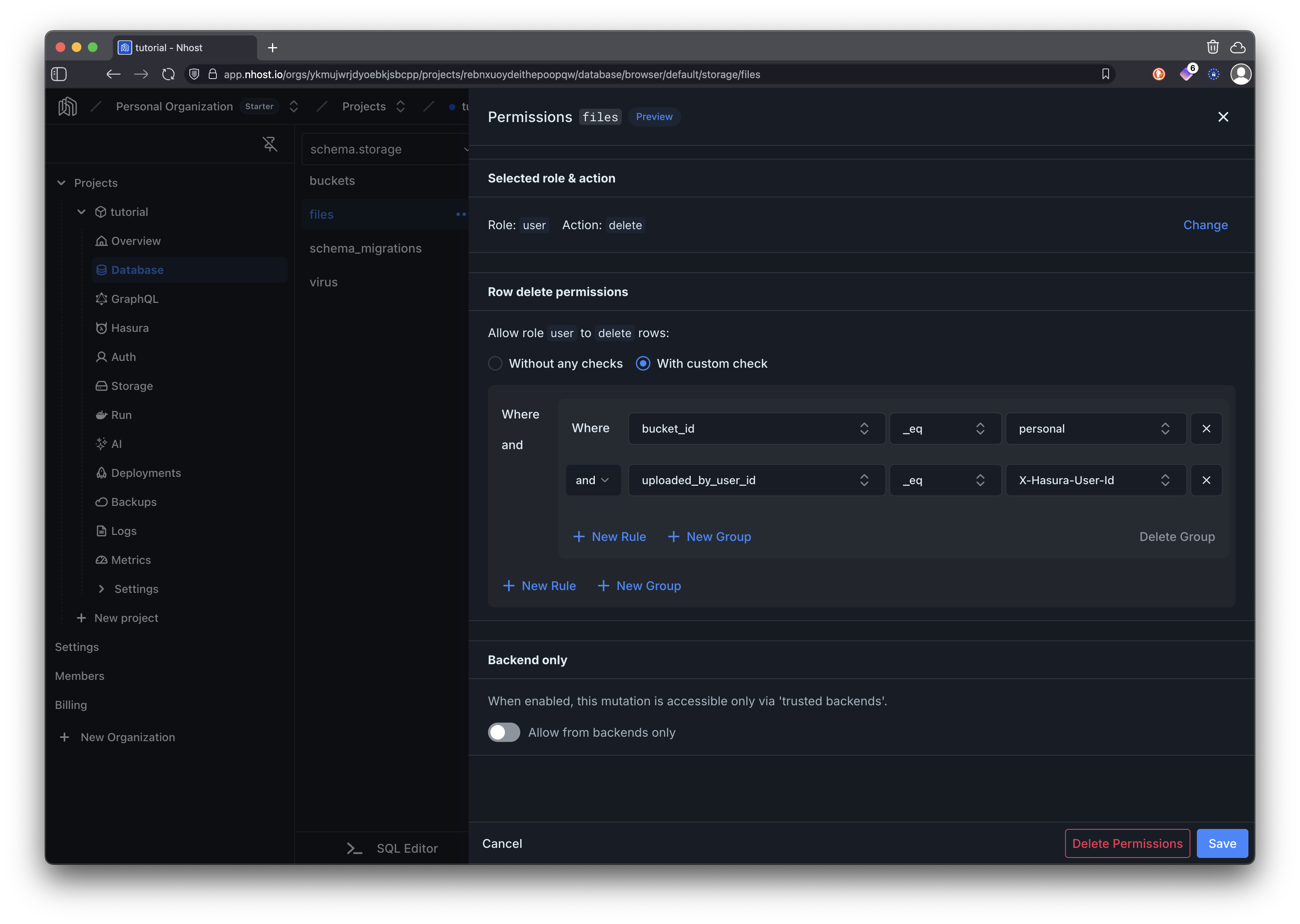
Click the Delete cell for the user role.
- Select With custom check and add the same two rules as Download:
bucket_idequalspersonaluploaded_by_user_idequalsX-Hasura-User-Id
Install Required Dependencies
Section titled “Install Required Dependencies”First, let’s install the dependencies needed for file handling in React Native.
npx expo install expo-document-picker@13 expo-file-system@18 expo-sharing@13- expo-document-picker: For selecting files from device storage
- expo-file-system: For handling file system operations
- expo-sharing: For sharing/opening files with other apps
Create the File Upload Screen Component
Section titled “Create the File Upload Screen Component”Now let’s implement the React Native screen for file upload functionality using the shared theme from the protected routes tutorial.
import type { FetchError } from "@nhost/nhost-js/fetch";import type { ErrorResponse, FileMetadata } from "@nhost/nhost-js/storage";import * as DocumentPicker from "expo-document-picker";import * as FileSystem from "expo-file-system";import { Stack } from "expo-router";import * as Sharing from "expo-sharing";import { useCallback, useEffect, useState } from "react";import { ActivityIndicator, Alert, FlatList, Text, TouchableOpacity, View,} from "react-native";import ProtectedScreen from "./components/ProtectedScreen";import { useAuth } from "./lib/nhost/AuthProvider";import { commonStyles, fileUploadStyles } from "./styles/commonStyles";import { colors } from "./styles/theme";
interface DeleteStatus { message: string; isError: boolean;}
interface GraphqlGetFilesResponse { files: FileMetadata[];}
// Utility function to format file sizefunction formatFileSize(bytes: number, decimals = 2): string { if (bytes === 0) return "0 Bytes";
const k = 1024; const dm = decimals < 0 ? 0 : decimals; const sizes = ["Bytes", "KB", "MB", "GB", "TB", "PB", "EB", "ZB", "YB"];
const i = Math.floor(Math.log(bytes) / Math.log(k));
return `${parseFloat((bytes / k ** i).toFixed(dm))} ${sizes[i]}`;}
// Convert Blob to Base64 for React Native file handlingfunction blobToBase64(blob: Blob): Promise<string> { return new Promise((resolve, reject) => { const reader = new FileReader(); reader.onloadend = () => { const base64data = reader.result as string; // Remove the data URL prefix (e.g., "data:application/octet-stream;base64,") const base64Content = base64data.split(",")[1] || ""; resolve(base64Content); }; reader.onerror = reject; reader.readAsDataURL(blob); });}
export default function Files() { const { nhost } = useAuth(); const [selectedFile, setSelectedFile] = useState<DocumentPicker.DocumentPickerResult | null>(null); const [uploading, setUploading] = useState<boolean>(false); const [uploadResult, setUploadResult] = useState<FileMetadata | null>(null); const [isFetching, setIsFetching] = useState<boolean>(true); const [error, setError] = useState<string | null>(null); const [files, setFiles] = useState<FileMetadata[]>([]); const [viewingFile, setViewingFile] = useState<string | null>(null); const [deleting, setDeleting] = useState<string | null>(null); const [deleteStatus, setDeleteStatus] = useState<DeleteStatus | null>(null); const [isViewingInProgress, setIsViewingInProgress] = useState<boolean>(false);
const fetchFiles = useCallback(async () => { setIsFetching(true); setError(null);
try { // Fetch files using GraphQL query const response = await nhost.graphql.request<GraphqlGetFilesResponse>({ query: `query GetFiles { files { id name size mimeType bucketId uploadedByUserId } }`, });
setFiles(response.body.data?.files || []); } catch (err) { const errMessage = err instanceof Error ? err.message : "An unexpected error occurred"; setError(`Failed to fetch files: ${errMessage}`); } finally { setIsFetching(false); } }, [nhost.graphql]);
// Fetch existing files when component mounts useEffect(() => { void fetchFiles(); }, [fetchFiles]);
const pickDocument = async () => { // Prevent DocumentPicker from opening if we're currently viewing a file if (isViewingInProgress) { return; }
try { const result = await DocumentPicker.getDocumentAsync({ type: "*/*", // All file types copyToCacheDirectory: true, });
if (!result.canceled) { setSelectedFile(result); setError(null); setUploadResult(null); } } catch (err) { setError("Failed to pick document"); console.error("DocumentPicker Error:", err); } };
const handleUpload = async () => { if (!selectedFile || selectedFile.canceled) { setError("Please select a file to upload"); return; }
setUploading(true); setError(null);
try { // For React Native, we need to read the file first const fileToUpload = selectedFile.assets?.[0]; if (!fileToUpload) { throw new Error("No file selected"); }
const file: unknown = { uri: fileToUpload.uri, name: fileToUpload.name || "file", type: fileToUpload.mimeType || "application/octet-stream", };
// Upload file to the personal bucket // The uploadedByUserId is automatically set by the storage permissions const response = await nhost.storage.uploadFiles({ "bucket-id": "personal", "file[]": [file as File], });
// Get the processed file data const uploadedFile = response.body.processedFiles?.[0]; if (uploadedFile === undefined) { throw new Error("Failed to upload file"); }
setUploadResult(uploadedFile);
// Reset form setSelectedFile(null);
// Update files list setFiles((prevFiles) => [uploadedFile, ...prevFiles]);
// Refresh file list await fetchFiles();
// Clear success message after 3 seconds setTimeout(() => { setUploadResult(null); }, 3000); } catch (err: unknown) { const error = err as FetchError<ErrorResponse>; setError(`Failed to upload file: ${error.message}`); console.error("Upload error:", err); } finally { setUploading(false); } };
// Function to handle viewing a file with proper authorization const handleViewFile = async ( fileId: string, fileName: string, mimeType: string, ) => { setViewingFile(fileId); setIsViewingInProgress(true);
try { // Fetch the file with authentication using the SDK const response = await nhost.storage.getFile(fileId);
if (!response.body) { throw new Error("Failed to retrieve file contents"); }
// For iOS/Android, we need to save the file to the device first // Create a unique temp file path with a timestamp to prevent collisions const timestamp = Date.now(); const tempFileName = fileName.includes(".") ? fileName : `${fileName}.file`; const tempFilePath = `${FileSystem.cacheDirectory}${timestamp}_${tempFileName}`;
// Get the blob from the response const blob = response.body;
// Convert blob to base64 const base64Data = await blobToBase64(blob);
// Write the file to the filesystem await FileSystem.writeAsStringAsync(tempFilePath, base64Data, { encoding: FileSystem.EncodingType.Base64, });
// Check if sharing is available (iOS & Android) const isSharingAvailable = await Sharing.isAvailableAsync();
if (isSharingAvailable) { // Open the file with the default app await Sharing.shareAsync(tempFilePath, { mimeType: mimeType || "application/octet-stream", dialogTitle: `View ${fileName}`, UTI: mimeType, // for iOS });
// Clean up the temp file after sharing try { await FileSystem.deleteAsync(tempFilePath, { idempotent: true }); } catch (cleanupErr) { console.warn("Failed to clean up temp file:", cleanupErr); }
// Add a delay before allowing new document picker actions // This prevents iOS from triggering file selection dialogs setTimeout(() => { setIsViewingInProgress(false); }, 1000); } else { throw new Error("Sharing is not available on this device"); } } catch (err) { const error = err as FetchError<ErrorResponse>; setError(`Failed to view file: ${error.message}`); console.error("Error viewing file:", err); Alert.alert("Error", `Failed to view file: ${error.message}`); setIsViewingInProgress(false); } finally { setViewingFile(null); } };
// Function to handle deleting a file const handleDeleteFile = (fileId: string) => { if (!fileId || deleting) return;
// Confirm deletion Alert.alert("Delete File", "Are you sure you want to delete this file?", [ { text: "Cancel", style: "cancel", }, { text: "Delete", style: "destructive", onPress: () => { void (async () => { setDeleting(fileId); setError(null); setDeleteStatus(null);
// Get the file name for the status message const fileToDelete = files.find((file) => file.id === fileId); const fileName = fileToDelete?.name || "File";
try { // Delete the file using the Nhost storage SDK // Permissions ensure users can only delete their own files await nhost.storage.deleteFile(fileId);
// Show success message setDeleteStatus({ message: `${fileName} deleted successfully`, isError: false, });
// Update the local files list by removing the deleted file setFiles(files.filter((file) => file.id !== fileId));
// Refresh the file list await fetchFiles();
// Clear the success message after 3 seconds setTimeout(() => { setDeleteStatus(null); }, 3000); } catch (err) { // Show error message const error = err as FetchError<ErrorResponse>; setDeleteStatus({ message: `Failed to delete ${fileName}: ${error.message}`, isError: true, }); console.error("Error deleting file:", err); } finally { setDeleting(null); } })(); }, }, ]); };
return ( <ProtectedScreen> <Stack.Screen options={{ title: "File Upload" }} /> <View style={commonStyles.container}> {/* Upload Form */} <View style={commonStyles.card}> <Text style={commonStyles.cardTitle}>Upload a File</Text>
<TouchableOpacity style={fileUploadStyles.fileUpload} onPress={pickDocument} > <View style={fileUploadStyles.uploadIcon}> <Text style={fileUploadStyles.uploadIconText}>⬆️</Text> </View> <Text style={fileUploadStyles.uploadText}> Tap to select a file </Text> {selectedFile && !selectedFile.canceled && selectedFile.assets?.[0] && ( <Text style={fileUploadStyles.fileName}> {selectedFile.assets[0].name} ( {formatFileSize(selectedFile.assets[0].size || 0)}) </Text> )} </TouchableOpacity>
{error && ( <View style={commonStyles.errorContainer}> <Text style={commonStyles.errorText}>{error}</Text> </View> )}
{uploadResult && ( <View style={commonStyles.successContainer}> <Text style={commonStyles.successText}> File uploaded successfully! </Text> </View> )}
<TouchableOpacity style={[ commonStyles.button, (!selectedFile || selectedFile.canceled || uploading) && fileUploadStyles.buttonDisabled, ]} onPress={handleUpload} disabled={!selectedFile || selectedFile.canceled || uploading} > <Text style={commonStyles.buttonText}> {uploading ? "Uploading..." : "Upload File"} </Text> </TouchableOpacity> </View>
{/* Files List */} <View style={commonStyles.card}> <Text style={commonStyles.cardTitle}>Your Files</Text>
{deleteStatus && ( <View style={[ deleteStatus.isError ? commonStyles.errorContainer : commonStyles.successContainer, ]} > <Text style={ deleteStatus.isError ? commonStyles.errorText : commonStyles.successText } > {deleteStatus.message} </Text> </View> )}
{isFetching ? ( <View style={commonStyles.loadingContainer}> <ActivityIndicator size="large" color={colors.primary} /> <Text style={commonStyles.loadingText}>Loading files...</Text> </View> ) : files.length === 0 ? ( <View style={fileUploadStyles.emptyState}> <Text style={fileUploadStyles.emptyIcon}>📄</Text> <Text style={fileUploadStyles.emptyTitle}>No files yet</Text> <Text style={fileUploadStyles.emptyDescription}> Upload your first file to get started! </Text> </View> ) : ( <FlatList data={files} keyExtractor={(item) => item.id || Math.random().toString()} renderItem={({ item }) => ( <View style={fileUploadStyles.fileItem}> <View style={fileUploadStyles.fileInfo}> <Text style={fileUploadStyles.fileNameText} numberOfLines={1} > {item.name} </Text> <Text style={fileUploadStyles.fileDetails}> {item.mimeType} • {formatFileSize(item.size || 0)} </Text> </View> <View style={fileUploadStyles.fileActions}> <TouchableOpacity style={fileUploadStyles.actionButton} onPress={() => handleViewFile( item.id || "unknown", item.name || "unknown", item.mimeType || "unknown", ) } disabled={viewingFile === item.id} > {viewingFile === item.id ? ( <Text style={fileUploadStyles.actionText}>⌛</Text> ) : ( <Text style={fileUploadStyles.actionText}>👁️</Text> )} </TouchableOpacity> <TouchableOpacity style={[ fileUploadStyles.actionButton, fileUploadStyles.deleteButton, ]} onPress={() => handleDeleteFile(item.id || "unknown")} disabled={deleting === item.id} > {deleting === item.id ? ( <Text style={fileUploadStyles.actionText}>⌛</Text> ) : ( <Text style={fileUploadStyles.actionText}>🗑️</Text> )} </TouchableOpacity> </View> </View> )} style={fileUploadStyles.fileList} /> )} </View> </View> </ProtectedScreen> );}Update Home Screen Navigation
Section titled “Update Home Screen Navigation”Update the home screen to include navigation to the new file upload screen.
import { useRouter } from "expo-router";import { Alert, Text, TouchableOpacity, View } from "react-native";import { useAuth } from "./lib/nhost/AuthProvider";import { commonStyles, homeStyles } from "./styles/commonStyles";
export default function Index() { const router = useRouter(); const { isAuthenticated, session, nhost, user } = useAuth();
const handleSignOut = async () => { Alert.alert("Sign Out", "Are you sure you want to sign out?", [ { text: "Cancel", style: "cancel" }, { text: "Sign Out", style: "destructive", onPress: async () => { try { if (session) { await nhost.auth.signOut({ refreshToken: session.refreshToken, }); } router.replace("/"); } catch (err: unknown) { const message = err instanceof Error ? err.message : String(err); Alert.alert("Error", `Failed to sign out: ${message}`); } }, }, ]); };
return ( <View style={commonStyles.centerContent}> <Text style={commonStyles.title}>Welcome to Nhost React Native Demo</Text>
<View style={homeStyles.welcomeCard}> {isAuthenticated ? ( <View style={{ gap: 15, width: "100%" }}> <Text style={homeStyles.welcomeText}> Hello, {user?.displayName || user?.email}! </Text>
<TouchableOpacity style={[commonStyles.button, commonStyles.fullWidth]} onPress={() => router.push("/todos")} > <Text style={commonStyles.buttonText}>My Todos</Text> </TouchableOpacity>
<TouchableOpacity style={[commonStyles.button, commonStyles.fullWidth]} onPress={() => router.push("/files")} > <Text style={commonStyles.buttonText}>My Files</Text> </TouchableOpacity>
<TouchableOpacity style={[commonStyles.button, commonStyles.fullWidth]} onPress={() => router.push("/profile")} > <Text style={commonStyles.buttonText}>Go to Profile</Text> </TouchableOpacity>
<TouchableOpacity style={[commonStyles.button, { backgroundColor: "#ef4444" }]} onPress={handleSignOut} > <Text style={commonStyles.buttonText}>Sign Out</Text> </TouchableOpacity> </View> ) : ( <> <Text style={homeStyles.authMessage}>You are not signed in.</Text>
<View style={{ gap: 15, width: "100%" }}> <TouchableOpacity style={[commonStyles.button, commonStyles.fullWidth]} onPress={() => router.push("/signin")} > <Text style={commonStyles.buttonText}>Sign In</Text> </TouchableOpacity>
<TouchableOpacity style={[ commonStyles.button, commonStyles.buttonSecondary, commonStyles.fullWidth, ]} onPress={() => router.push("/signup")} > <Text style={commonStyles.buttonText}>Sign Up</Text> </TouchableOpacity> </View> </> )} </View> </View> );}Test Your File Upload System
Section titled “Test Your File Upload System”Run your React Native application and test all the functionality:
npm startThings to try out:
- Try signing in and out and see how the file upload screen is only accessible when signed in.
- Upload different types of files (images, documents, PDFs, etc.)
- View files using the native sharing functionality
- Delete files with confirmation dialogs
- Sign in with another account and verify you cannot see files from the first account
- Test on both iOS and Android if available
Key Features Implemented
Section titled “Key Features Implemented”Personal Storage Bucket
Dedicated personal storage bucket with proper configuration for user file isolation using the “personal” bucket.
Native File Upload Interface
React Native file selection using Expo DocumentPicker with support for all file types and visual feedback.
Mobile File Management
Complete file listing with FlatList, file metadata display, native viewing, and deletion with confirmation dialogs.
Native File Handling
Platform-specific file handling using Expo FileSystem and Sharing for viewing files with appropriate native apps.
Row-Level Security
Comprehensive storage permissions ensuring users can only upload, view, and delete their own files through GraphQL and storage APIs.
Error Handling & UX
Native Alert dialogs, loading states, and user-friendly error messages optimized for mobile interfaces.