

File Uploads in SvelteKit
Learn how to implement file upload functionality with storage buckets and permissions while building a complete file management system with Nhost and SvelteKit
SvelteKit file uploads storage buckets file management storage permissions Nhost storageThis part builds upon the previous GraphQL operations part by demonstrating how to implement file upload functionality with proper storage permissions. You’ll learn how to create storage buckets, configure upload permissions, and implement complete file management operations in a SvelteKit application.
Full-Stack SvelteKit Development with Nhost
Section titled “Full-Stack SvelteKit Development with Nhost”Prerequisites
Section titled “Prerequisites”- Complete the GraphQL Operations part first
- The project from the previous part set up and running
What You’ll Build
Section titled “What You’ll Build”By the end of this part, you’ll have:
- A personal bucket so users can upload their own private files
- File upload functionality
- File management interface for viewing and deleting files
- Security permissions ensuring users can only access their own files
Step-by-Step Guide
Section titled “Step-by-Step Guide”Create a Personal Storage Bucket
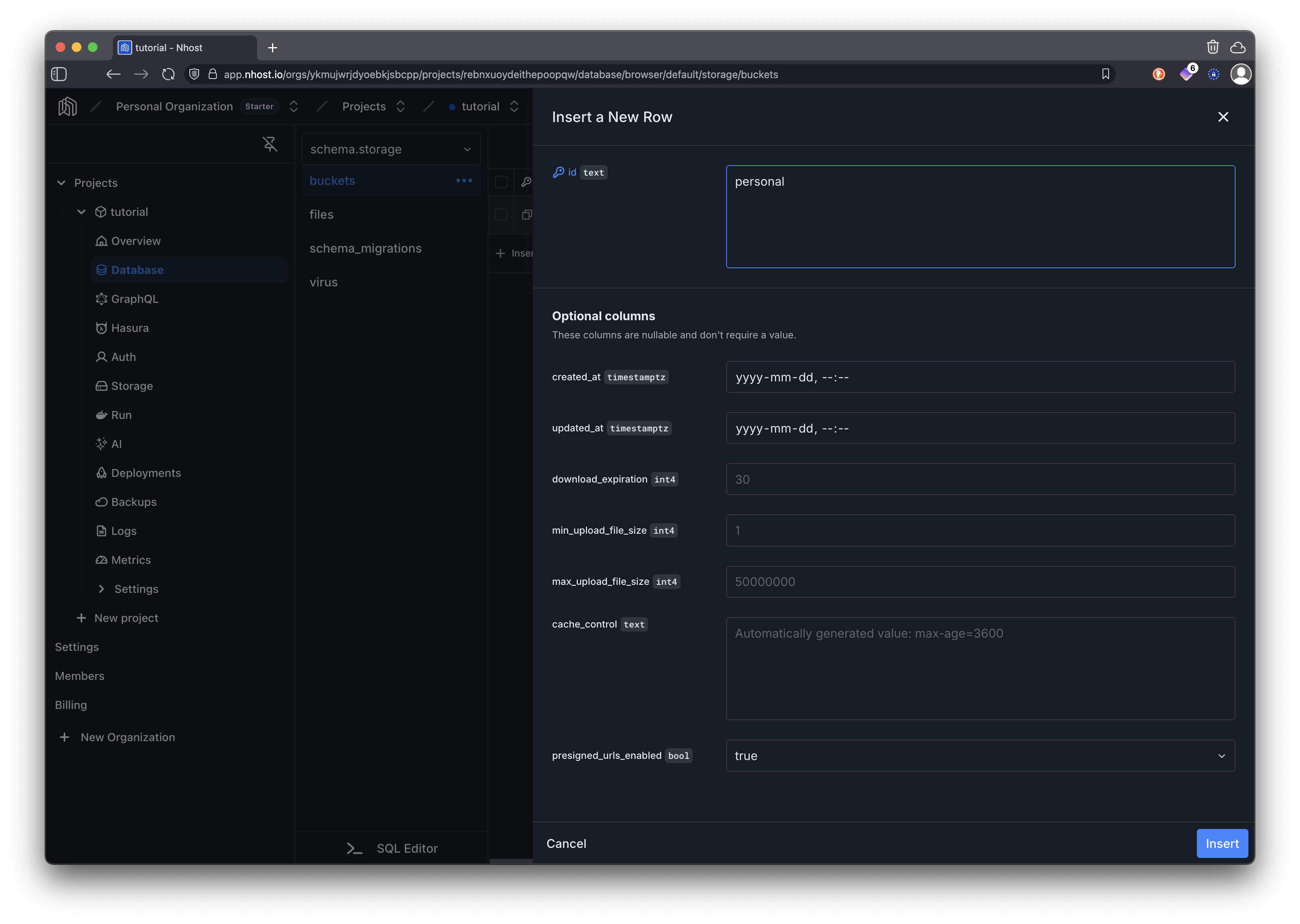
Section titled “Create a Personal Storage Bucket”First, we’ll create a storage bucket where users can upload their personal files.
In your Nhost project dashboard:
- Navigate to Storage
- Click New Bucket in the sidebar
- Set the name to
personaland click Save
Configure Storage Permissions
Section titled “Configure Storage Permissions”Now we need to set up permissions for the storage bucket to ensure the user role can only upload, view, and delete their own files.
In the dashboard, navigate to Storage and click Permissions to open the permission grid.
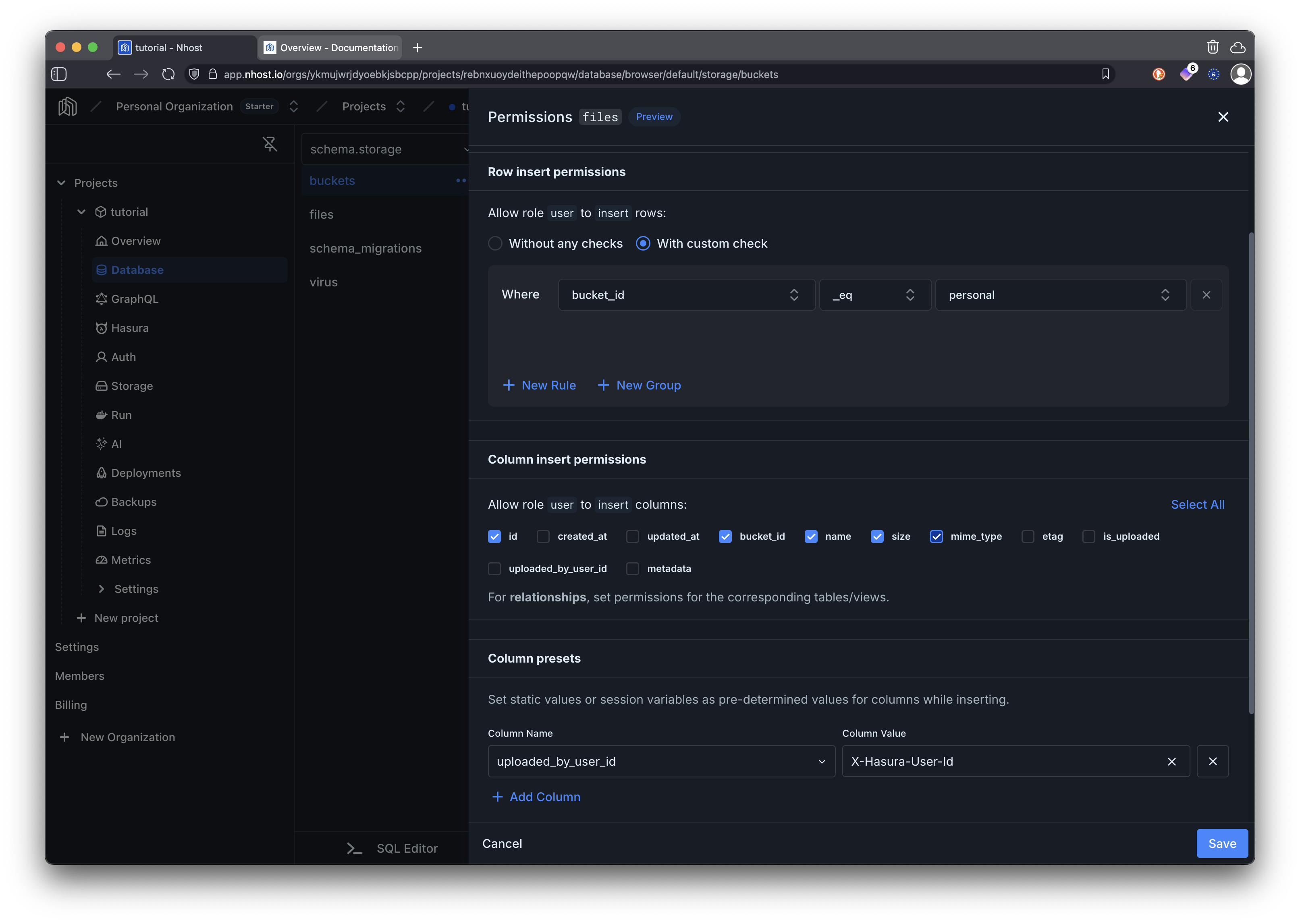
Click the Upload cell for the user role.
- Select With custom check and add a rule:
bucket_idequalspersonal - Enable the Uploader identity toggle — this automatically sets
uploaded_by_user_idto the current user’s ID on every upload, so you can reference it in Download and Delete rules.
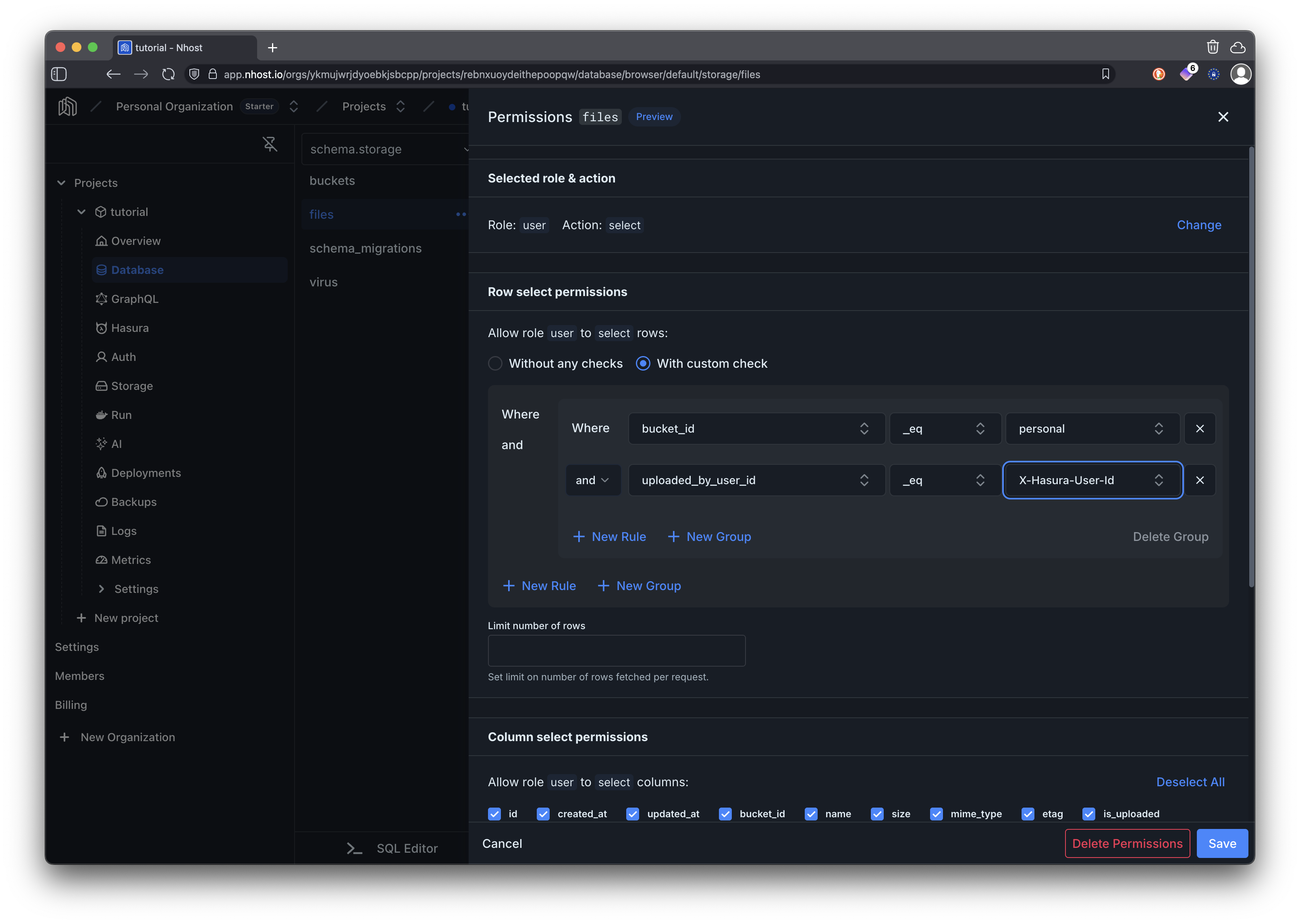
Click the Download cell for the user role.
- Select With custom check and add two rules combined with AND:
bucket_idequalspersonaluploaded_by_user_idequalsX-Hasura-User-Id
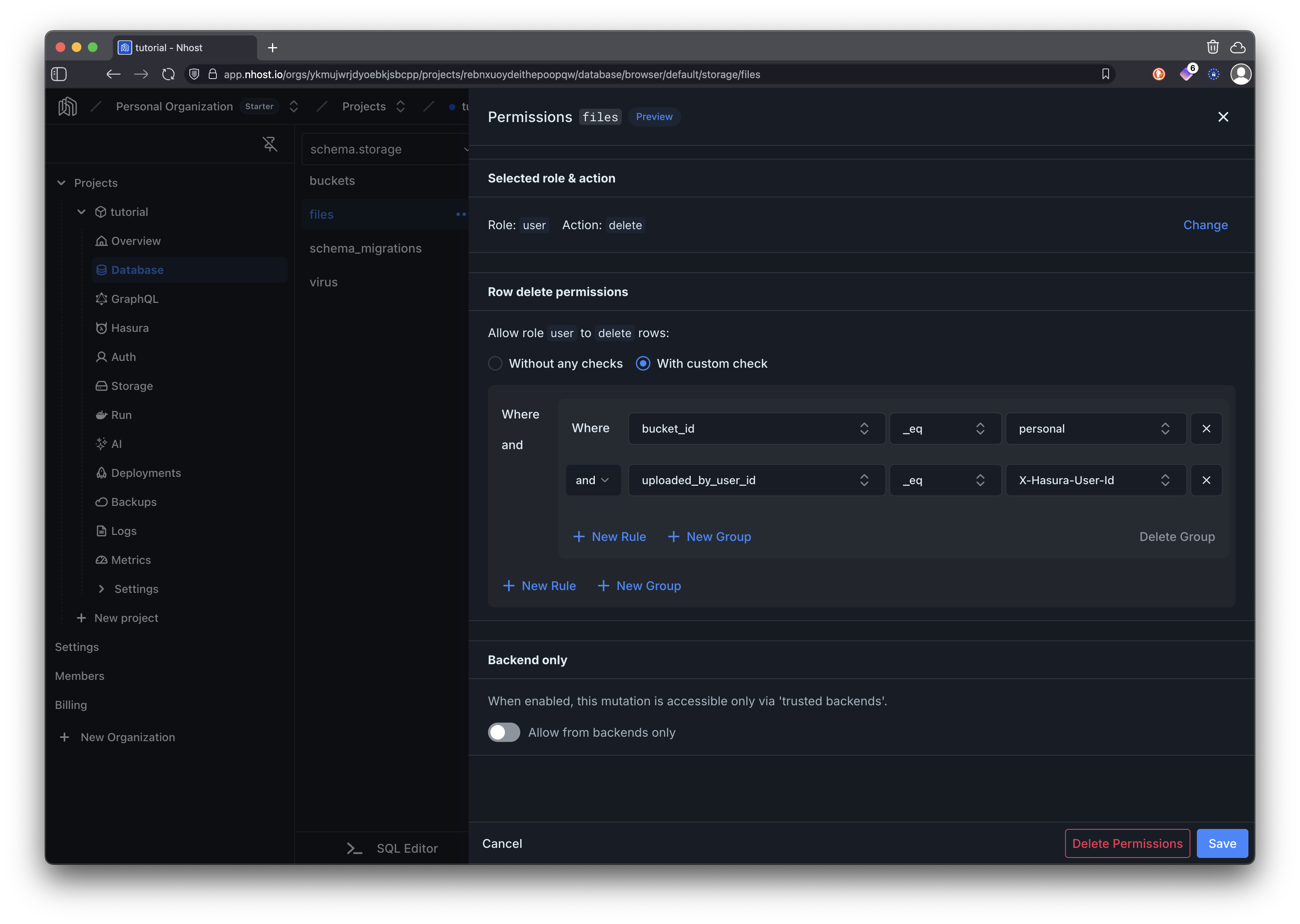
Click the Delete cell for the user role.
- Select With custom check and add the same two rules as Download:
bucket_idequalspersonaluploaded_by_user_idequalsX-Hasura-User-Id
Create the File Upload Component
Section titled “Create the File Upload Component”Now let’s implement the SvelteKit page component for file upload functionality.
<script lang="ts">import type { FileMetadata } from "@nhost/nhost-js/storage";import { goto } from "$app/navigation";import { auth } from "$lib/nhost/auth";
interface DeleteStatus { message: string; isError: boolean;}
interface GraphqlGetFilesResponse { files: FileMetadata[];}
let fileInputRef = $state<HTMLInputElement>();let selectedFile = $state<File | null>(null);let uploading = $state(false);let uploadResult = $state<FileMetadata | null>(null);let isFetching = $state(true);let error = $state<string | null>(null);let files = $state<FileMetadata[]>([]);let viewingFile = $state<string | null>(null);let deleting = $state<string | null>(null);let deleteStatus = $state<DeleteStatus | null>(null);
// Redirect if not authenticated$effect(() => { if (!$auth.isLoading && !$auth.isAuthenticated) { void goto("/signin"); }});
// Format file size in a readable wayfunction formatFileSize(bytes: number): string { if (bytes === 0) return "0 Bytes";
const sizes: string[] = ["Bytes", "KB", "MB", "GB", "TB"]; const i: number = Math.floor(Math.log(bytes) / Math.log(1024));
return `${parseFloat((bytes / 1024 ** i).toFixed(2))} ${sizes[i]}`;}
async function fetchFiles() { isFetching = true; error = null;
try { // Use GraphQL to fetch files from the storage system // Files are automatically filtered by user permissions const response = await $auth.nhost.graphql.request<GraphqlGetFilesResponse>( { query: `query GetFiles { files { id name size mimeType bucketId uploadedByUserId } }`, }, );
if (response.body.errors) { throw new Error( response.body.errors[0]?.message || "Failed to fetch files", ); }
files = response.body.data?.files || []; } catch (err) { console.error("Error fetching files:", err); error = "Failed to load files. Please try refreshing the page."; } finally { isFetching = false; }}
// Fetch files when user session is available$effect(() => { if ($auth.session) { fetchFiles(); }});
function handleFileChange(e: Event) { const target = e.target as HTMLInputElement; if (target.files && target.files.length > 0) { const file = target.files[0]; if (file) { selectedFile = file; error = null; uploadResult = null; } }}
async function handleUpload() { if (!selectedFile) { error = "Please select a file to upload"; return; }
uploading = true; error = null;
try { // Upload file to the personal bucket // The uploadedByUserId is automatically set by the storage permissions const response = await $auth.nhost.storage.uploadFiles({ "bucket-id": "personal", "file[]": [selectedFile], });
const uploadedFile = response.body.processedFiles?.[0]; if (uploadedFile === undefined) { throw new Error("Failed to upload file"); } uploadResult = uploadedFile;
// Clear the form selectedFile = null; if (fileInputRef) { fileInputRef.value = ""; }
// Update the files list files = [uploadedFile, ...files];
await fetchFiles();
// Clear success message after 3 seconds setTimeout(() => { uploadResult = null; }, 3000); } catch (err: unknown) { const message = (err as Error).message || "An unknown error occurred"; error = `Failed to upload file: ${message}`; } finally { uploading = false; }}
async function handleViewFile( fileId: string, fileName: string, mimeType: string,) { viewingFile = fileId;
try { // Get the file from storage const response = await $auth.nhost.storage.getFile(fileId);
const url = URL.createObjectURL(response.body);
// Handle different file types appropriately if ( mimeType.startsWith("image/") || mimeType === "application/pdf" || mimeType.startsWith("text/") || mimeType.startsWith("video/") || mimeType.startsWith("audio/") ) { // Open viewable files in new tab window.open(url, "_blank"); } else { // Download other file types const link = document.createElement("a"); link.href = url; link.download = fileName; document.body.appendChild(link); link.click(); document.body.removeChild(link);
// Show download confirmation const newWindow = window.open("", "_blank", "width=400,height=200"); if (newWindow) { newWindow.document.documentElement.innerHTML = ` <head> <title>File Download</title> <style> body { font-family: Arial, sans-serif; padding: 20px; text-align: center; } </style> </head> <body> <h3>Downloading: ${fileName}</h3> <p>Your download has started. You can close this window.</p> </body> `; } } } catch (err) { const message = (err as Error).message || "An unknown error occurred"; error = `Failed to view file: ${message}`; console.error("Error viewing file:", err); } finally { viewingFile = null; }}
async function handleDeleteFile(fileId: string) { if (!fileId || deleting) return;
deleting = fileId; error = null; deleteStatus = null;
const fileToDelete = files.find((file) => file.id === fileId); const fileName = fileToDelete?.name || "File";
try { // Delete file from storage // Permissions ensure users can only delete their own files await $auth.nhost.storage.deleteFile(fileId);
deleteStatus = { message: `${fileName} deleted successfully`, isError: false, };
// Remove from local state files = files.filter((file) => file.id !== fileId);
await fetchFiles();
// Clear success message after 3 seconds setTimeout(() => { deleteStatus = null; }, 3000); } catch (err) { const message = (err as Error).message || "An unknown error occurred"; deleteStatus = { message: `Failed to delete ${fileName}: ${message}`, isError: true, }; console.error("Error deleting file:", err); } finally { deleting = null; }}</script>
{#if !$auth.session} <div class="auth-message"> <p>Please sign in to access file uploads.</p> </div>{:else} <div class="container"> <header class="page-header"> <h1 class="page-title">File Upload</h1> </header>
<div class="form-card"> <h2 class="form-title">Upload a File</h2>
<div class="field-group"> <input type="file" bind:this={fileInputRef} onchange={handleFileChange} style="position: absolute; width: 1px; height: 1px; padding: 0; margin: -1px; overflow: hidden; clip: rect(0,0,0,0); border: 0;" aria-hidden="true" tabindex="-1" /> <button type="button" class="btn btn-secondary file-upload-btn" onclick={() => fileInputRef?.click()} > <svg width="40" height="40" fill="none" viewBox="0 0 24 24" stroke="currentColor" role="img" aria-label="Upload file" > <path stroke-linecap="round" stroke-linejoin="round" stroke-width="2" d="M7 16a4 4 0 01-.88-7.903A5 5 0 1115.9 6L16 6a5 5 0 011 9.9M15 13l-3-3m0 0l-3 3m3-3v12" /> </svg> <p>Click to select a file</p> {#if selectedFile} <p class="file-upload-info"> {selectedFile.name} ({formatFileSize(selectedFile.size)}) </p> {/if} </button> </div>
{#if error} <div class="error-message">{error}</div> {/if}
{#if uploadResult} <div class="success-message">File uploaded successfully!</div> {/if}
<button type="button" onclick={handleUpload} disabled={!selectedFile || uploading} class="btn btn-primary" style="width: 100%" > {uploading ? "Uploading..." : "Upload File"} </button> </div>
<div class="form-card"> <h2 class="form-title">Your Files</h2>
{#if deleteStatus} <div class={deleteStatus.isError ? "error-message" : "success-message"}> {deleteStatus.message} </div> {/if}
{#if isFetching} <div class="loading-container"> <div class="loading-content"> <div class="spinner"></div> <span class="loading-text">Loading files...</span> </div> </div> {:else if files.length === 0} <div class="empty-state"> <svg class="empty-icon" fill="none" stroke="currentColor" viewBox="0 0 24 24" aria-hidden="true" > <path stroke-linecap="round" stroke-linejoin="round" stroke-width="1.5" d="M7 21h10a2 2 0 002-2V9.414a1 1 0 00-.293-.707l-5.414-5.414A1 1 0 0012.586 3H7a2 2 0 00-2 2v14a2 2 0 002 2z" /> </svg> <h3 class="empty-title">No files yet</h3> <p class="empty-description">Upload your first file to get started!</p> </div> {:else} <div style="overflow-x: auto"> <table class="file-table"> <thead> <tr> <th>Name</th> <th>Type</th> <th>Size</th> <th>Actions</th> </tr> </thead> <tbody> {#each files as file (file.id)} <tr> <td class="file-name">{file.name}</td> <td class="file-meta">{file.mimeType}</td> <td class="file-meta">{formatFileSize(file.size || 0)}</td> <td> <div class="file-actions"> <button type="button" onclick={() => handleViewFile( file.id || "unknown", file.name || "unknown", file.mimeType || "unknown", )} disabled={viewingFile === file.id} class="action-btn action-btn-edit" title="View File" > {viewingFile === file.id ? "⏳" : "👁️"} </button> <button type="button" onclick={() => handleDeleteFile(file.id || "unknown")} disabled={deleting === file.id} class="action-btn action-btn-delete" title="Delete File" > {deleting === file.id ? "⏳" : "🗑️"} </button> </div> </td> </tr> {/each} </tbody> </table> </div> {/if} </div> </div>{/if}Update Navigation Links
Section titled “Update Navigation Links”Add a link to the files page in the navigation layout. Update your src/routes/+layout.svelte file to include the files link:
<script lang="ts">import { onMount } from "svelte";import { goto } from "$app/navigation";import { page } from "$app/stores";import { auth, initializeAuth, nhost } from "$lib/nhost/auth";import "../app.css";
let { children }: { children?: import("svelte").Snippet } = $props();
// Initialize auth when component mountsonMount(() => { return initializeAuth();});
// Helper function to determine if a link is activefunction isActive(path: string): string { return $page.url.pathname === path ? "nav-link active" : "nav-link";}
async function handleSignOut() { if ($auth.session) { await nhost.auth.signOut({ refreshToken: $auth.session.refreshToken, }); void goto("/"); }}</script>
<div id="root"> <nav class="navigation"> <div class="nav-container"> <a href="/" class="nav-logo">Nhost SvelteKit Demo</a>
<div class="nav-links"> <a href="/" class="nav-link">Home</a>
{#if $auth.isAuthenticated} <a href="/todos" class={isActive('/todos')}>Todos</a> <a href="/files" class={isActive('/files')}>Files</a> <a href="/profile" class={isActive('/profile')}>Profile</a> <button onclick={handleSignOut} class="nav-link nav-button" > Sign Out </button> {:else} <a href="/signin" class="nav-link {isActive('/signin')}"> Sign In </a> <a href="/signup" class="nav-link {isActive('/signup')}"> Sign Up </a> {/if} </div> </div> </nav>
<div class="app-content"> {#if children} {@render children()} {/if} </div></div>Test Your File Upload System
Section titled “Test Your File Upload System”Run your SvelteKit application and test all the functionality:
npm run devThings to try out:
- Try signing in and out and see how the file upload page is only accessible when signed in.
- Upload different types of files (images, documents, etc.)
- View and delete files
- Sign in with another account and verify you cannot see files from the first account
Key Features Implemented
Section titled “Key Features Implemented”Storage Bucket
Dedicated personal storage bucket with proper configuration for user file isolation.
File Upload Interface
User-friendly upload interface with file selection, preview, and progress feedback using SvelteKit’s reactive patterns.
File Management
Complete file listing with metadata, viewing capabilities, and deletion functionality.
File Type Handling
Intelligent handling of different file types with appropriate viewing/download behavior.
Error Handling
Comprehensive error handling with user-friendly messages for upload and management operations using Svelte stores.