

Native Queries
Expose a custom SQL query as a GraphQL field using logical models to describe the shape of the result.
native queries logical models custom SQL GraphQL PostgreSQL permissions relationshipsA native query turns a hand-written SQL query into a GraphQL root field. Native queries are useful when the generated GraphQL API from your tables cannot express what you need, such as window functions, recursive CTEs, aggregates across several tables, or queries that are better kept in SQL than rebuilt in your application.
Native queries are read-only. They execute a SELECT query and return rows. To modify data, use mutations or Functions.
Every native query needs a logical model, which describes the shape of the rows it returns. The model is what the GraphQL API exposes as a type, and it is also where permissions are defined. The following sections explain how logical models work and how they fit into native queries.
Where to find it
Section titled “Where to find it”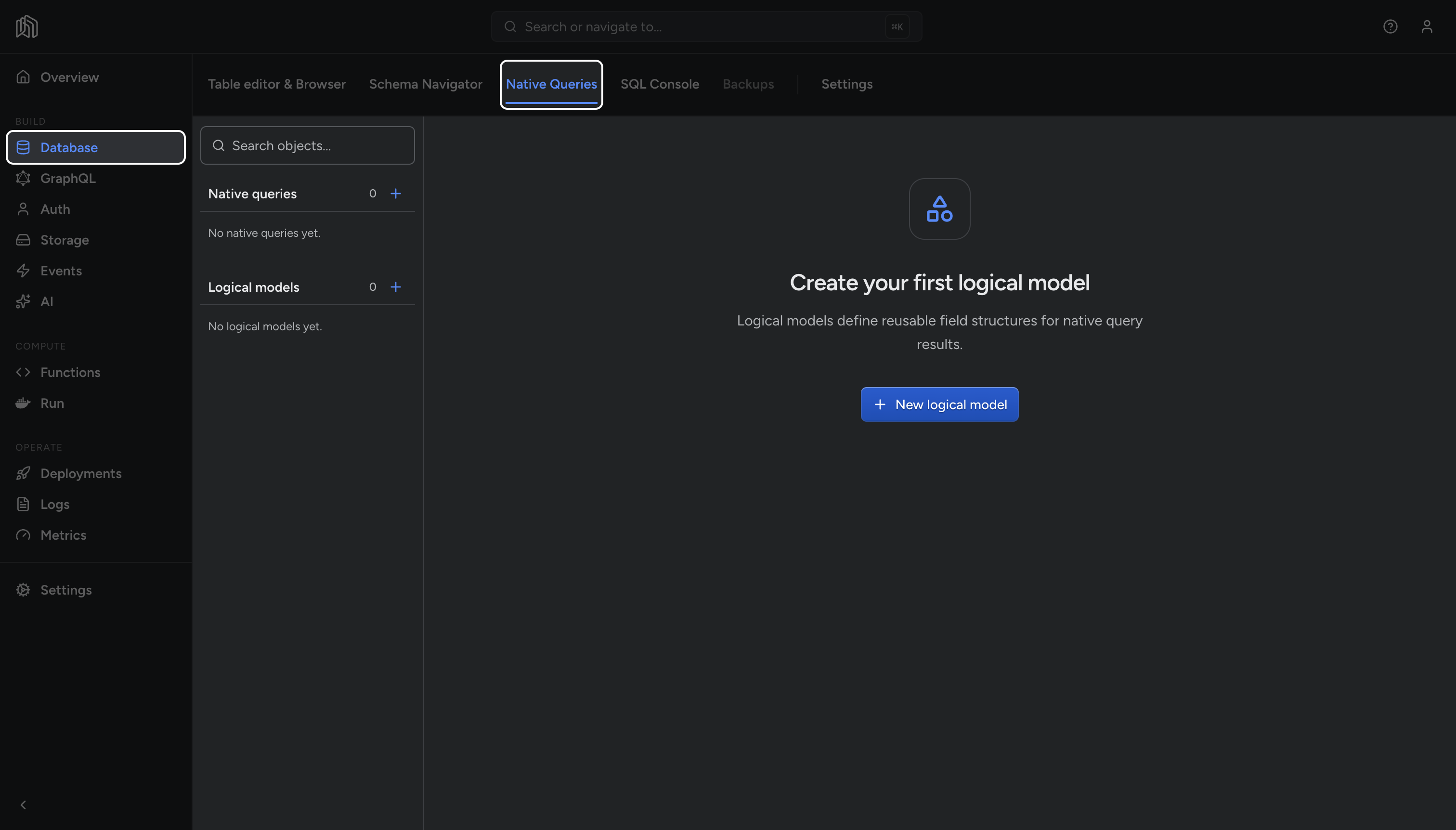
In the dashboard, open Database → Native Queries. The page is also reachable from the command palette (⌘K on Mac, Ctrl+K on Windows/Linux) by searching for “native queries” or “logical models”.
Native Query Concepts
Section titled “Native Query Concepts”| Concept | Purpose |
|---|---|
| Logical model | Names the fields and types of a result shape. Exposed as a GraphQL type |
| Native query | Holds the SQL, its arguments, and the logical model it returns |
| Permissions | Defined on the logical model, per role, select only |
| Relationships | Link one native query to another, object or array |
A logical model can be reused by more than one native query, and can be nested inside another logical model.
Create a logical model
Section titled “Create a logical model”-
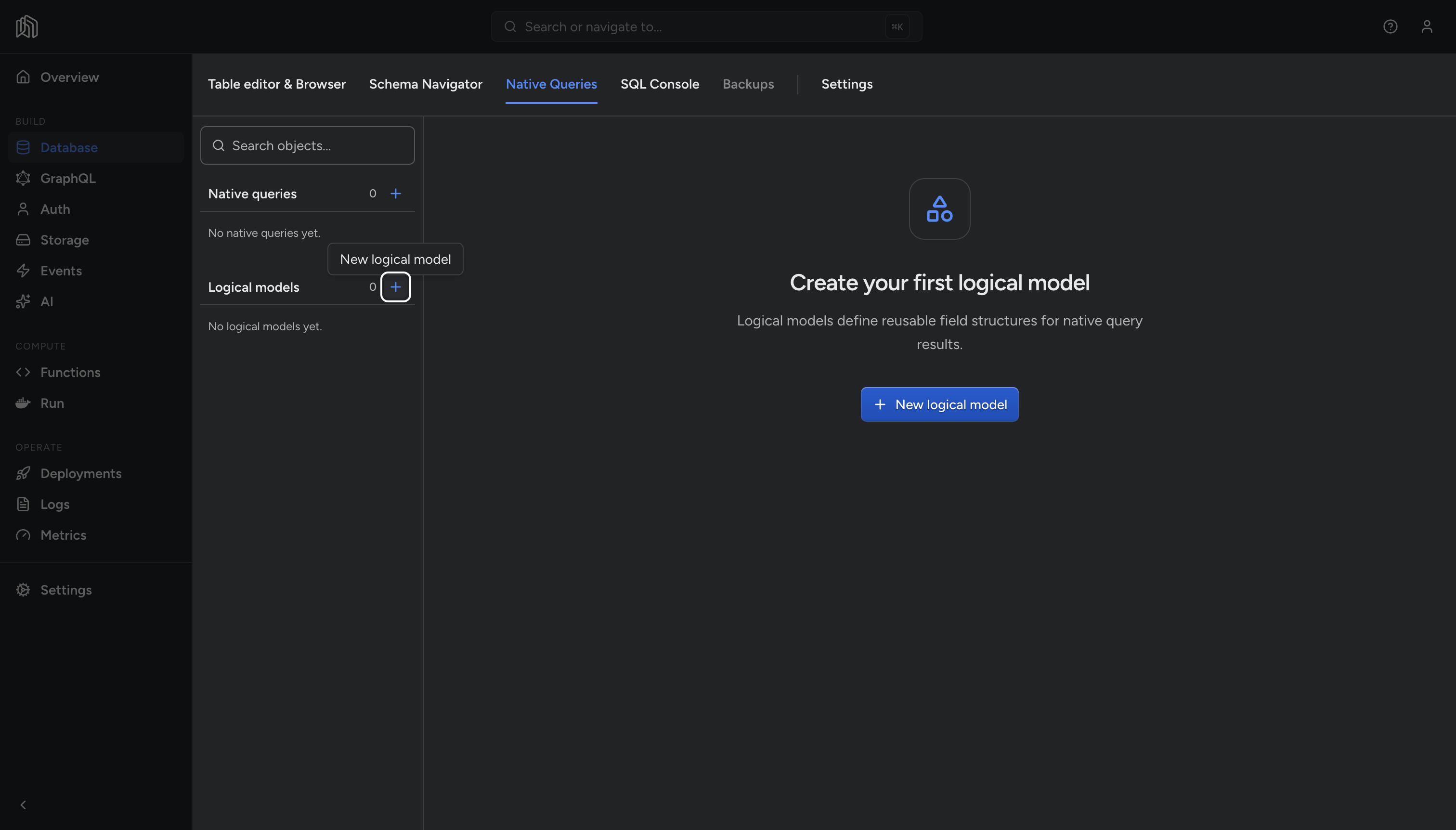
Next to the Logical models heading in the sidebar, click
+.
-
Give the model a Name. Names must start with a letter or an underscore and contain only letters, numbers, and underscores, because the name becomes a GraphQL type.
-
Add an optional Description. This becomes the GraphQL description for the generated type.
-
Click Add field. Each field row has Name, Kind, Type/value, Nullable, and Description. Field names follow the same rules as the model name, and must be unique within the model.
-
Click Create.
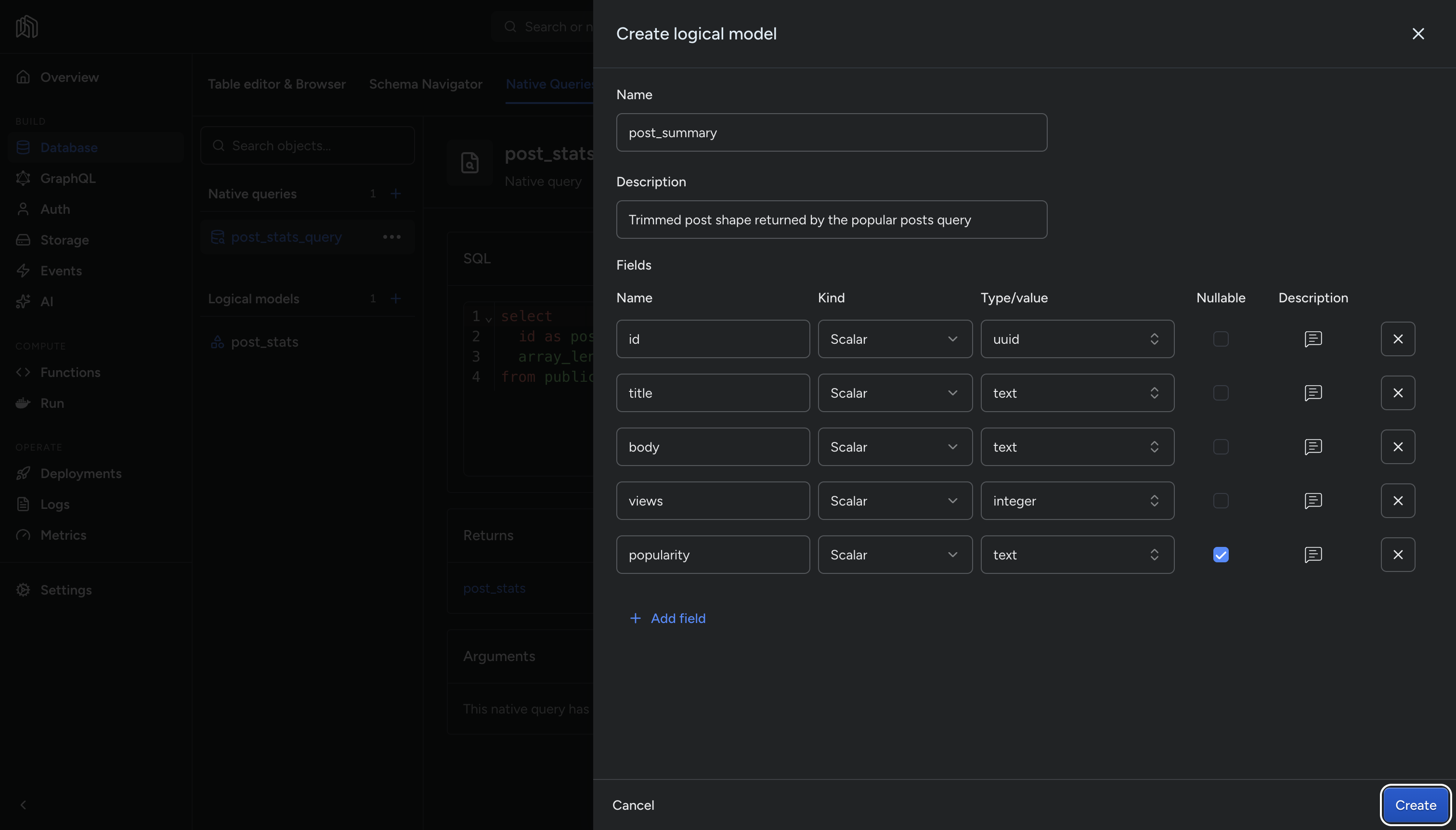
In our example, we have a post_summary logical model with fields id, title, body, views, and popularity.
The Kind Field
Section titled “The Kind Field”Kind controls what goes in the Type/value column:
- Scalar: a Postgres type such as
text,integer, oruuid. The type list is searchable, and it also accepts a type you type yourself, so a type the dashboard does not list still works. - Logical model: another logical model, which nests that model’s shape inside this one.
- Array: a list of either of the above. Choosing Array adds a second row for the item type, with its own Nullable checkbox, so the list and its items are set independently.
Create a native query
Section titled “Create a native query”-
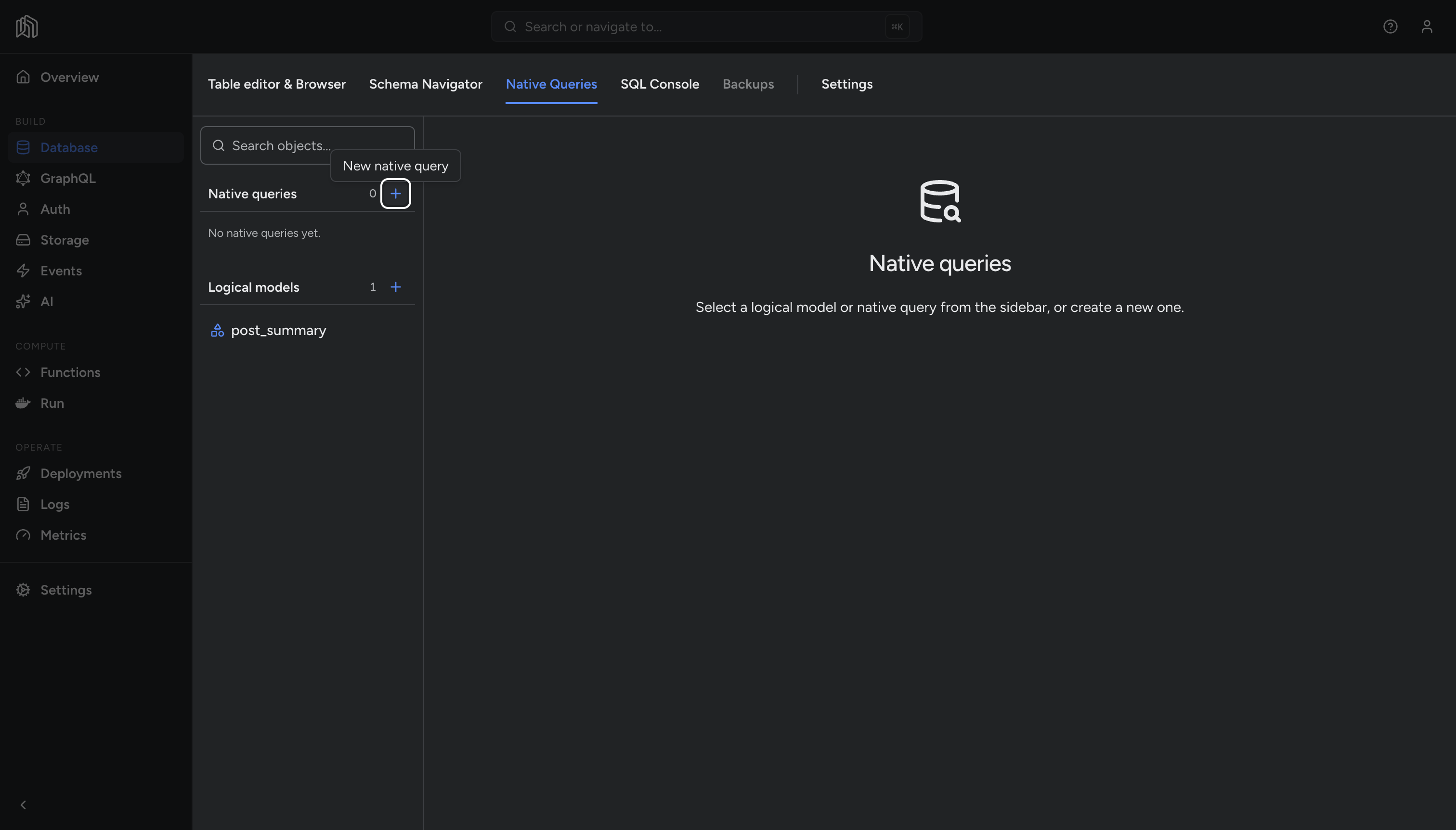
Next to the Native queries heading in the sidebar, click
+.
-
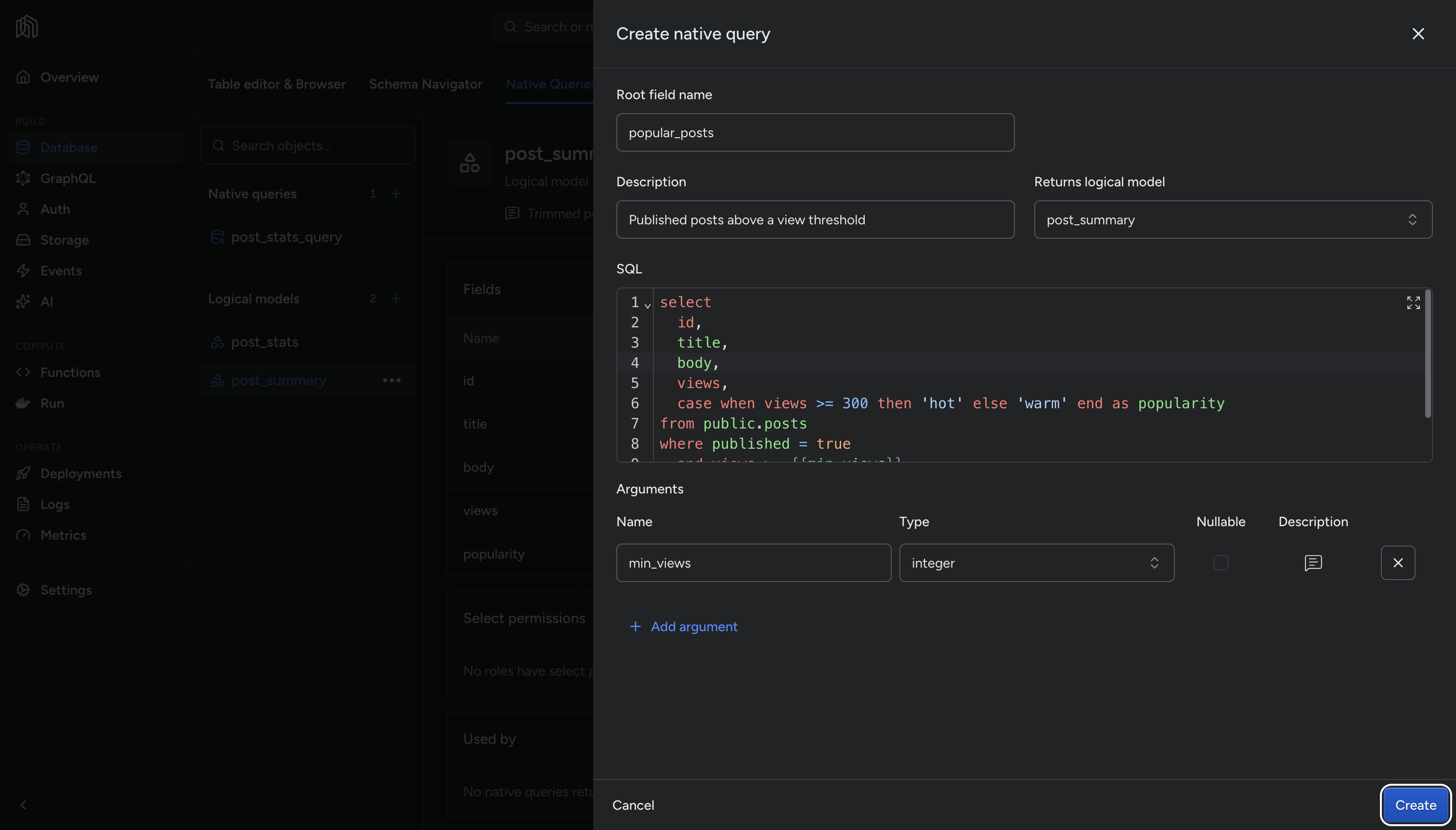
Set the Root field name. This is the field name clients query, and it follows the same naming rules as a logical model.
-
Pick the logical model under Returns logical model. If the model does not exist yet, create it from inside this form rather than leaving the page.
-
Write the query in the SQL editor. The editor highlights Postgres syntax and expands to a full-screen dialog.
SELECTid,title,body,views,CASE WHEN views >= 300 THEN 'hot' ELSE 'warm' END AS popularityFROM public.postsWHERE published = trueAND views >= {{min_views}}ORDER BY views DESCNote: Arguments are interpolated by name,
{{min_views}}here, not$1. Column names must match the model’s fields exactly, which is whypopularityis aliased. -
Click Add argument for each parameter the query takes. Each argument has a Name, Type, Nullable, and Description, and names must be unique within the query.
-
Click Create.
Once the native query is created, the details page shows its SQL, Returns, and Arguments.
Run a native query
Section titled “Run a native query”The native query is available as a root field in the GraphQL schema.
The GraphQL Playground autocompletes the root field and the fields of the returned model, which makes it a convenient way to test the query. In the project’s sidebar, open GraphQL → Playground:
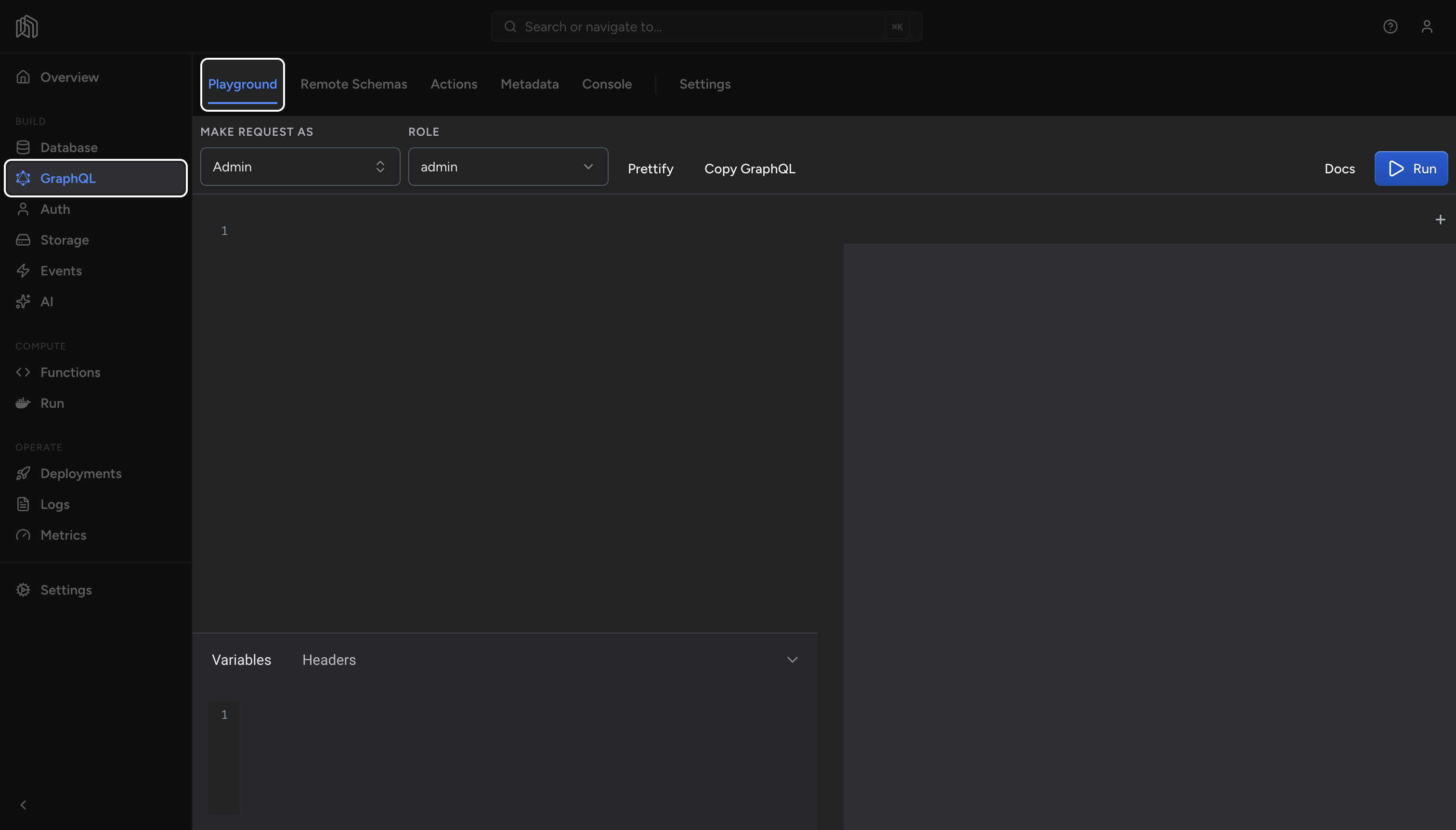
As an example, we could fetch popular_posts with a min_views of 100 using the following query:
{ popular_posts(args: { min_views: 100 }) { id title views popularity }}Note: args expects a single object, ie. { min_views: 100 }. A query that takes no arguments is queried without args.
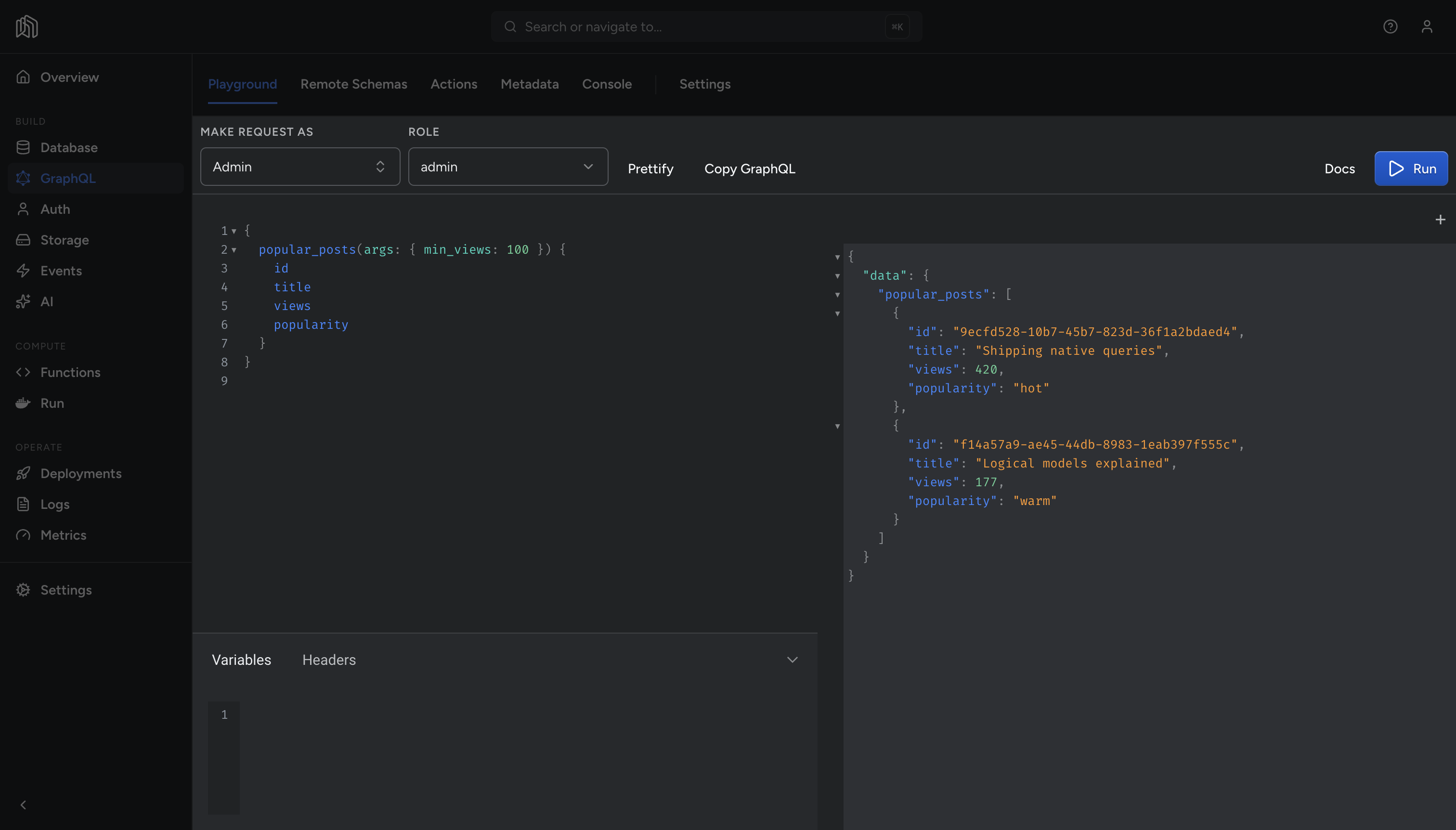
Our result returns posts above the argument threshold value, with computed popularity field.
The popular_posts root field is also available on any GraphQL client, including the JavaScript SDK and plain HTTP:
curl -s https://{subdomain}.graphql.{region}.nhost.run/v1 \ -H 'content-type: application/json' \ -H 'x-hasura-admin-secret: {admin-secret}' \ --data-raw '{"query":"query { popular_posts(args: {min_views: 100}) { id title views } }"}'Permissions
Section titled “Permissions”Permissions are defined on the logical model, not on the native query. A model’s permissions apply everywhere that model is returned.
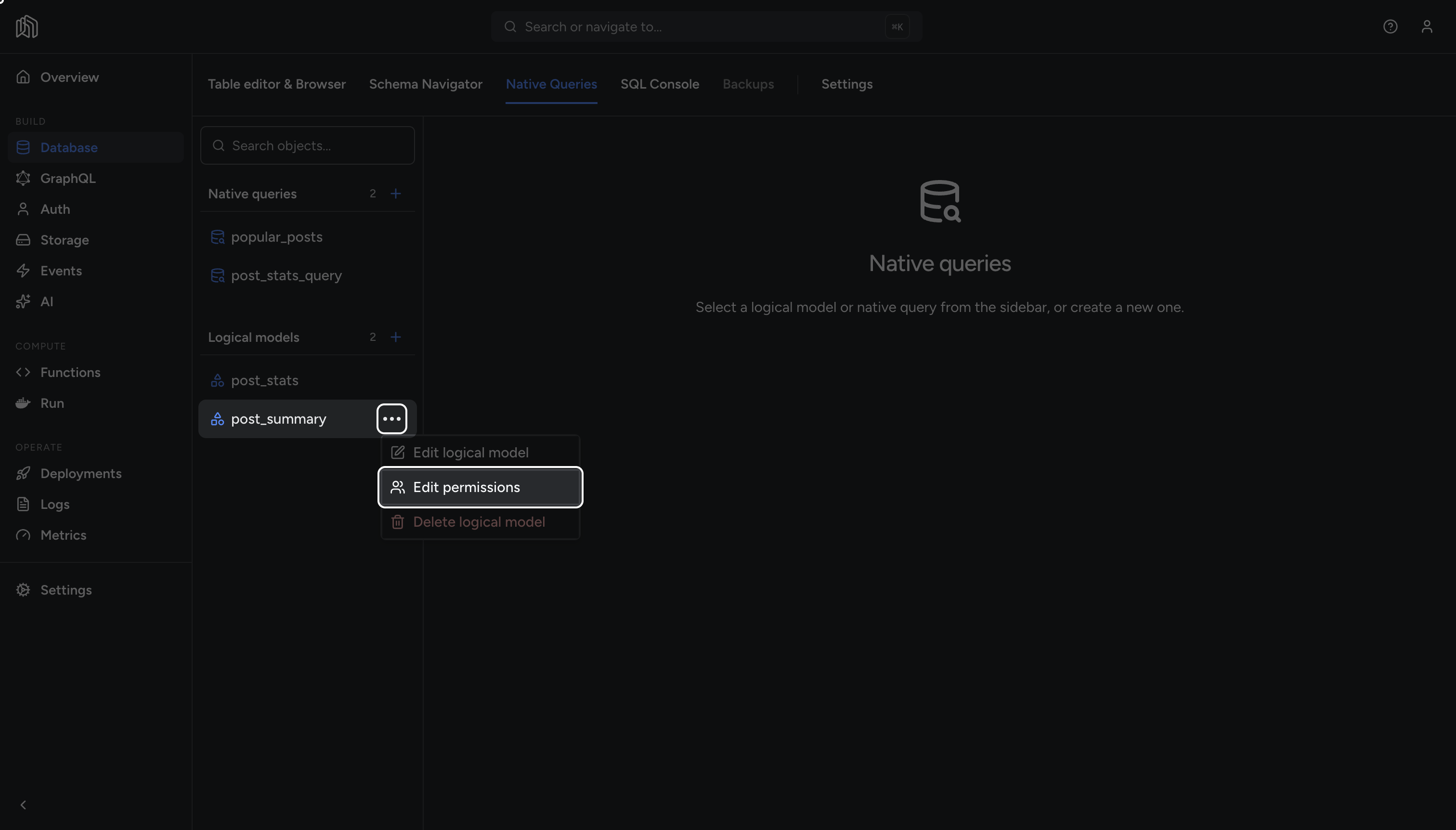
Open the model’s menu in the sidebar and choose Edit permissions.
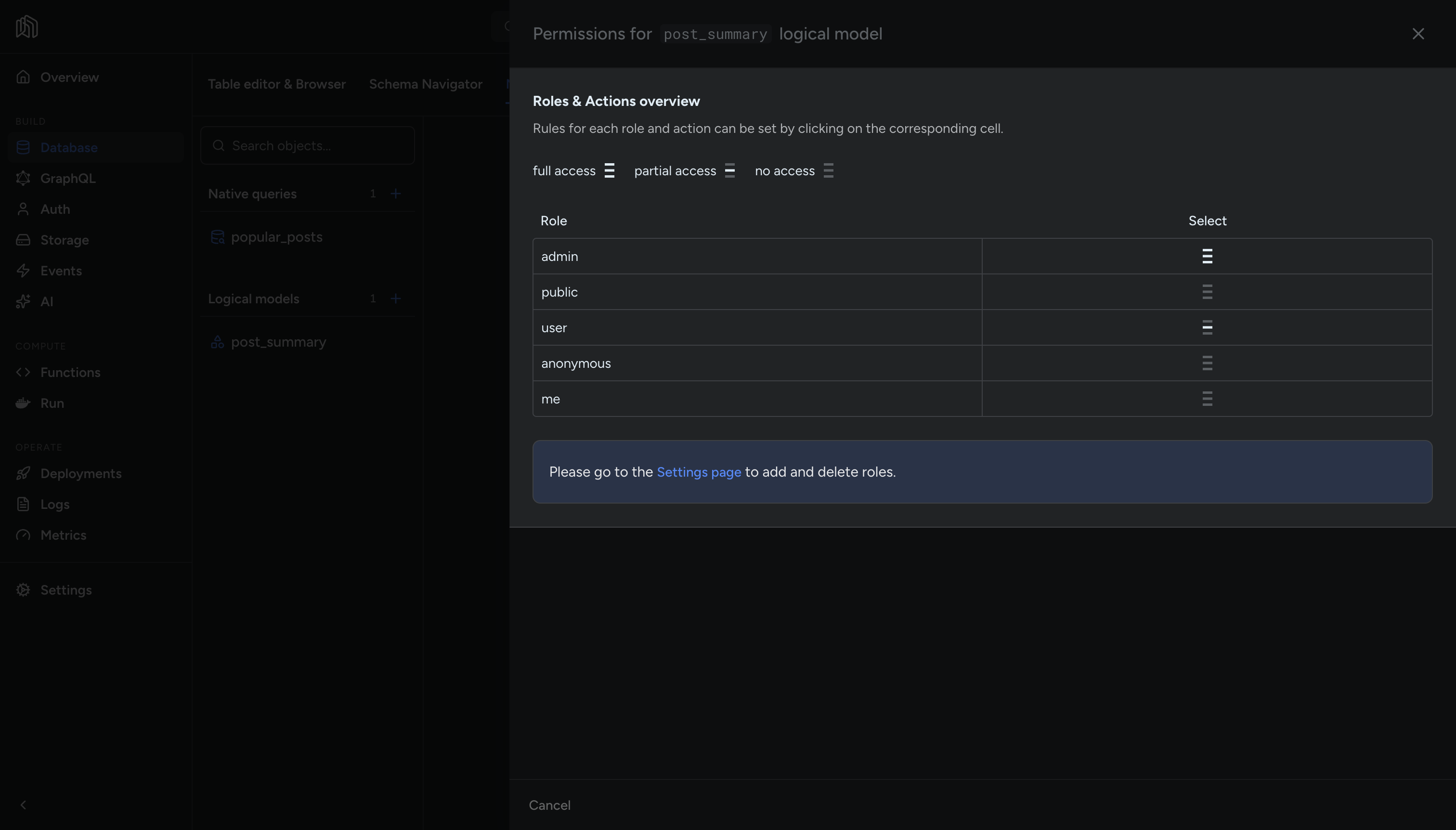
The grid lists the project’s roles with a single select column, because native queries are read-only: there is no insert, update, or delete to grant.
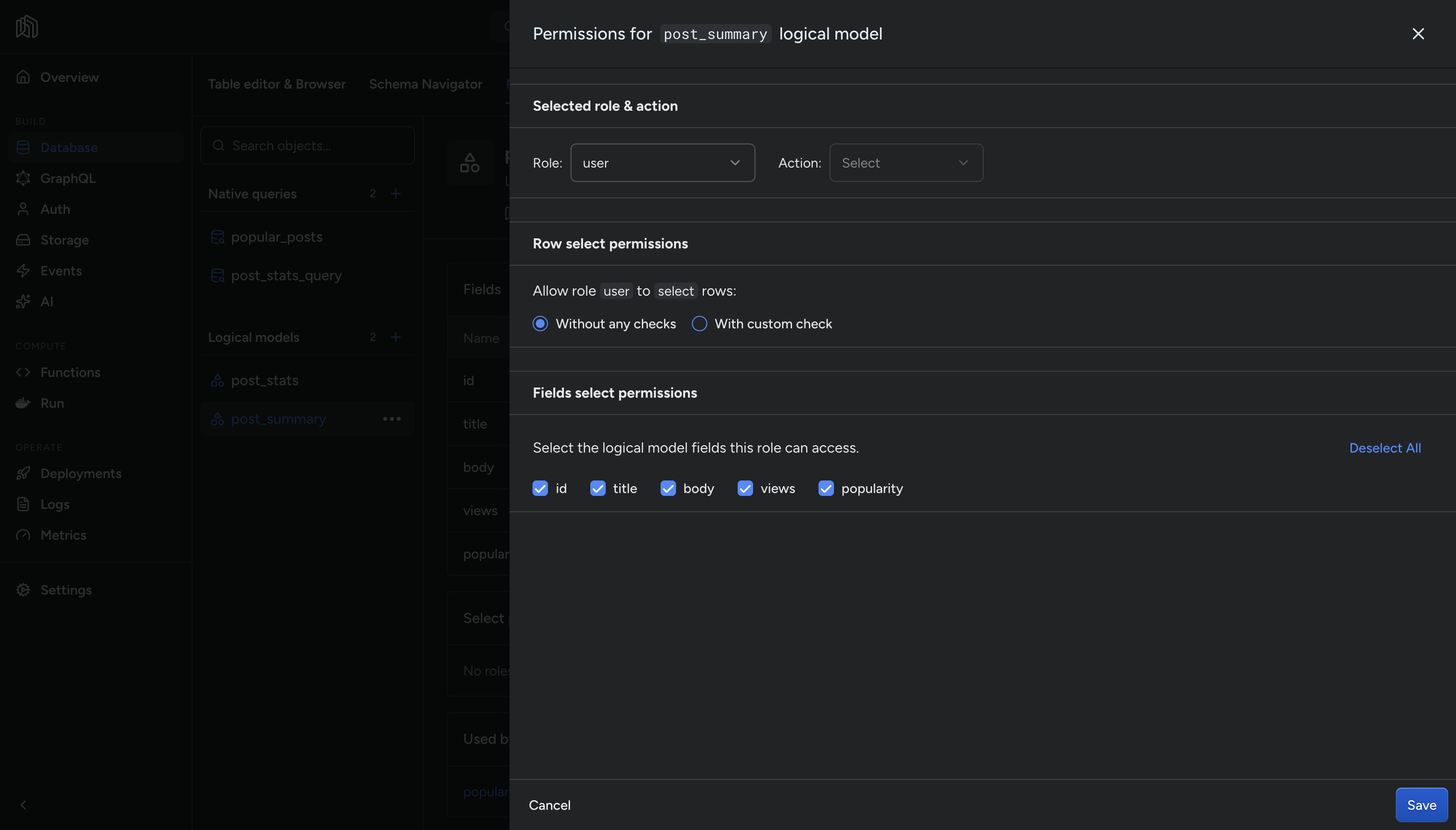
For each role you can set:
- Fields select permissions: which fields of the model the role is allowed to read.
- Row select permissions: either Without any checks, or With custom check to require that rows satisfy a condition. The rule builder works like the one for table permissions, including the operators that compare one field against another, and it offers the model’s own fields rather than table columns.
The order matters: the SQL runs first, then the row filter applies to what it returned. A native query cannot be used to bypass a model’s permissions.
A role with no select permission on the model does not get the root field in its schema at all, so querying it as that role is a schema error rather than an empty result.
Relationships
Section titled “Relationships”A native query can be related to another native query, so a single GraphQL query can return a nested shape built from two SQL queries. Relationships from a native query to a tracked table are not supported here.
The example below relates popular_posts to a second native query, post_stats_query, which returns a post_stats logical model with post_id and word_count fields and takes no arguments:
SELECT id AS post_id, array_length(regexp_split_to_array(body, '\s+'), 1) AS word_countFROM public.posts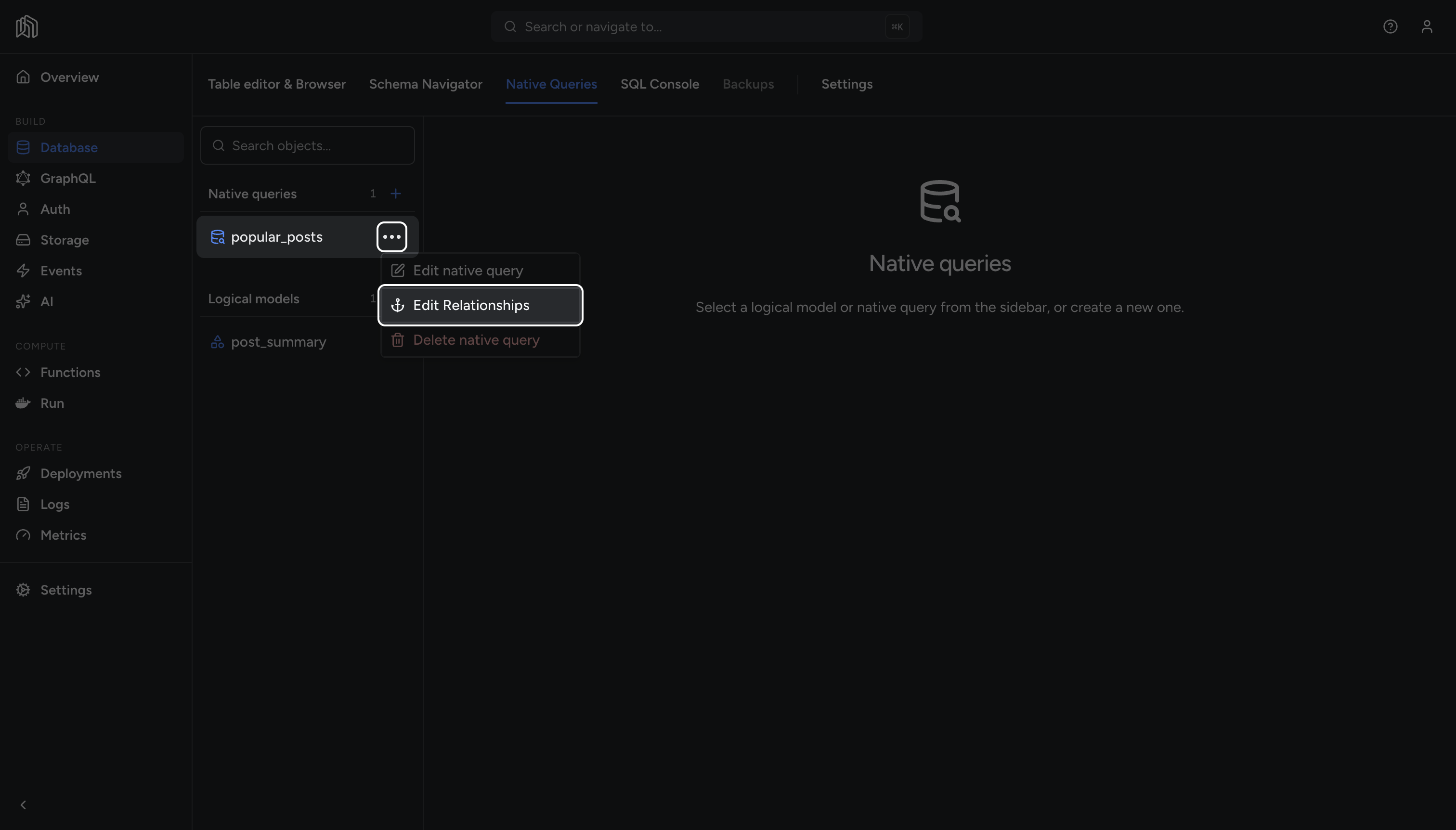
Open the native query’s menu in the sidebar and choose Edit Relationships.
The page lists existing relationships, each editable or removable. To create a new relationship, click on the Relationship + button.
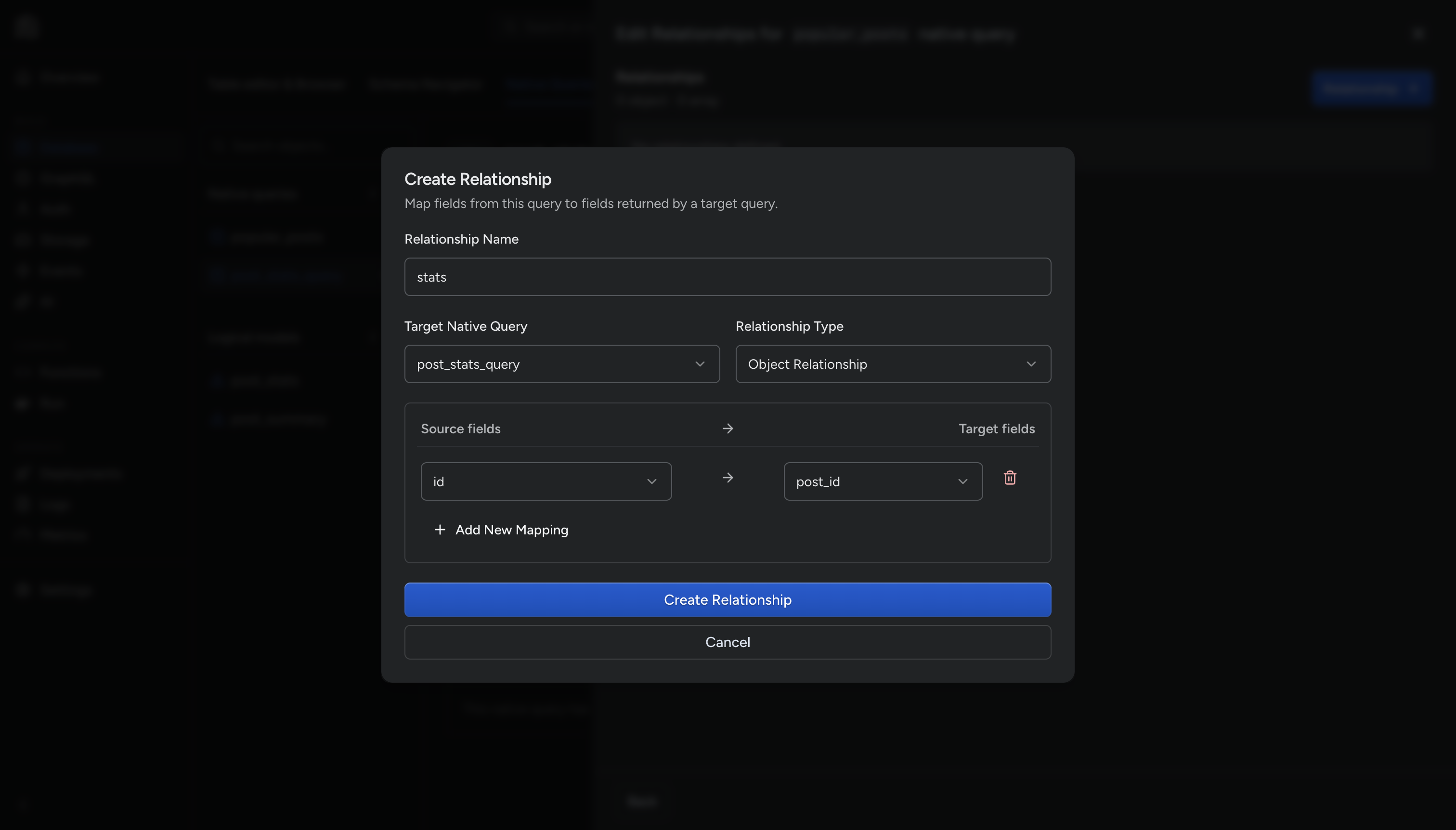
In the Create Relationship dialog, fill in:
- Relationship Name: the field name the relationship appears under.
- Target Native Query: the native query on the other end.
- Relationship Type:
Object Relationshipfor a single nested object,Array Relationshipfor a list. - Source fields and Target fields: the field mapping that joins the two. Add more than one pair for a composite join. Each source field can be used only once.
In the example, that is stats, post_stats_query, Object Relationship, and id → post_id.
The nested field is then queried like any other relationship:
query { popular_posts(args: { min_views: 100 }) { title body stats { word_count } }}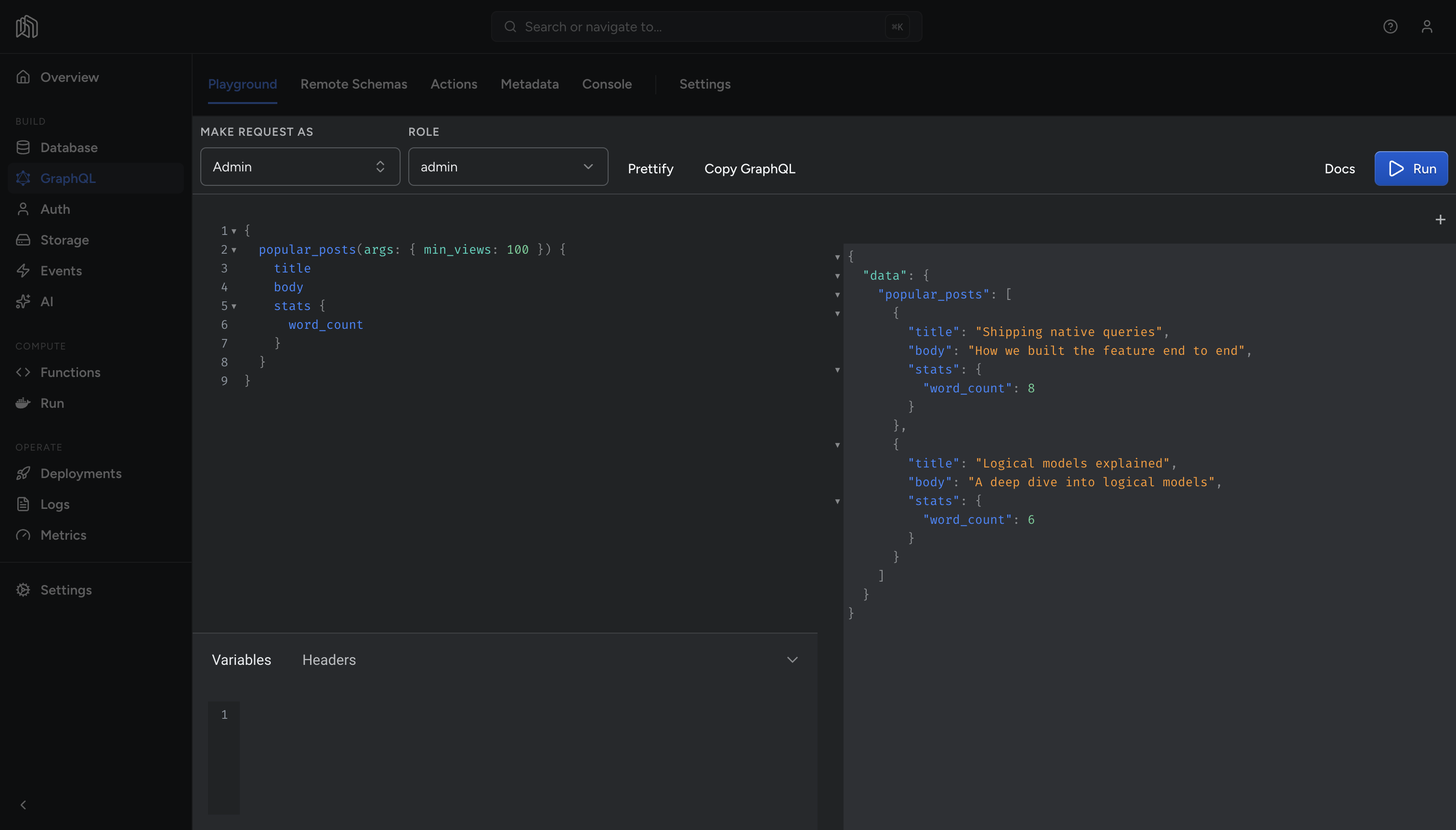
Edit and delete
Section titled “Edit and delete”Editing a logical model untracks it and re-tracks it under the new definition, which is what lets the name change. Select permissions are replayed in the same operation, so they survive the edit.
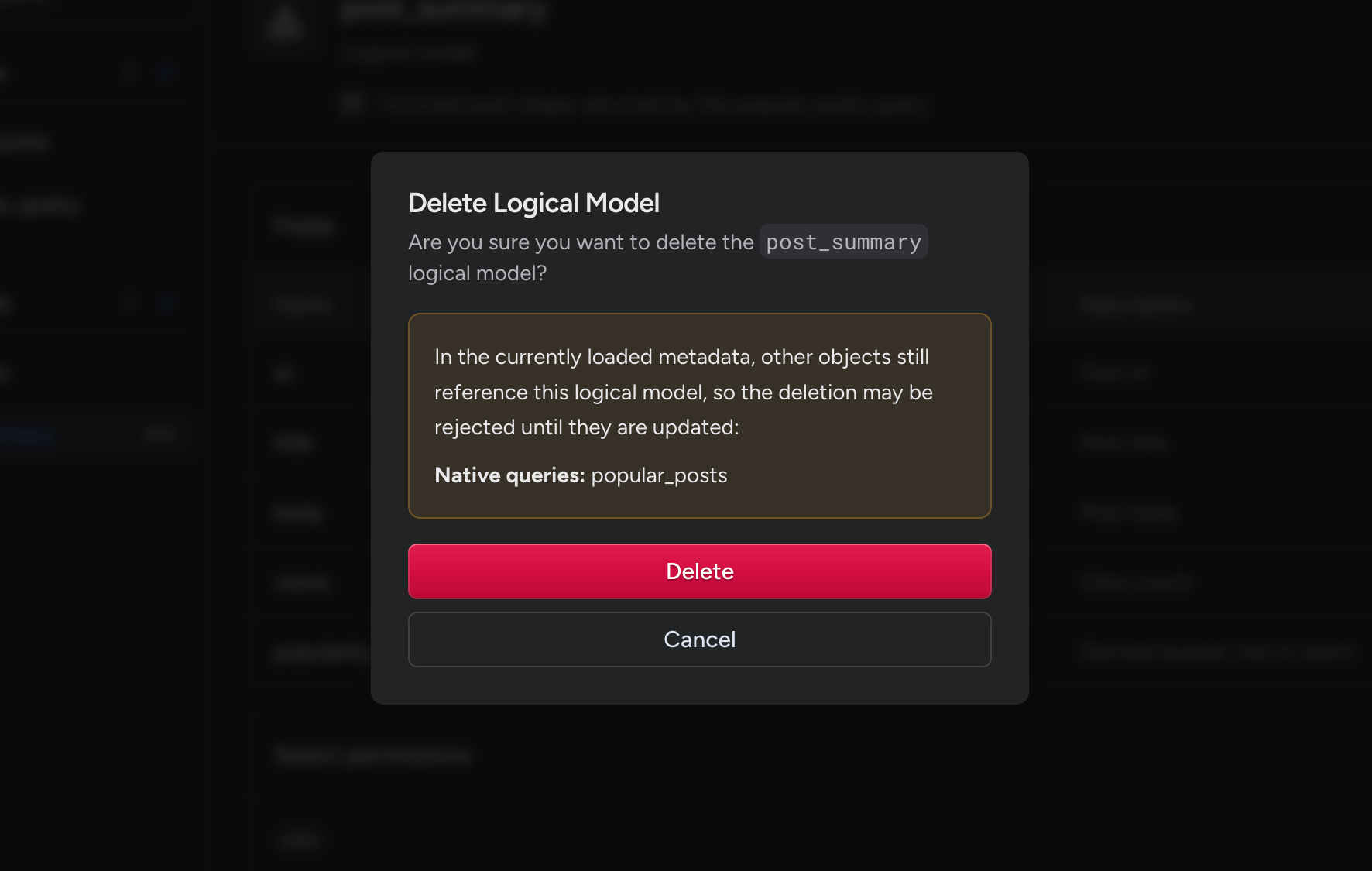
An object cannot be deleted while something else still depends on it:
- A logical model returned by a native query, or nested in another logical model.
- A native query that another native query has a relationship to.
The delete dialog warns and lists the dependents. Update them first, then delete.
Cloud and local projects
Section titled “Cloud and local projects”Every create, edit, and delete is saved differently depending on where the project runs:
| Nhost Cloud | Local | |
|---|---|---|
| Saved through | Metadata API | The CLI’s migrate API |
| Result | Metadata updated in place, effective immediately | Metadata applied and written to nhost/metadata/. No migration file is created, because these changes run no SQL |
| In version control | No | Yes, as metadata committed with the project and promoted through environments |
Local changes show up in nhost/metadata/ as soon as they are saved, so review them with git status and commit or discard them like any other metadata change.
Limitations
Section titled “Limitations”Keep these constraints in mind when designing around native queries:
- Read-only. Select is the only permission, so there is nothing to grant for insert, update, or delete.
- Permissions live on the logical model, never on the native query.
- Relationships connect native queries to each other, not to tracked tables.