

Permissions
Control file access with Hasura's permission system
storage permissions access control Hasura authorization roles securityFile permissions control who can upload, download, replace, and delete files. They are managed per role in the dashboard.
Permissions follow a Zero Trust model — by default no role has access. Access must be explicitly granted.
Actions
Section titled “Actions”Storage supports four permission actions:
- Upload — who can upload new files
- Download — who can view and download files
- Replace — who can overwrite existing files
- Delete — who can remove files
Configuring Permissions
Section titled “Configuring Permissions”In the dashboard, navigate to Storage and click Permissions at the bottom of the sidebar to see the permission grid. This grid shows every role and action at a glance — full access, partial access, or no access. Click any cell to configure that role’s permission for that action.
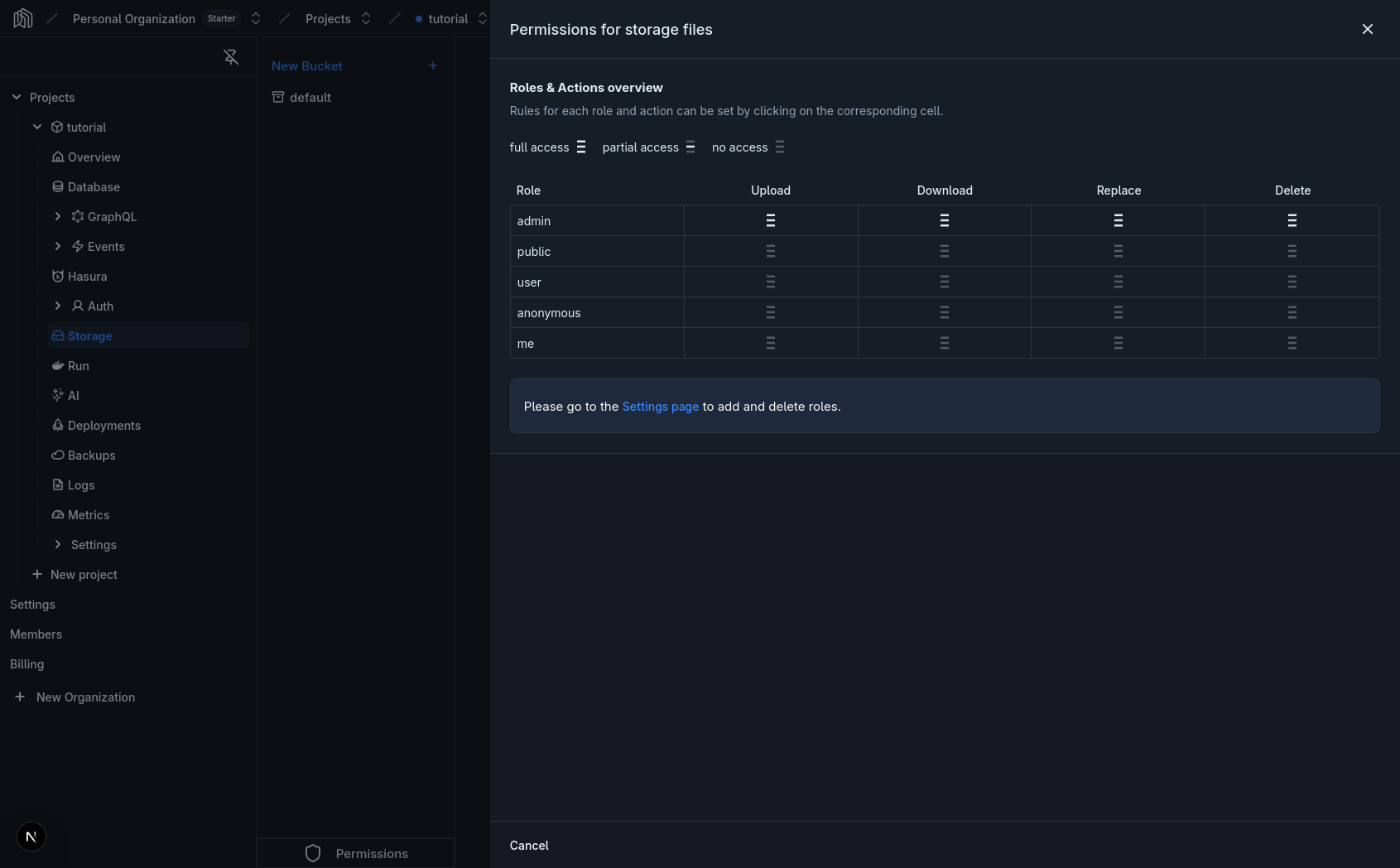
Permission options
Section titled “Permission options”Each action form has the following options:
- Without any checks — the role can perform the action on all files, no conditions.
- With custom check — use the rule editor to restrict which files the role can access (e.g. only files in a specific bucket, or only files the user uploaded).
- Permission presets — pre-built rules for common patterns.
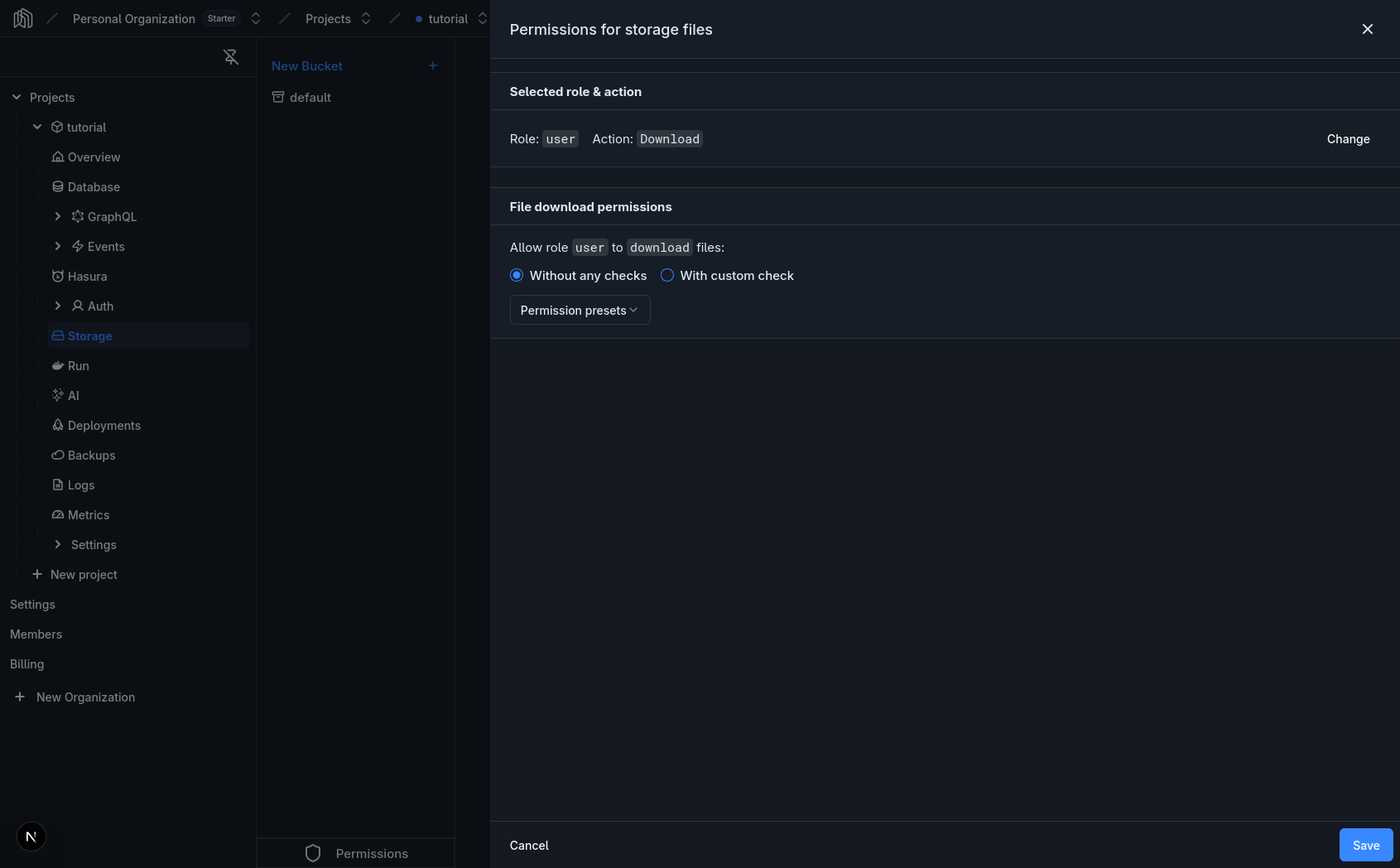
Upload and Replace options
Section titled “Upload and Replace options”The Upload and Replace forms have an additional toggle:
- Uploader identity — automatically sets
uploaded_by_user_idtoX-Hasura-User-Idwhen files are created or replaced. This ensures every file is tagged with the uploader’s identity without relying on the client to send it.
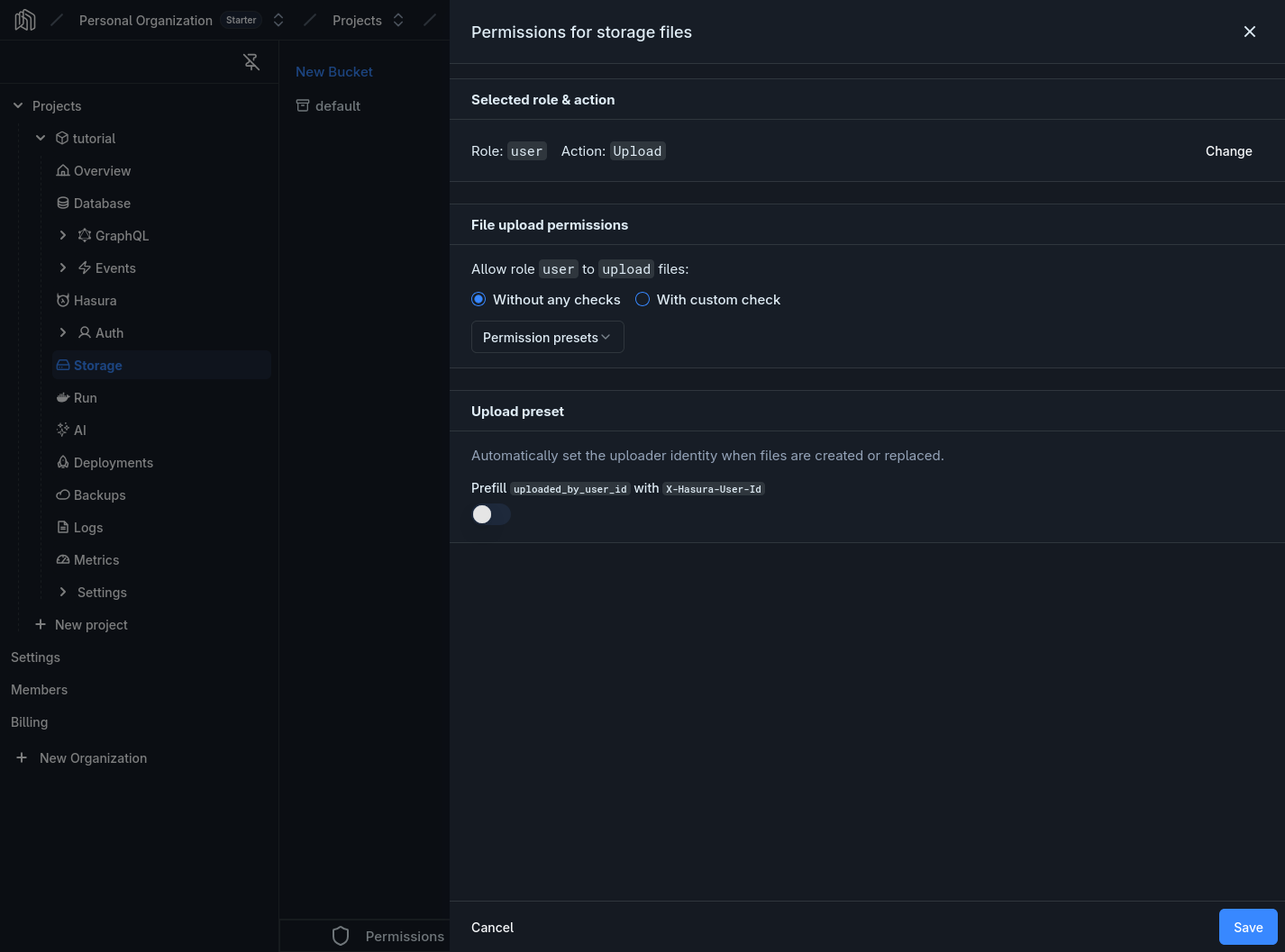
Examples
Section titled “Examples”Private Files — Users Access Only Their Own Files
Section titled “Private Files — Users Access Only Their Own Files”The most common pattern. Users can upload, download, and delete only files they own, in a specific bucket.
In the permission grid, click the Upload cell for the user role.
- Select With custom check and add a rule:
bucket_idequalspersonal - Under Uploader identity, enable the Prefill
uploaded_by_user_idwithX-Hasura-User-Idtoggle to automatically tag files with the uploader’s identity
Click the Download cell for the user role.
- Select With custom check and add two rules combined with AND:
uploaded_by_user_idequalsX-Hasura-User-Idbucket_idequalspersonal
Click the Delete cell for the user role.
- Select With custom check and add the same rules as Download:
uploaded_by_user_idequalsX-Hasura-User-Idbucket_idequalspersonal
Public Read, Authenticated Write
Section titled “Public Read, Authenticated Write”Files in a public bucket can be downloaded by anyone (including the public role), but only authenticated users can upload.
Configure the Upload action for the user role:
- Select With custom check and add a rule:
bucket_idequalspublic - Under Uploader identity, enable the Prefill
uploaded_by_user_idwithX-Hasura-User-Idtoggle
For both the public and user roles, click the Download cell, select With custom check, and add a rule: bucket_id equals public.
This allows anyone to download files from the public bucket, whether authenticated or not, while keeping files in other buckets protected.
Multi-Tenant — Organization-Scoped Files
Section titled “Multi-Tenant — Organization-Scoped Files”For multi-tenant applications where files belong to an organization. This uses a custom claim X-Hasura-Org-Id.
This example assumes you have a relationship from storage.files to your organizations table through a custom org_id column in your file metadata or through a linking table.
A simpler approach uses the file’s custom metadata JSONB column to store the organization ID, and a Hasura computed field or relationship to evaluate it.
Alternatively, you can create a dedicated organization_files table that references storage.files:
CREATE TABLE public.organization_files ( id uuid PRIMARY KEY DEFAULT gen_random_uuid(), file_id uuid NOT NULL REFERENCES storage.files(id) ON DELETE CASCADE, org_id uuid NOT NULL REFERENCES public.organizations(id));Then set permissions on this linking table using X-Hasura-Org-Id, and configure a relationship from storage.files to organization_files. For the storage permissions themselves:
Configure the Upload action for the user role:
- Select With custom check and add a rule:
bucket_idequalsorg-files - Under Uploader identity, enable the Prefill
uploaded_by_user_idwithX-Hasura-User-Idtoggle
Configure the Download action for the user role:
- Select With custom check and add a rule using the relationship:
organization_files.org_idequalsX-Hasura-Org-Id
This ensures users can only download files belonging to their organization.
Role-Based Access
Section titled “Role-Based Access”Different roles get different levels of access. For example, editor can upload and delete, while viewer can only download.
Upload: Select With custom check if you want to restrict to specific buckets, or Without any checks for all buckets. Under Uploader identity, enable the Prefill uploaded_by_user_id with X-Hasura-User-Id toggle.
Download: Select Without any checks — editors can view all files.
Delete: Select With custom check and add a rule: uploaded_by_user_id equals X-Hasura-User-Id. This lets editors delete only their own uploads.
Download: Select Without any checks — viewers can view all files.
No Upload, Replace, or Delete permissions are configured for this role.
- Under Uploader identity, enable the Prefill
uploaded_by_user_idwithX-Hasura-User-Idtoggle on Upload and Replace permissions to prevent users from impersonating others. - Use custom checks on
bucket_idto control which buckets a role can access. - Use the
publicrole for files that should be accessible without authentication. - Combine bucket restrictions with ownership checks for fine-grained control.
- Test permissions by signing in as different users and verifying access is correctly scoped.
Advanced
Section titled “Advanced”Storage permissions are built on Hasura’s permission system for the storage.files table. The dashboard configures these automatically, but understanding the underlying mapping can help with debugging or advanced setups.
How requests are authorized
Section titled “How requests are authorized”When a user makes a request to the Storage API:
- The Storage service extracts the JWT from the
Authorizationheader - The JWT contains the user’s ID, role, and any custom claims
- Storage forwards these as Hasura session variables (
X-Hasura-User-Id,X-Hasura-Role, etc.) - Hasura evaluates the permission rules for the
storage.filestable - If the permission check passes, the operation proceeds
Permission variables
Section titled “Permission variables”The following session variables are available in custom checks:
X-Hasura-User-Id— the authenticated user’s IDX-Hasura-Role— the user’s role- Custom claims like
X-Hasura-Org-Id
Hasura permission mapping
Section titled “Hasura permission mapping”Each dashboard action maps to a Hasura permission on the storage.files table:
| Action | Hasura Permission | Required Columns |
|---|---|---|
| Upload | insert | id, bucket_id, name, size, mime_type |
| Download | select | All columns must be granted |
| Replace | update | bucket_id, etag, is_uploaded, metadata, mime_type, name, size |
| Delete | delete | — |