

Permissions and Relationships
Set up file permissions and GraphQL relationships for personal and community-shared files
storage permissions relationships Hasura GraphQL communities multi-tenant guideThis guide walks through two common file-access patterns: personal files (users access only their own) and community files (shared across a group via a junction table and membership). Both patterns build on Hasura permissions applied to the storage.files table.
Personal Files
Section titled “Personal Files”The simplest pattern — users can upload, view, and delete only their own files in a dedicated bucket.
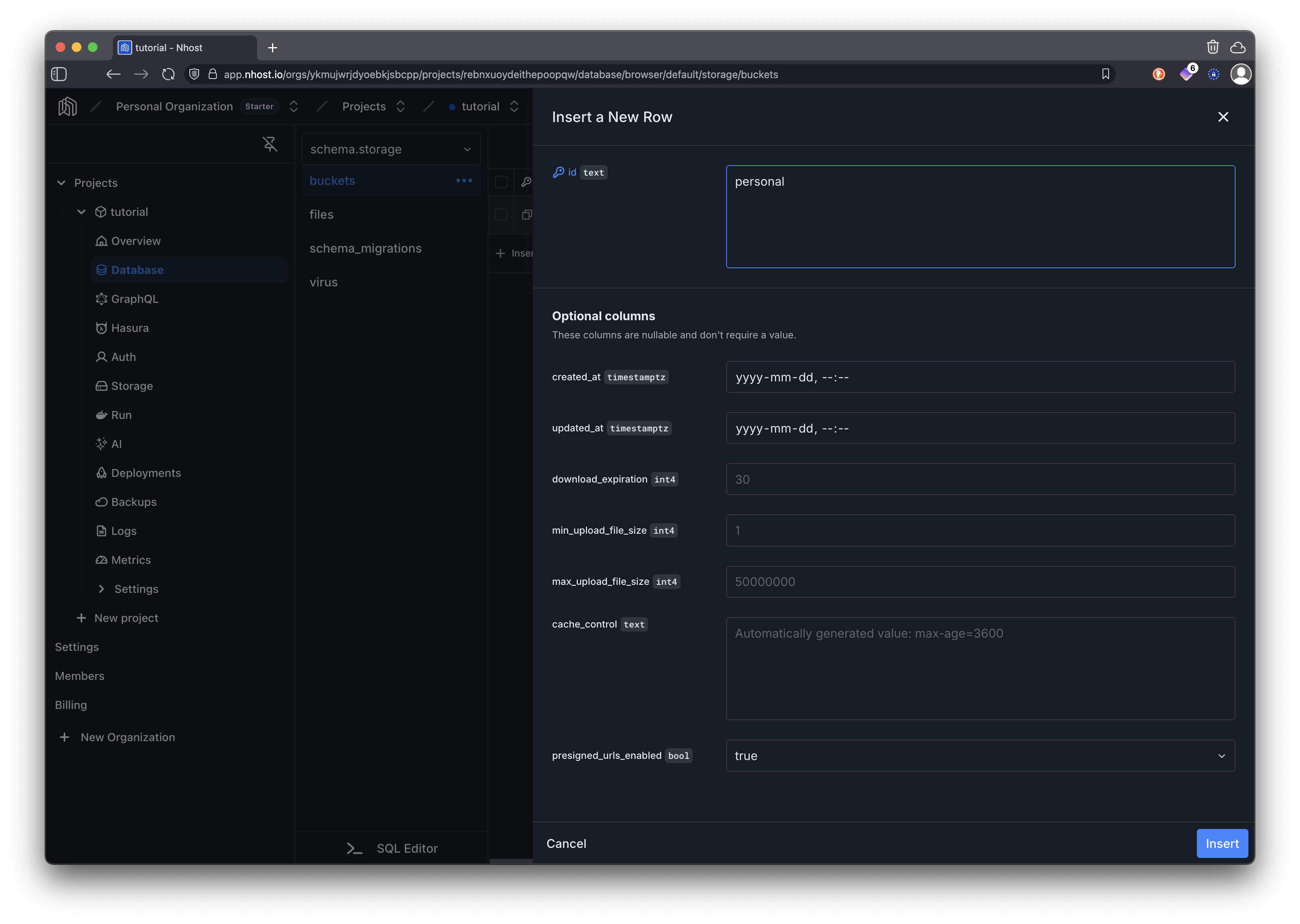
1. Create a Bucket
Section titled “1. Create a Bucket”Go to the Storage page in the dashboard and click New Bucket in the sidebar. Name it personal.
2. Configure Permissions
Section titled “2. Configure Permissions”Open Storage → Permissions in the dashboard to reach the permission grid. For each action below, click the cell for the user role and configure it in the rule editor. The JSON equivalent is shown below each rule — you can also paste it directly into the rule editor’s JSON view instead of building the rule visually.
- Select With custom check and add a rule:
bucket_idequalspersonal. - Under Uploader identity, enable the Prefill
uploaded_by_user_idwithX-Hasura-User-Idtoggle — this automatically tags every upload withuploaded_by_user_id = X-Hasura-User-Id.
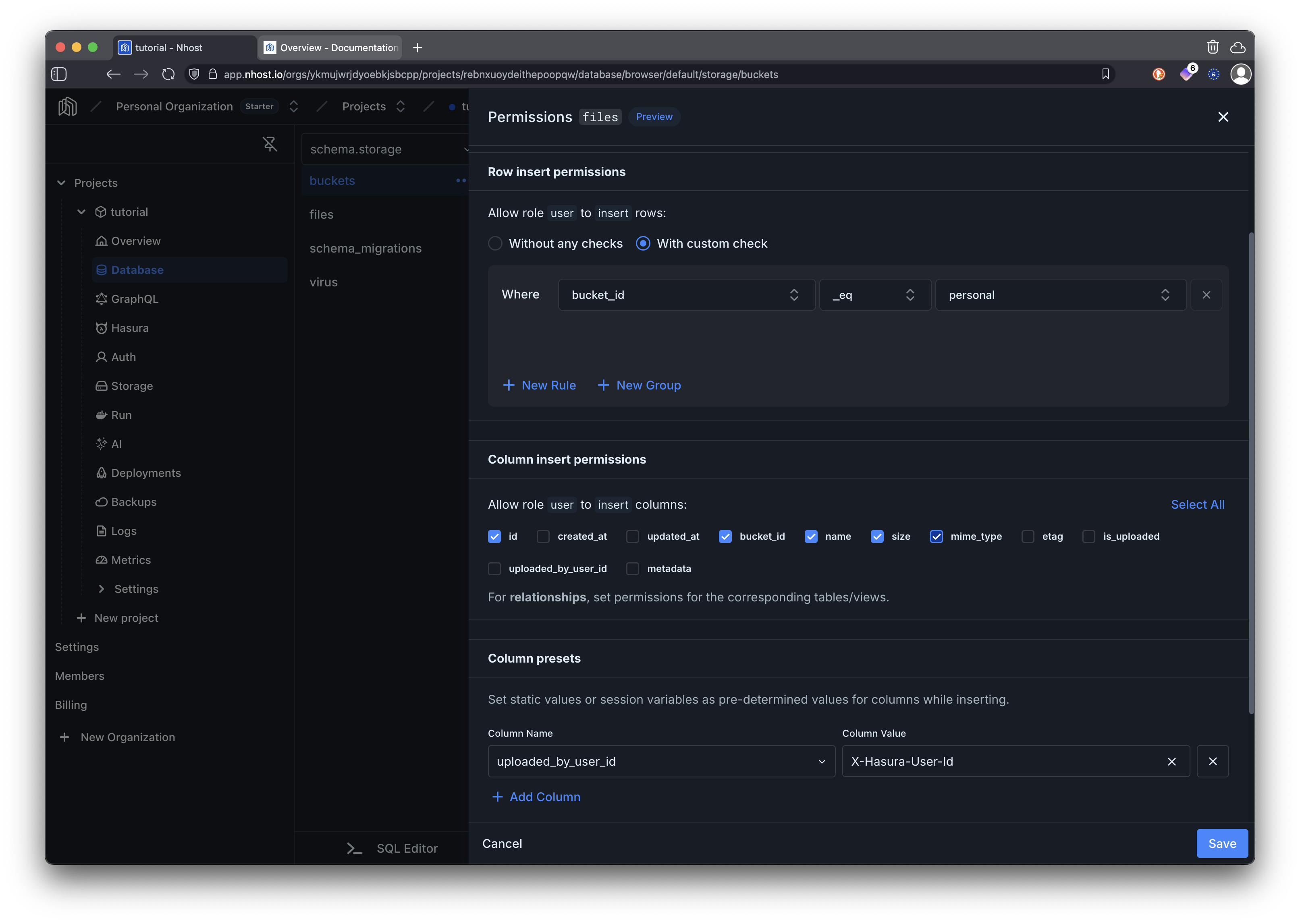
Equivalent JSON:
{"bucket_id": {"_eq": "personal"}}- Select With custom check.
- Add two rules (combined with AND by default):
uploaded_by_user_idequalsX-Hasura-User-Idbucket_idequalspersonal
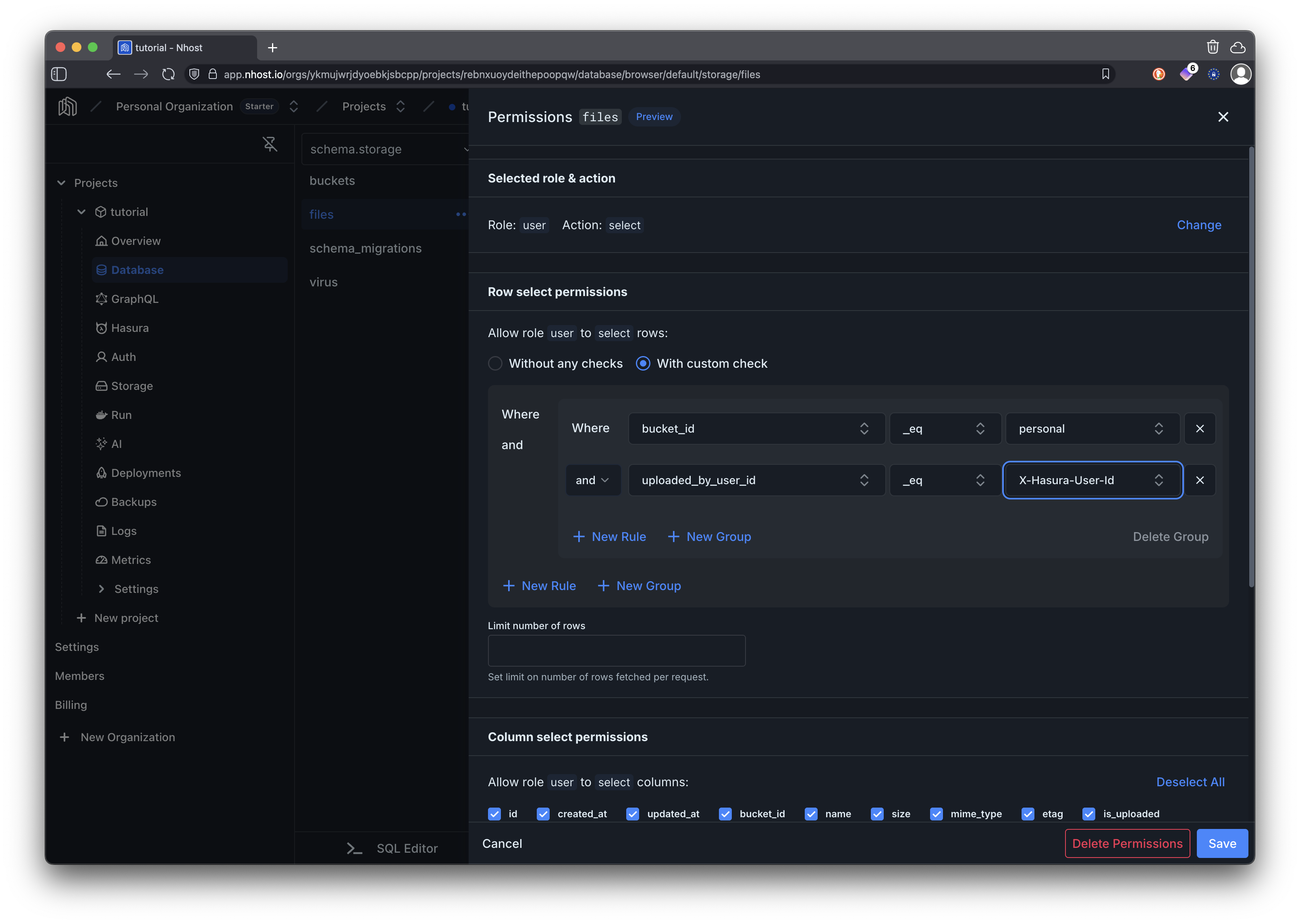
Equivalent JSON:
{ "_and": [ {"uploaded_by_user_id": {"_eq": "X-Hasura-User-Id"}}, {"bucket_id": {"_eq": "personal"}} ]}Use the same two rules as Download:
uploaded_by_user_idequalsX-Hasura-User-Idbucket_idequalspersonal
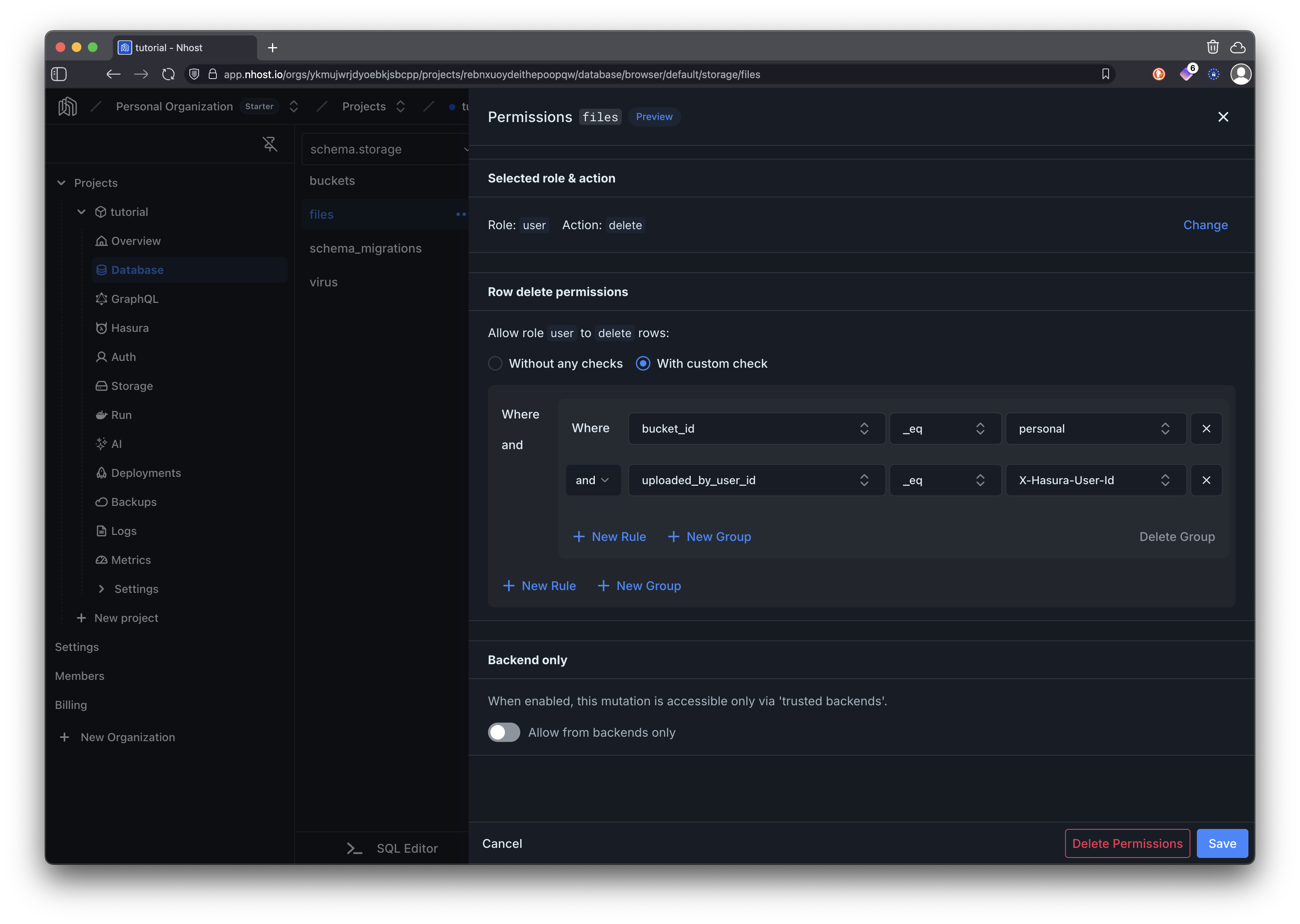
Equivalent JSON:
{ "_and": [ {"uploaded_by_user_id": {"_eq": "X-Hasura-User-Id"}}, {"bucket_id": {"_eq": "personal"}} ]}3. Upload and Query Files
Section titled “3. Upload and Query Files”// Upload a file to the personal bucketconst { body } = await nhost.storage.uploadFiles({ 'bucket-id': 'personal', 'file[]': [file],})
const uploadedFile = body.processedFiles?.[0]Because metadata lives in Hasura, you can query files via GraphQL — permissions are applied automatically:
const response = await nhost.graphql.request<{  files: Array<{ id: string; name: string; size: number; mimeType: string; createdAt: string }>}>({  query: `query MyFiles {    files(where: { bucketId: { _eq: "personal" } }, order_by: { createdAt: desc }) {      id      name      size      mimeType      createdAt    }  }`,})
// Only returns files uploaded by the current user (enforced by permissions)const files = response.body.data?.files ?? []
Community Files
Section titled “Community Files”A more advanced pattern where files are shared with groups. Users join communities, upload files to a shared communities storage bucket, and associate files with communities through a junction table. Access is controlled by membership — only community members can see the community’s files.
Architecture
Section titled “Architecture”erDiagram communities ||--o{ community_members : has communities ||--o{ community_files : has community_files }o--|| storage_files : references community_members }o--|| auth_users : belongs_to storage_files }o--|| auth_users : uploaded_by
communities { uuid id PK text name text description } community_members { uuid id PK uuid user_id FK uuid community_id FK timestamptz joined_at } community_files { uuid id PK uuid file_id FK uuid community_id FK } storage_files { uuid id PK text name uuid bucket_id FK uuid uploaded_by_user_id FK } auth_users { uuid id PK text display_name text email }1. Create the Schema
Section titled “1. Create the Schema”Go to the Storage page in the dashboard and click New Bucket in the sidebar. Name it communities.
Then create the required tables (via the Dashboard or a migration):
-- CommunitiesCREATE TABLE public.communities (    id UUID PRIMARY KEY DEFAULT gen_random_uuid(),    name TEXT NOT NULL UNIQUE,    description TEXT,    created_at TIMESTAMPTZ NOT NULL DEFAULT now());
-- Membership junctionCREATE TABLE public.community_members (    id UUID PRIMARY KEY DEFAULT gen_random_uuid(),    user_id UUID NOT NULL REFERENCES auth.users(id) ON DELETE CASCADE,    community_id UUID NOT NULL REFERENCES public.communities(id) ON DELETE CASCADE,    joined_at TIMESTAMPTZ NOT NULL DEFAULT now(),    UNIQUE(user_id, community_id));
-- File ↔ community junctionCREATE TABLE public.community_files (    id UUID PRIMARY KEY DEFAULT gen_random_uuid(),    file_id UUID NOT NULL REFERENCES storage.files(id) ON DELETE CASCADE,    community_id UUID NOT NULL REFERENCES public.communities(id) ON DELETE CASCADE,    created_at TIMESTAMPTZ NOT NULL DEFAULT now());
2. Configure Relationships
Section titled “2. Configure Relationships”On the Database page sidebar, click the ⋯ menu on each table and choose Edit Relationships. Under Suggested Relationships, every foreign key is listed — click Add and then Create Relationship. Do this for each table below so the relationships appear in the GraphQL API.
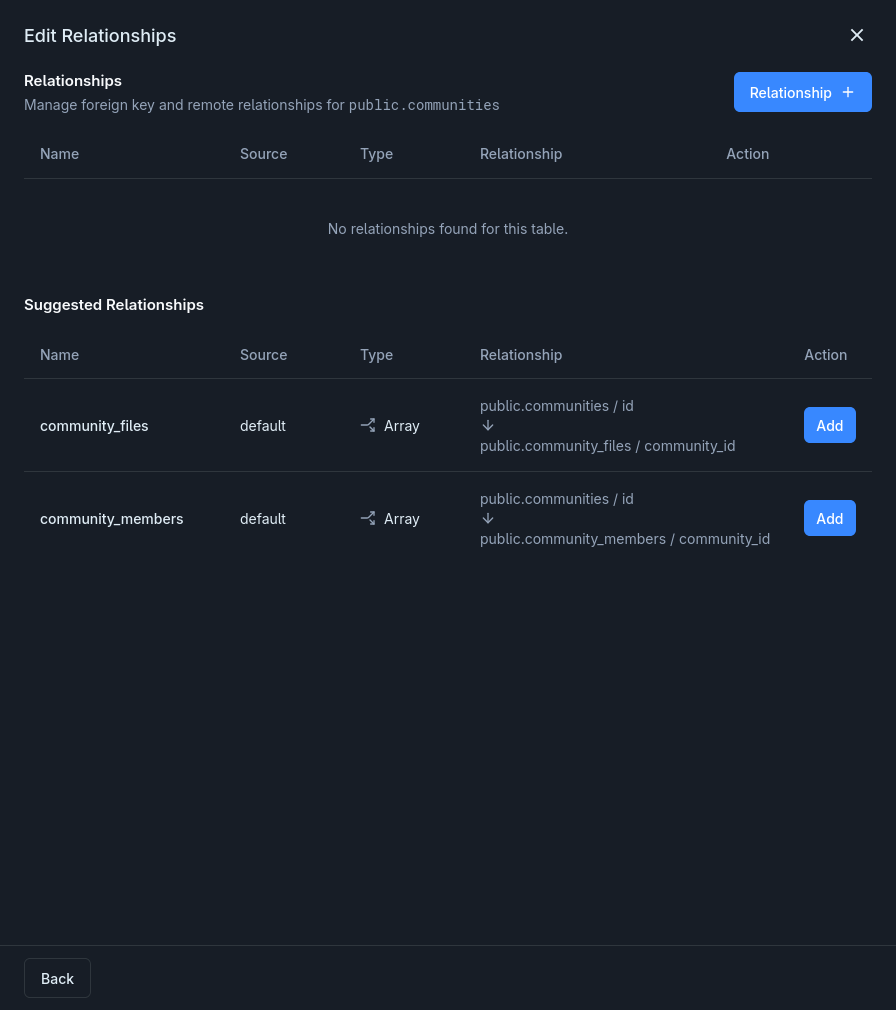
| From | Name | Type | To |
|---|---|---|---|
communities | members | Array | community_members |
communities | community_files | Array | community_files |
community_members | community | Object | communities |
community_members | user | Object | auth.users |
community_files | community | Object | communities |
community_files | file | Object | storage.files |
storage.files | community_files | Array | community_files |
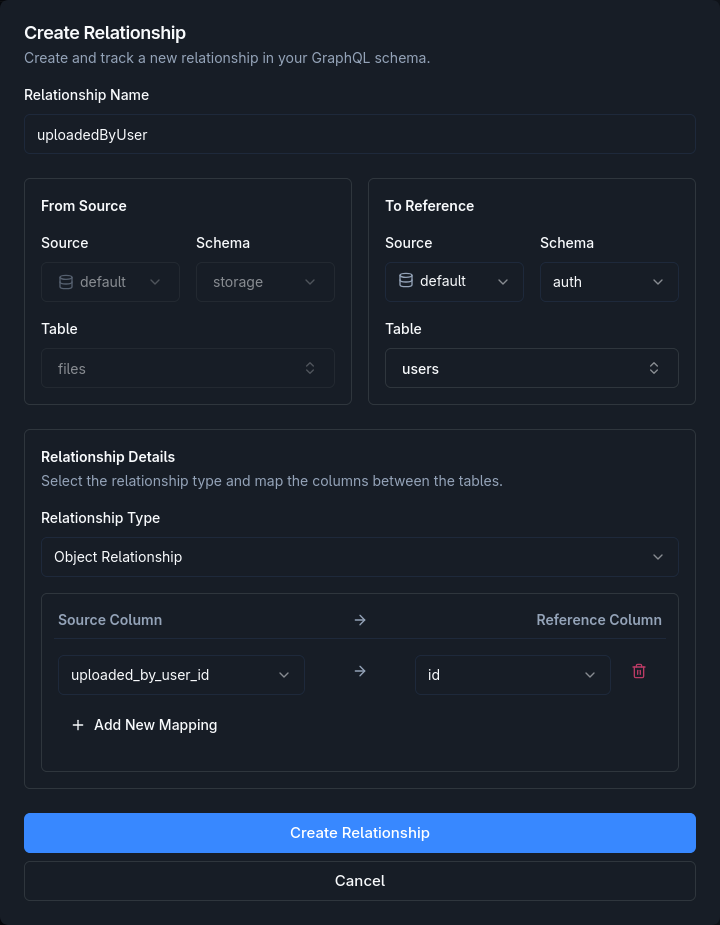
One more relationship links each file to the user who uploaded it. In the Database sidebar, switch to the storage schema, open the files table’s Edit Relationships, and click Relationship +:
- Relationship Name:
uploadedByUser - From Source:
default/storage/files - To Reference:
default/auth/users - Relationship Type: Object Relationship
- Source Column → Reference Column:
uploaded_by_user_id→id
Click Create Relationship.
3. Configure Permissions
Section titled “3. Configure Permissions”public.communities (user role)
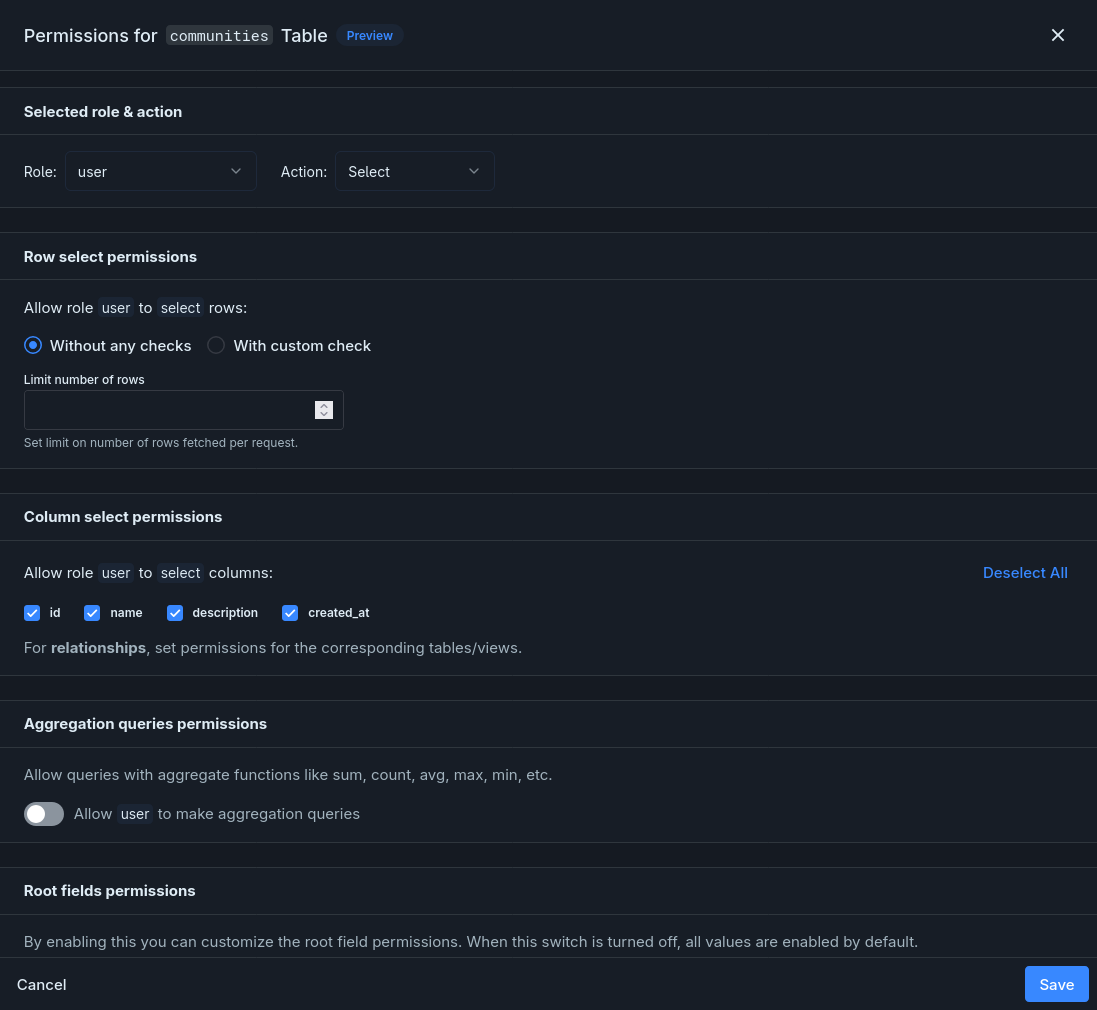
Section titled “public.communities (user role)”On the Database page, open the communities table and click Permissions. For the user role, configure Select: choose Without any checks and select all columns. All communities are visible so anyone can browse and join.
public.community_members (user role)
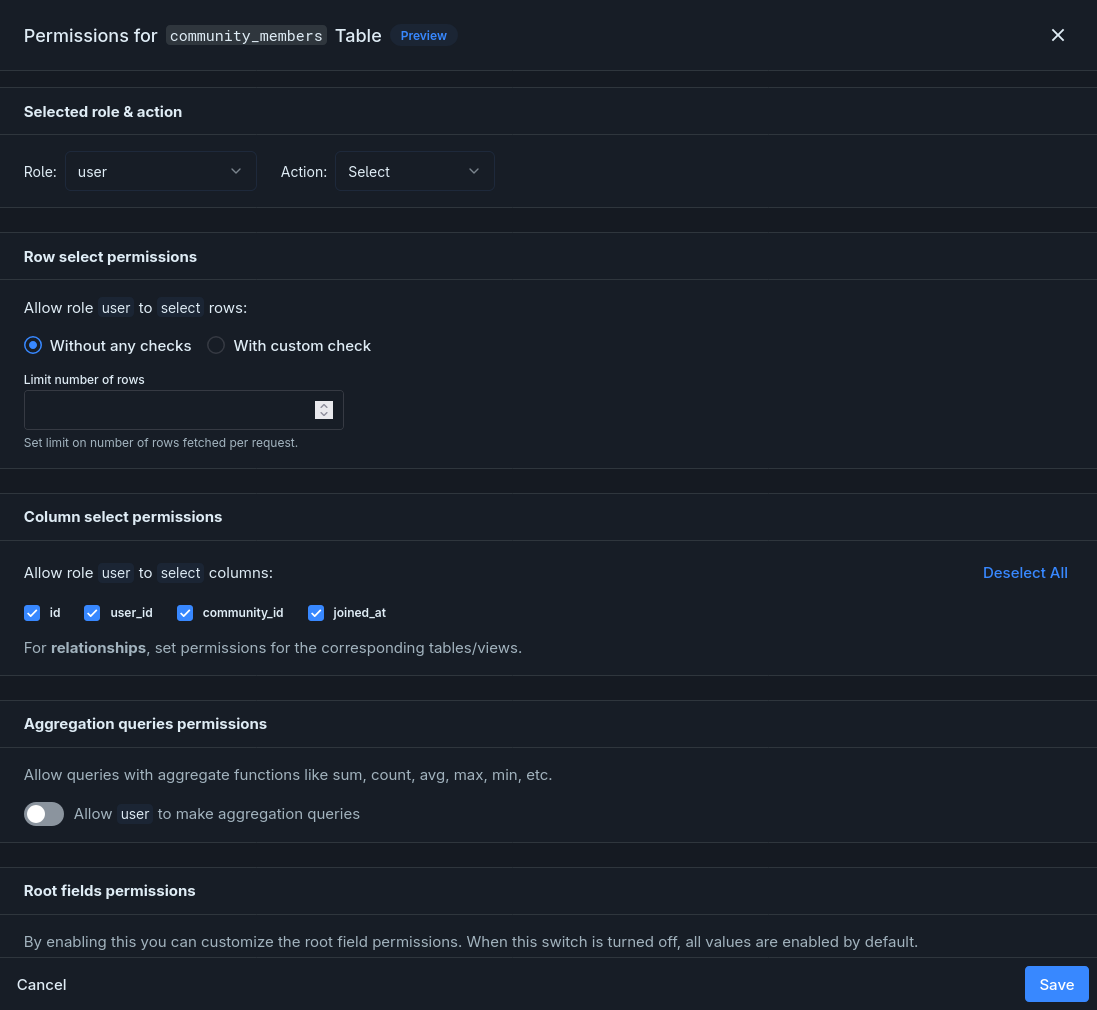
Section titled “public.community_members (user role)”On the Database page, open community_members → Permissions for the user role and configure each operation below.
Choose Without any checks and select all columns. Anyone can see who’s a member of any community.
- Select With custom check and add a rule:
user_idequalsX-Hasura-User-Id— this prevents users from adding memberships for other users. - Under Column presets, set
user_idtoX-Hasura-User-Id. - Allow columns
user_idandcommunity_id.
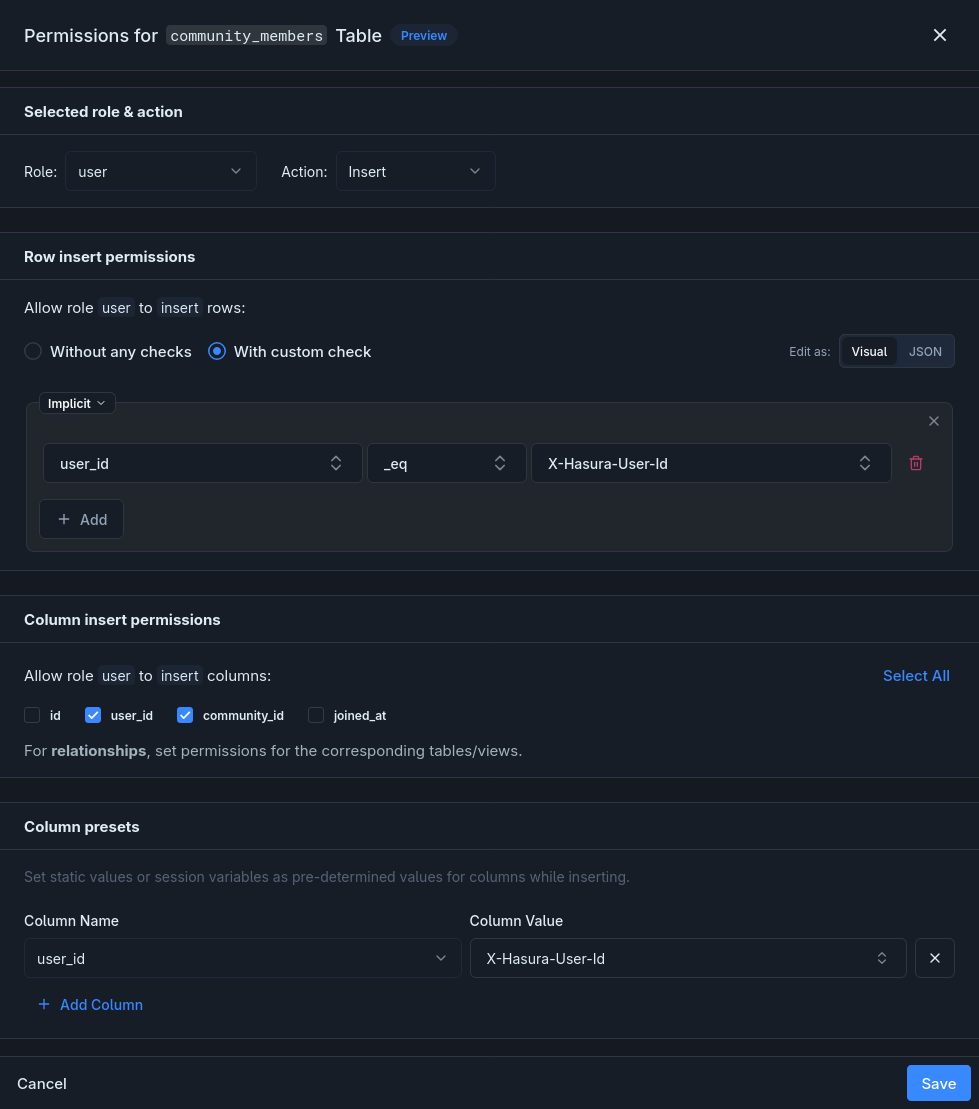
Equivalent JSON:
{"user_id": {"_eq": "X-Hasura-User-Id"}}Select With custom check and add a rule: user_id equals X-Hasura-User-Id. Users can only remove their own memberships.
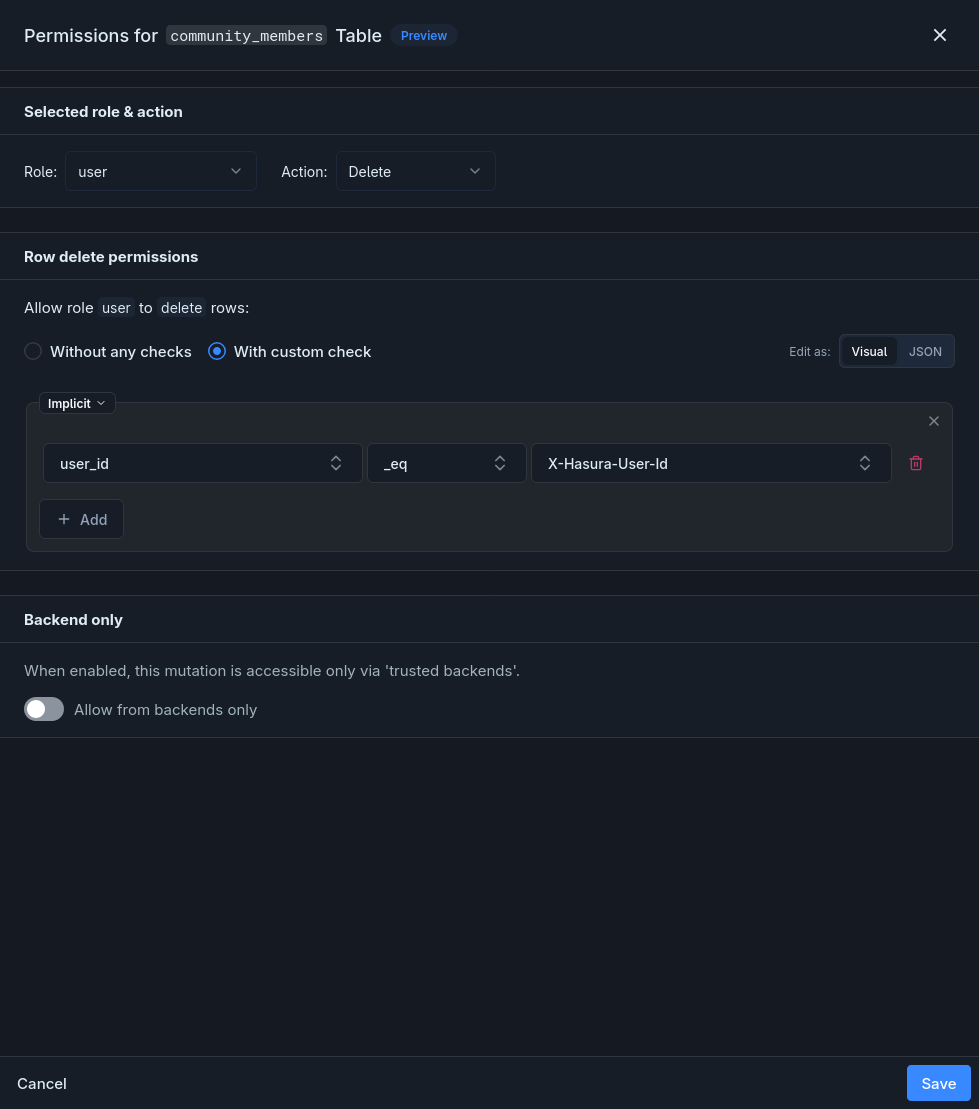
Equivalent JSON:
{"user_id": {"_eq": "X-Hasura-User-Id"}}public.community_files (user role)
Section titled “public.community_files (user role)”On the Database page, open community_files → Permissions for the user role and configure each operation below.
Only members of the file’s community can see it:
- Select With custom check.
- Pick relationship
community, then pick relationshipmembers, then add condition:user_idequalsX-Hasura-User-Id. - Allow all columns.
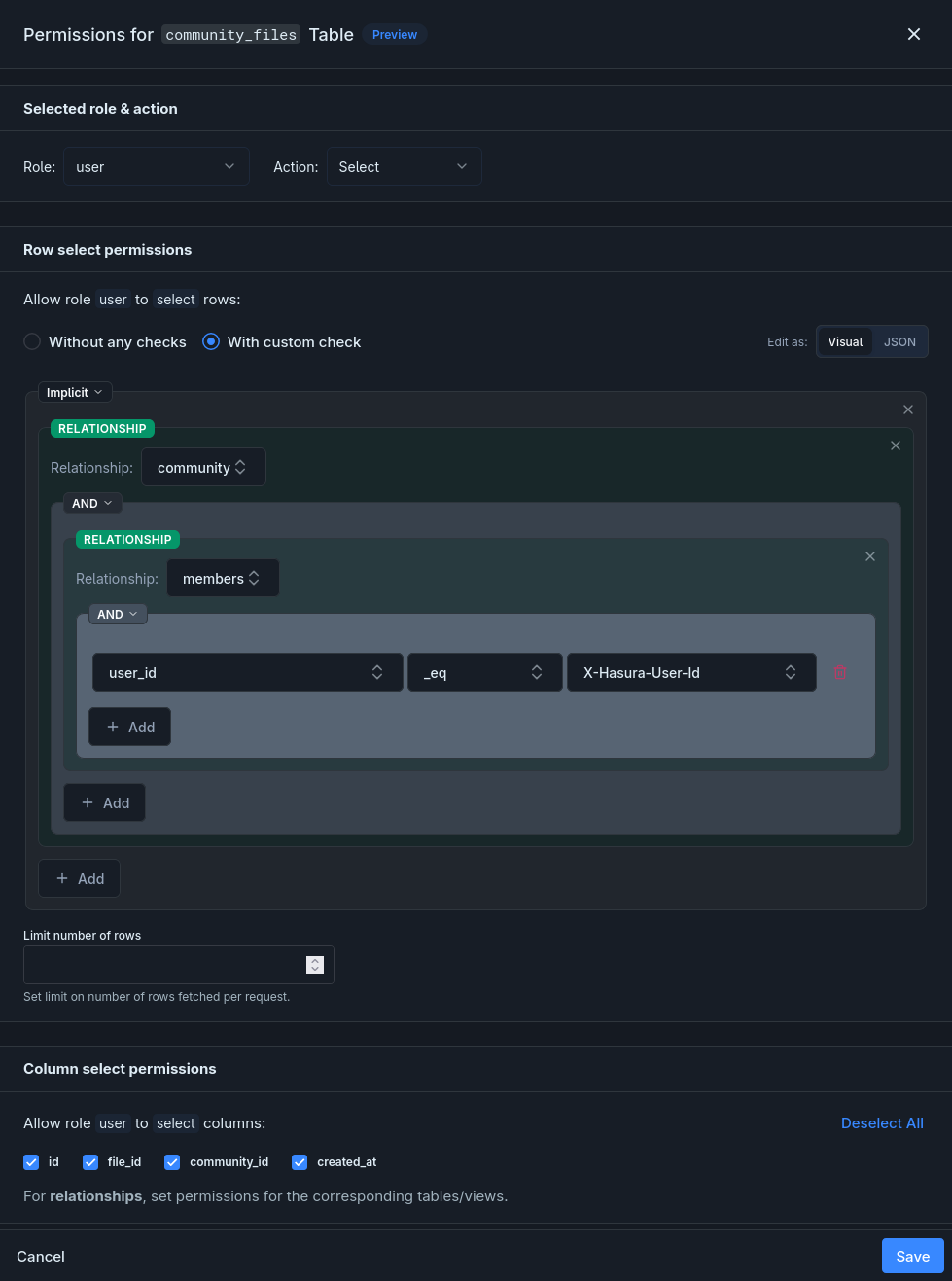
Equivalent JSON:
{"community": {"members": {"user_id": {"_eq": "X-Hasura-User-Id"}}}}- Select With custom check.
- Pick relationship
community→members, then add condition:user_idequalsX-Hasura-User-Id. - Allow columns
file_idandcommunity_id.
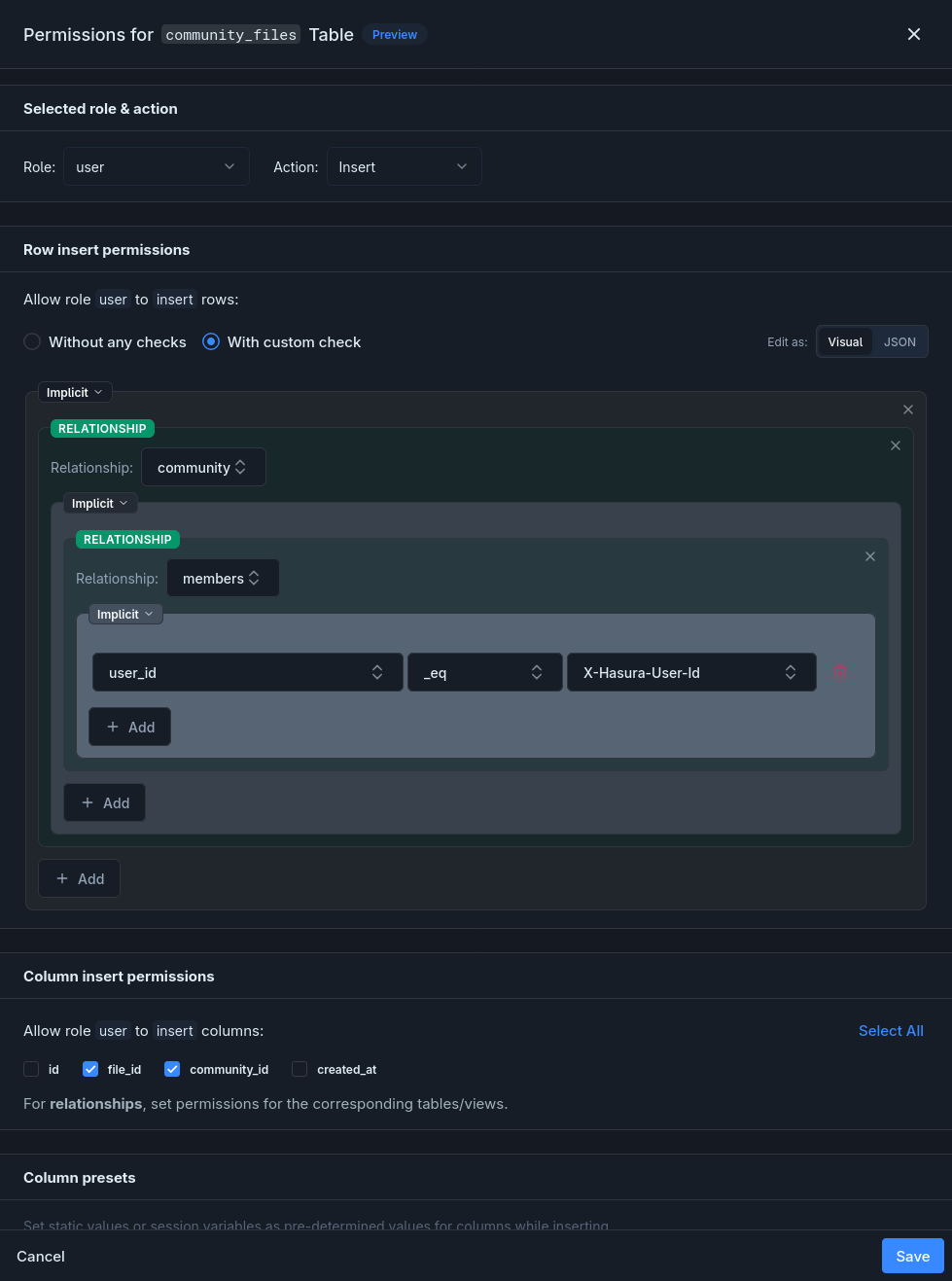
Equivalent JSON:
{"community": {"members": {"user_id": {"_eq": "X-Hasura-User-Id"}}}}Only the uploader of the underlying file can remove the association:
- Select With custom check.
- Pick relationship
file, then add condition:uploaded_by_user_idequalsX-Hasura-User-Id.
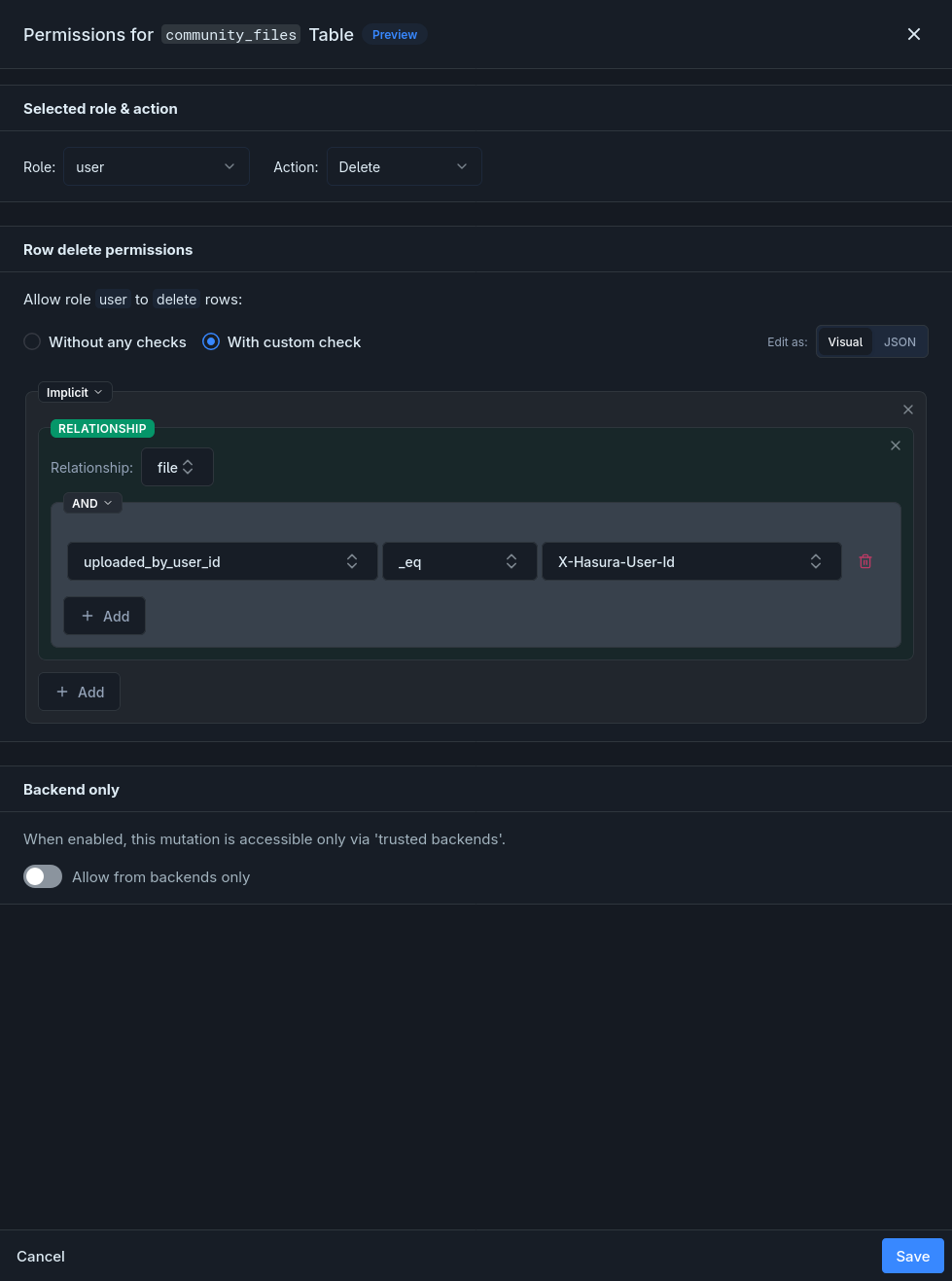
Equivalent JSON:
{"file": {"uploaded_by_user_id": {"_eq": "X-Hasura-User-Id"}}}Storage permissions (user role)
Section titled “Storage permissions (user role)”Configure the Storage permissions for the user role: Upload, Download, and Delete each get their own rule.
Click the Upload cell for the user role:
- Select With custom check and add a rule:
bucket_idis indefault,personal,communities. - Under Uploader identity, enable the Prefill
uploaded_by_user_idwithX-Hasura-User-Idtoggle.
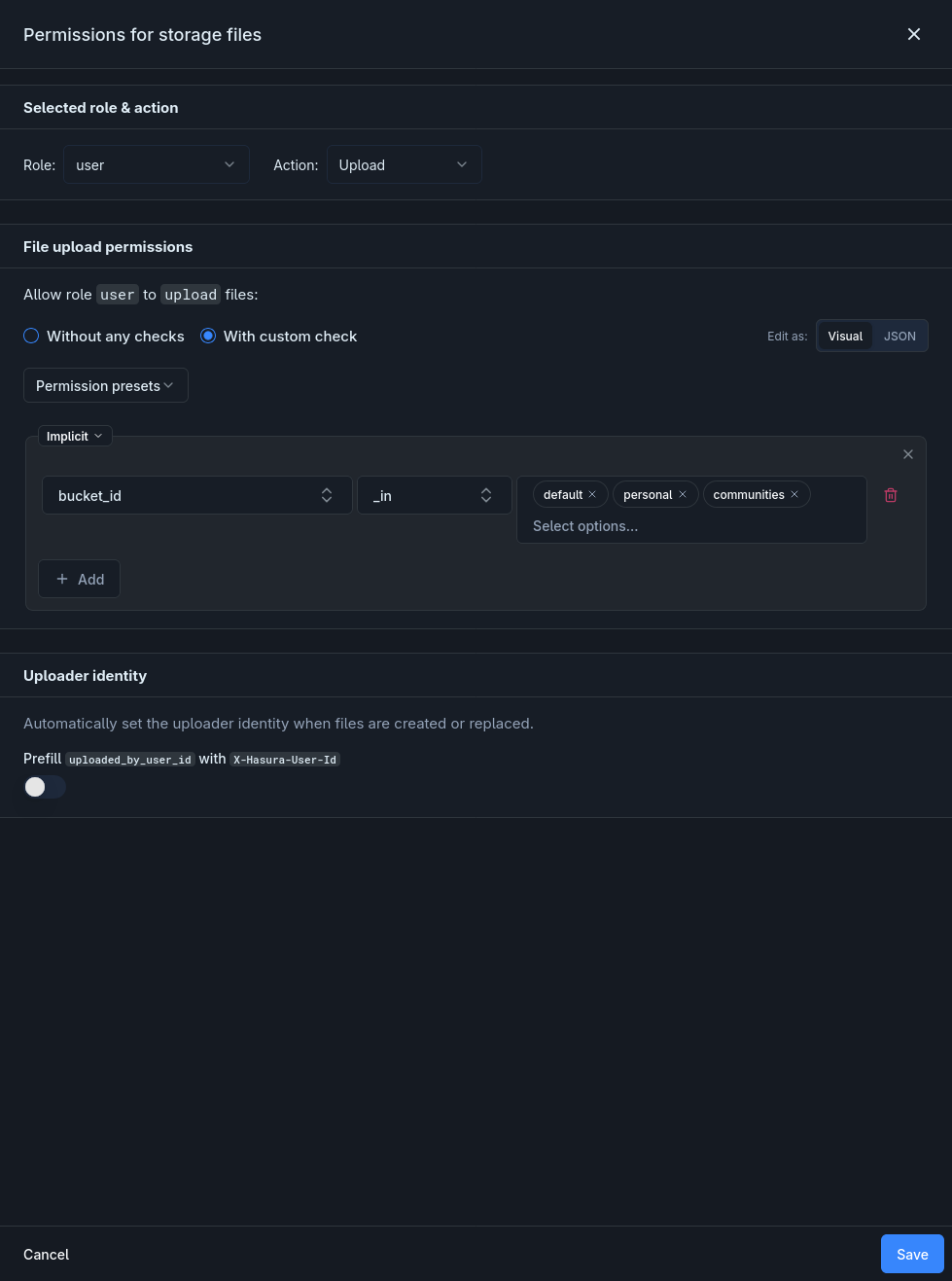
Equivalent JSON:
{"bucket_id": {"_in": ["default", "personal", "communities"]}}Users can see their own files in default/personal buckets, plus any community files they have membership for:
- Click the Download cell for the
userrole, select With custom check. - Change the root group operator to OR.
- Add the first branch — an AND group with two conditions:
uploaded_by_user_idequalsX-Hasura-User-Idbucket_idis indefault,personal
- Add the second branch: pick relationship
community_files→community→members, then add conditionuser_idequalsX-Hasura-User-Id.
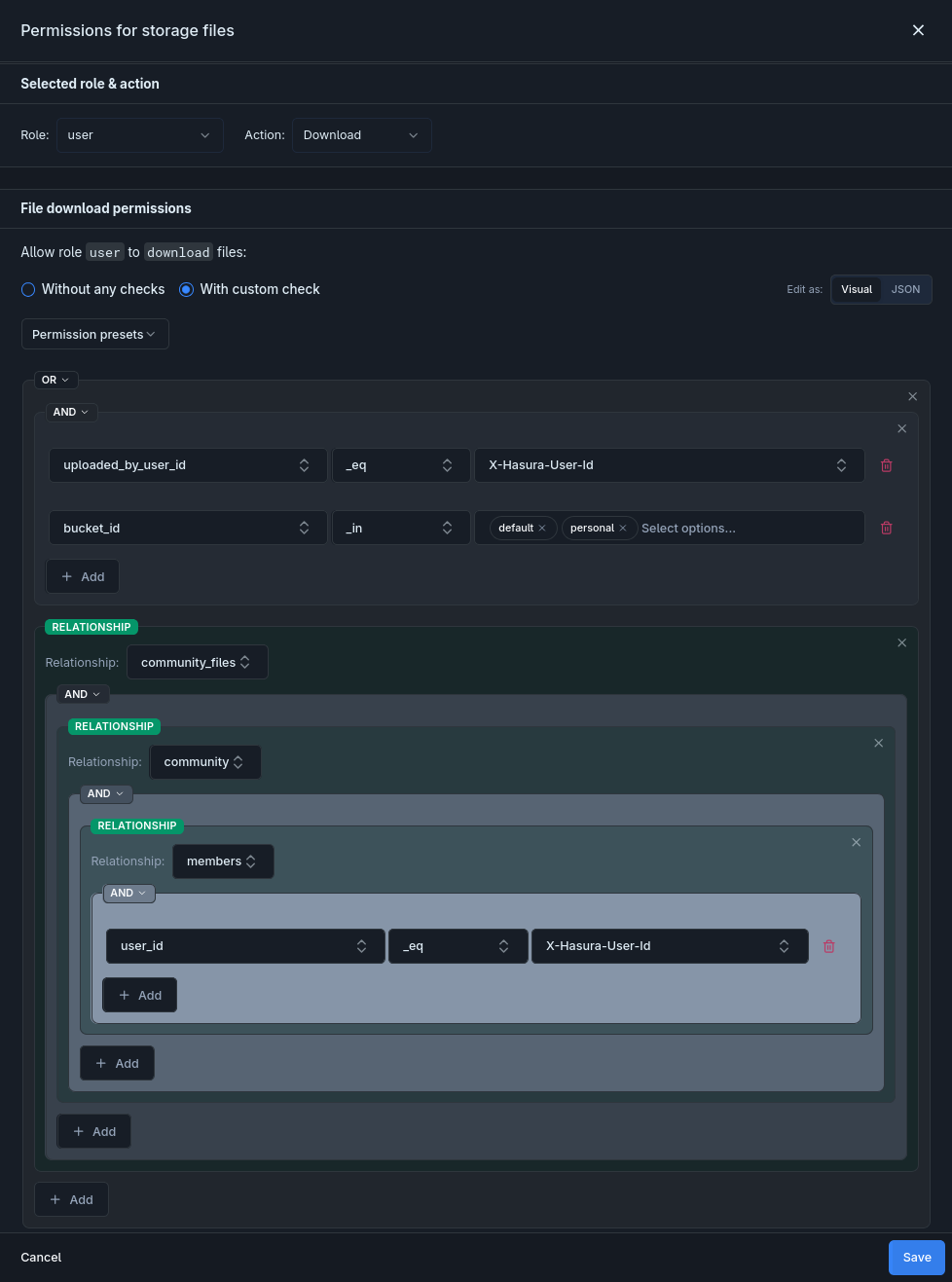
Equivalent JSON:
{ "_or": [ { "_and": [ {"uploaded_by_user_id": {"_eq": "X-Hasura-User-Id"}}, {"bucket_id": {"_in": ["default", "personal"]}} ] }, {"community_files": {"community": {"members": {"user_id": {"_eq": "X-Hasura-User-Id"}}}}} ]}Click the Delete cell for the user role. Select With custom check and add a rule: uploaded_by_user_id equals X-Hasura-User-Id.
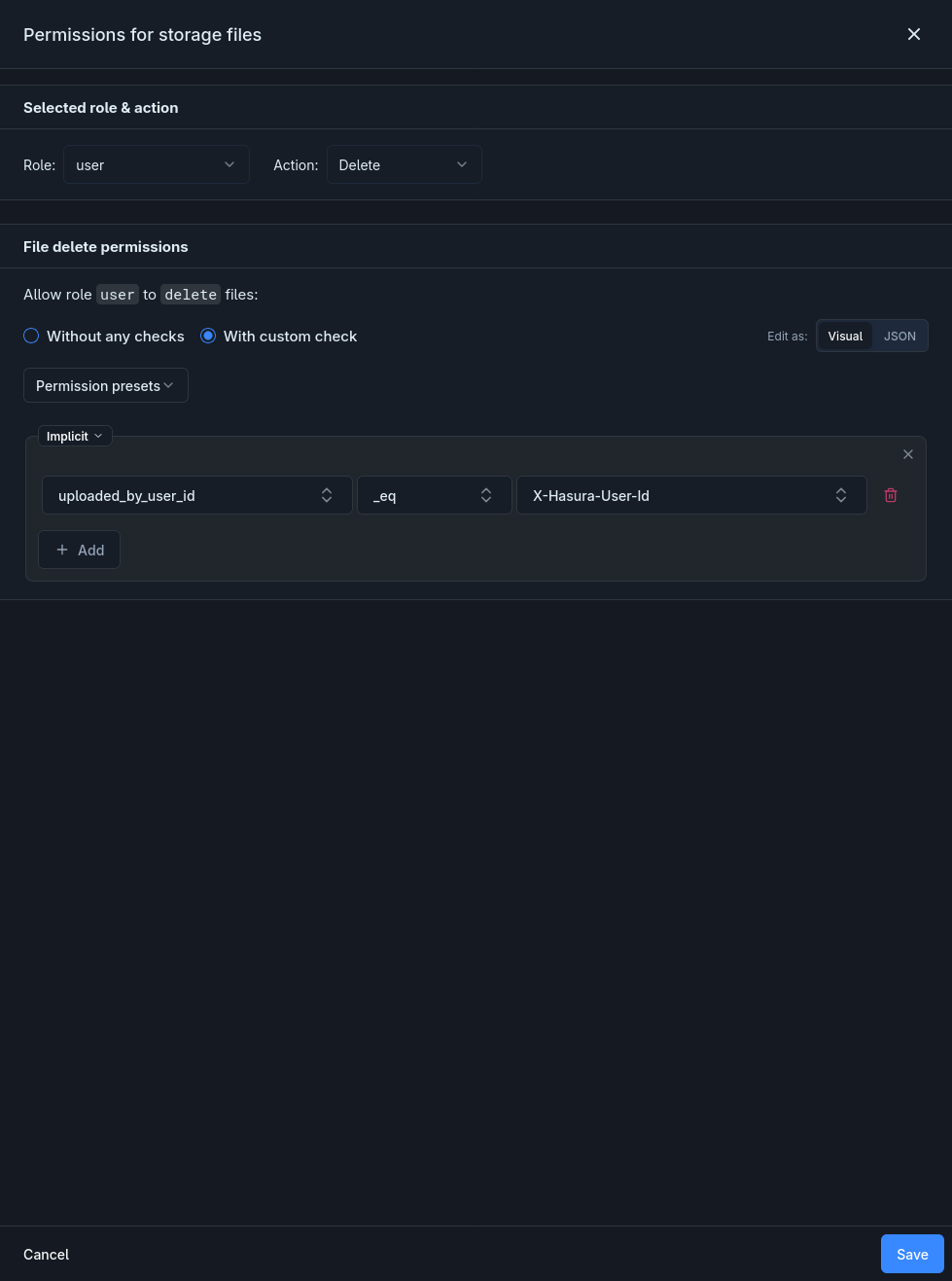
Equivalent JSON:
{"uploaded_by_user_id": {"_eq": "X-Hasura-User-Id"}}4. Join and Leave Communities
Section titled “4. Join and Leave Communities”// Join a communityawait nhost.graphql.request({ query: `mutation JoinCommunity($communityId: uuid!) { insert_community_members_one(object: { community_id: $communityId }) { id } }`, variables: { communityId },})
// Leave a communityawait nhost.graphql.request({ query: `mutation LeaveCommunity($communityId: uuid!, $userId: uuid!) { delete_community_members(where: { community_id: { _eq: $communityId }, user_id: { _eq: $userId } }) { affected_rows } }`, variables: { communityId, userId },})The insert permission’s column preset automatically sets user_id to the authenticated user, and the check constraint prevents users from adding memberships for other users.
5. Upload and Assign to a Community
Section titled “5. Upload and Assign to a Community”// 1. Upload the file to the communities bucketconst uploadResponse = await nhost.storage.uploadFiles({ 'bucket-id': 'communities', 'file[]': [file],})
const uploadedFile = uploadResponse.body.processedFiles?.[0]if (!uploadedFile?.id) throw new Error('Upload failed')
// 2. Associate the file with a communityawait nhost.graphql.request({ query: `mutation AddCommunityFile($fileId: uuid!, $communityId: uuid!) { insert_community_files_one(object: { file_id: $fileId, community_id: $communityId }) { id } }`, variables: { fileId: uploadedFile.id, communityId },})6. Query Community Files
Section titled “6. Query Community Files”const response = await nhost.graphql.request<{ community_files: Array<{ id: string file: { id: string; name: string; size: number; mimeType: string; uploadedByUser: { displayName: string } | null } }>}>({ query: `query GetCommunityFiles($communityId: uuid!) { community_files(where: { community_id: { _eq: $communityId } }) { id file { id name size mimeType uploadedByUser { displayName } } } }`, variables: { communityId },})
// Permissions automatically filter to communities the user is a member ofconst communityFiles = response.body.data?.community_files ?? []7. Remove a File from a Community
Section titled “7. Remove a File from a Community”// Remove the junction recordawait nhost.graphql.request({ query: `mutation RemoveCommunityFile($id: uuid!) { delete_community_files_by_pk(id: $id) { id } }`, variables: { id: communityFileId },})
// Optionally delete the file from storage entirelyawait nhost.storage.deleteFile(fileId)The ON DELETE CASCADE on community_files.file_id automatically removes all community associations when the storage file is deleted.