

Rule Editor
Build permission rules visually with the rule editor
permissions rule editor visual editor conditions groups relationships exists JSON outputWhen you configure permissions — whether on the Database page (table permissions) or the Storage page (file permissions) — selecting With custom check opens the rule editor. It lets you describe who can access which rows visually, instead of writing the permission JSON by hand.
The examples on this page come from the Nhost demo app — a small app where users join communities and share files inside them.
For example, the Insert permission on community_members is a single condition: user_id _eq X-Hasura-User-Id — users can only join communities as themselves, not on behalf of someone else.
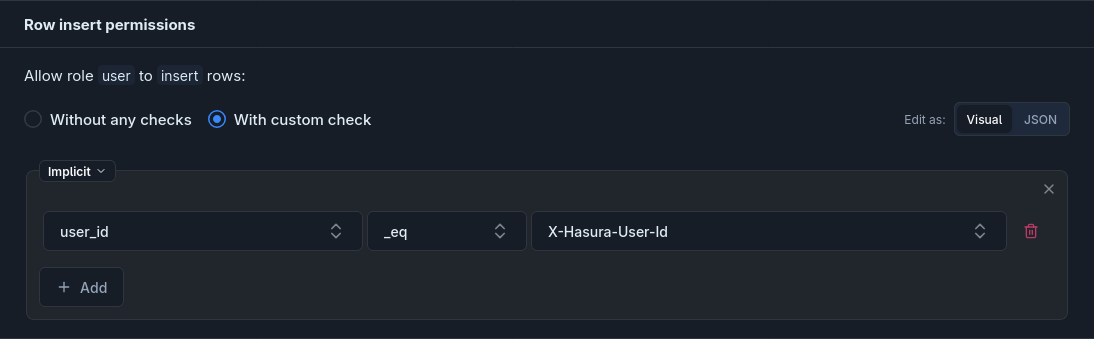
A new check starts out empty — click Add check to add your first rule.
Adding elements
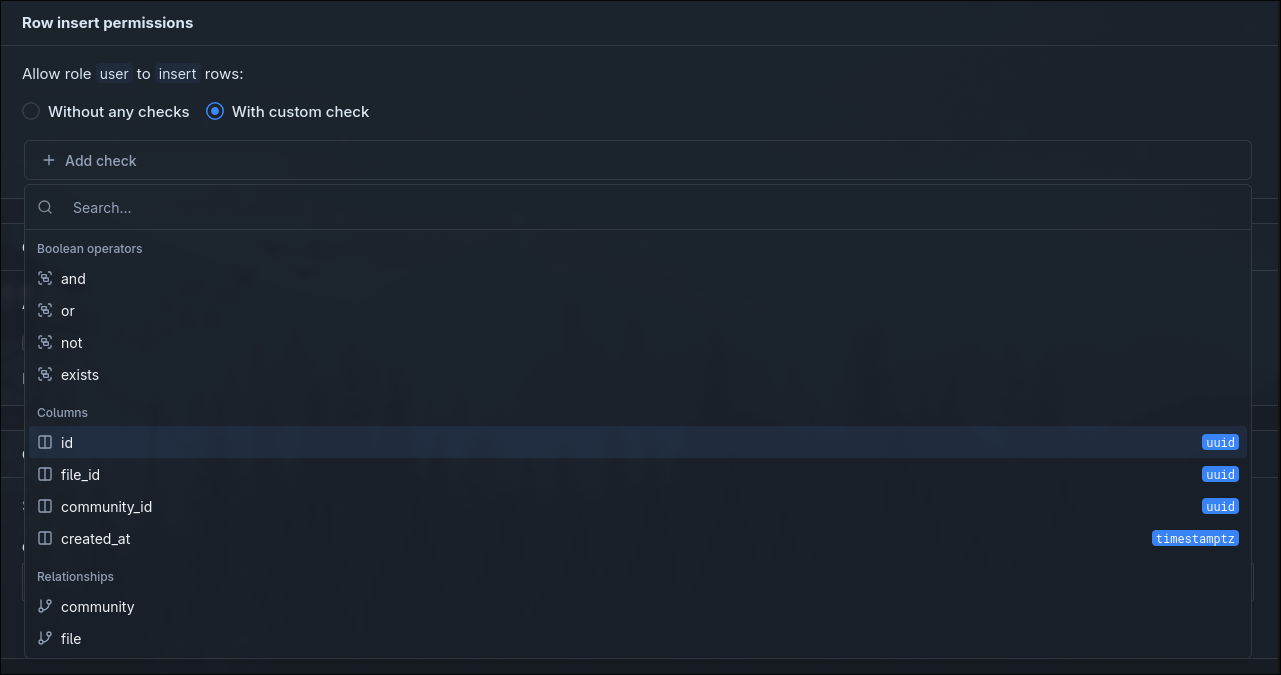
Section titled “Adding elements”Click Add to open the picker. It offers three kinds of additions:
- Boolean operators —
and,or,not, orexists. Starts a new group you can fill with further checks. - Columns — every column on the current table. Adds a condition row (
column operator value), defaulting to_eq. - Relationships — every relationship defined on the current table. Opens a nested area where you can write checks against the related table.
Conditions
Section titled “Conditions”Each condition row has three parts: column, operator, and value. The available operators depend on the column’s type.
| Column type | Operators |
|---|---|
| All columns | _eq, _neq, _in, _nin, _gt, _lt, _gte, _lte, _is_null |
| All columns (compare to another column) | _ceq, _cne, _cgt, _clt, _cgte, _clte |
Text (text, varchar, bpchar) | plus _like, _nlike, _ilike, _nilike, _similar, _nsimilar, _regex, _nregex, _iregex, _niregex |
| JSONB | plus _contains, _contained_in, _has_key, _has_keys_any, _has_keys_all |
The value input adapts to the operator:
_is_null— atrue/falseselect._in/_nin— a multi-select where you can pick a session variable or enter literal values._ceq/_cne/_cgt/_clt/_cgte/_clte— a column picker; the right-hand side is another column on the same table.- Everything else — a combobox listing the session variables available for your project (
X-Hasura-User-Id,X-Hasura-Role, plus any custom claims you’ve defined under Settings → Roles and Permissions → Permission Variables). You can also type a literal value.
Groups and logical operators
Section titled “Groups and logical operators”Every group has a badge in the top-left showing how its children combine. Click the badge to change it.
| Badge | Meaning |
|---|---|
| Implicit | Children are combined with AND. Default for the root group. |
| AND | All children must match. |
| OR | At least one child must match. |
| NOT | The group’s contents must not match. |
Groups can contain other groups, relationships, exists blocks, or conditions. Nesting is unlimited.
For example, the demo’s Select permission on storage.files reads “I can see a file if I uploaded it into the default or personal bucket, or if it belongs to a community I’m a member of.” It decomposes into editor parts as follows:
- Root group: OR badge.
- First branch: an AND group containing
uploaded_by_user_id _eq X-Hasura-User-Idandbucket_id _in [default, personal]. - Second branch: the relationship chain
community_files → community → membersending in a conditionuser_id _eq X-Hasura-User-Id.
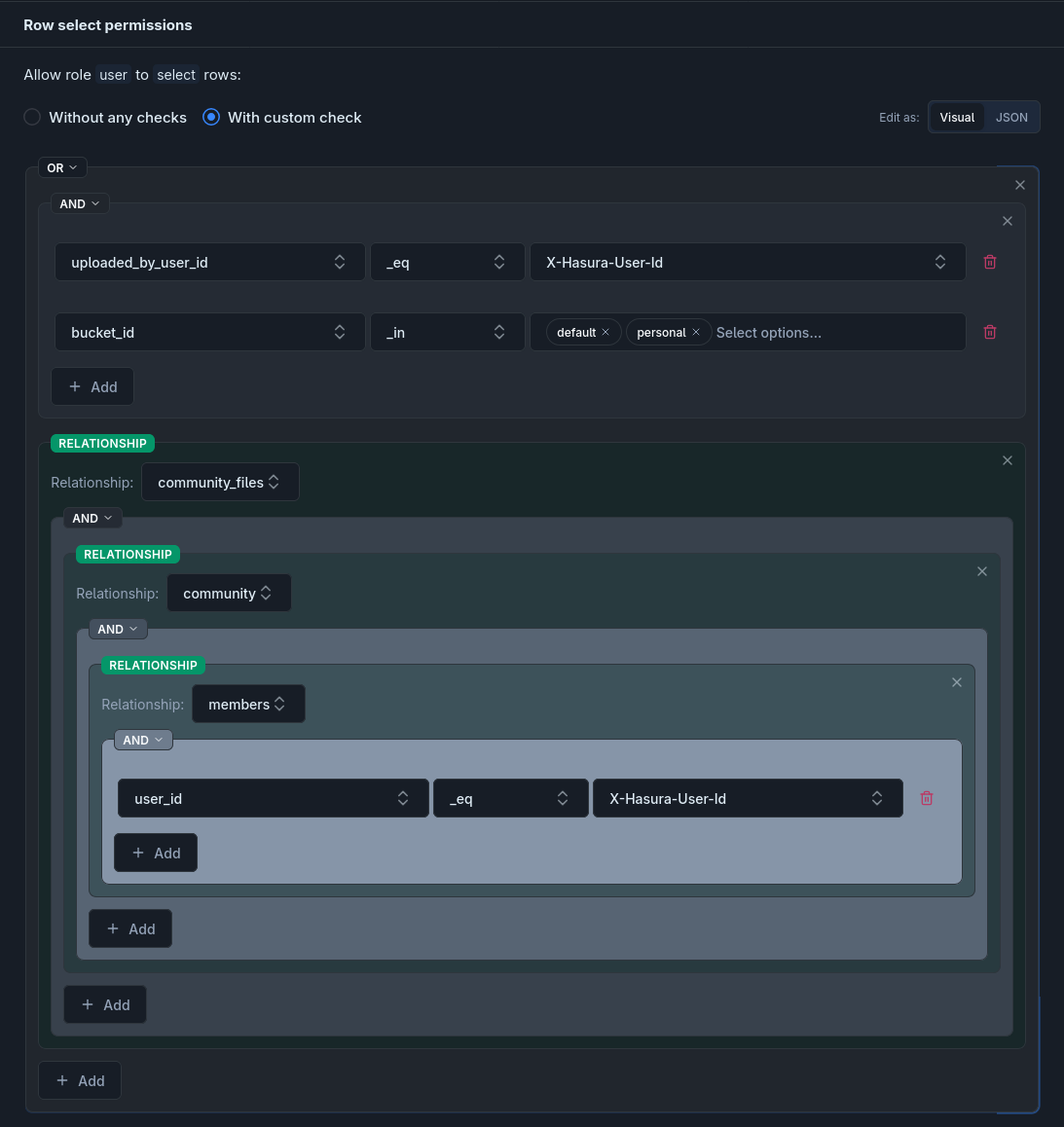
The resulting JSON:
{ "_or": [ { "_and": [ {"uploaded_by_user_id": {"_eq": "X-Hasura-User-Id"}}, {"bucket_id": {"_in": ["default", "personal"]}} ] }, {"community_files": {"community": {"members": {"user_id": {"_eq": "X-Hasura-User-Id"}}}}} ]}Relationships
Section titled “Relationships”Picking a Relationship from the Add popover lets you write checks against the related table. You can keep picking relationships to go further — each one steps one relationship deeper in the schema.
For example, the demo’s Select and Insert permissions on community_files read “the current user is a member of this file’s community.” Rather than comparing a column directly, the rule traverses the chain community_files → community → members (where community is an object relationship to communities, and members is the array relationship from communities to community_members). It decomposes into editor parts as follows:
- A relationship
communityoncommunity_files, opening a nested area oncommunities. - Inside that, a relationship
members, opening a nested area oncommunity_members. - Inside that, a condition
user_id _eq X-Hasura-User-Id.
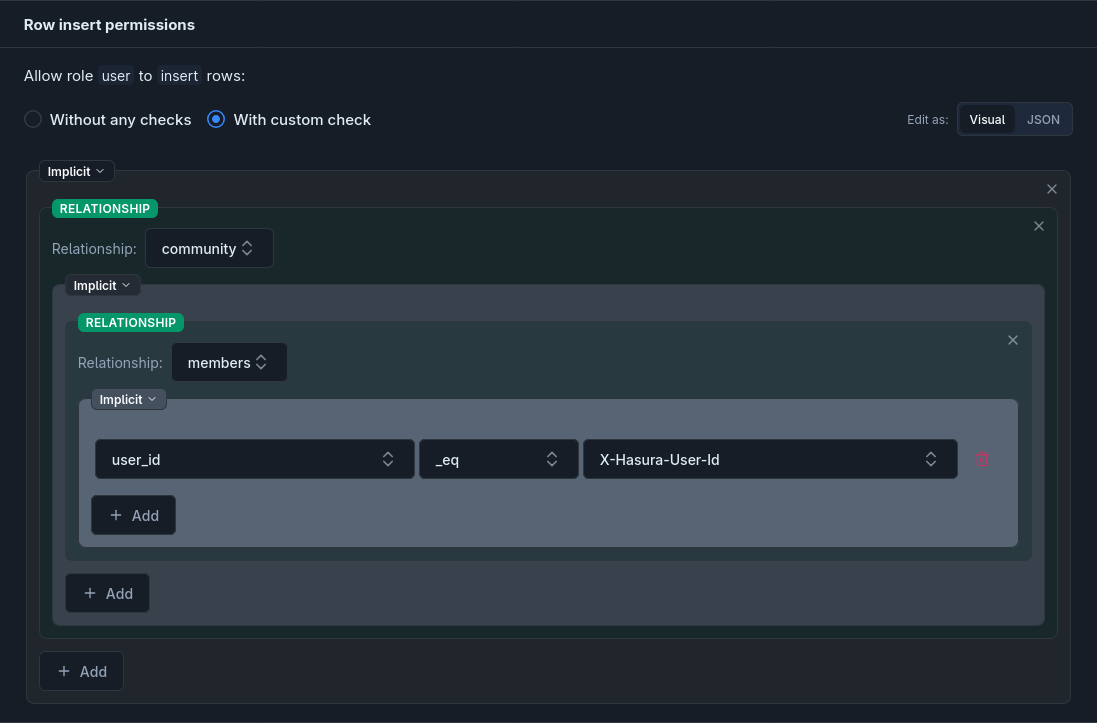
The resulting JSON:
{ "community": { "members": { "user_id": { "_eq": "X-Hasura-User-Id" } } }}Exists
Section titled “Exists”Picking exists from the Add popover lets you check against any table that has no foreign key to the row being permission-checked — typical cases are feature flags, allow/deny lists, and global settings tables. You pick the schema and table, then add conditions the same way as anywhere else.
JSON output
Section titled “JSON output”The editor produces a JSON permission expression. Each element maps directly:
| Editor element | JSON |
|---|---|
| Group with AND | {"_and": [child1, child2, ...]} |
| Group with OR | {"_or": [child1, child2, ...]} |
| Group with NOT | {"_not": child} |
| Implicit group | Children merged into the parent object |
| Condition | {"<column>": {"<operator>": <value>}} |
| Relationship | {"<relationship>": <child>} |
| Exists | {"_exists": {"_table": {"schema": "...", "name": "..."}, "_where": <where>}} |
Any rule written as JSON — for example in a migration — can be rebuilt element-by-element in the editor, and vice versa. You can also switch the editor to its JSON view and paste a rule directly, then switch back to the visual view to edit it as a tree.