

Permission Examples
Common patterns for setting up insert, select, update, and delete permissions
permissions examples insert select update delete Hasura row-level securityWorked examples for the most common permission patterns. They build on the Permissions overview and use the same todos table (id, title, user_id).
Insert Permissions
Section titled “Insert Permissions”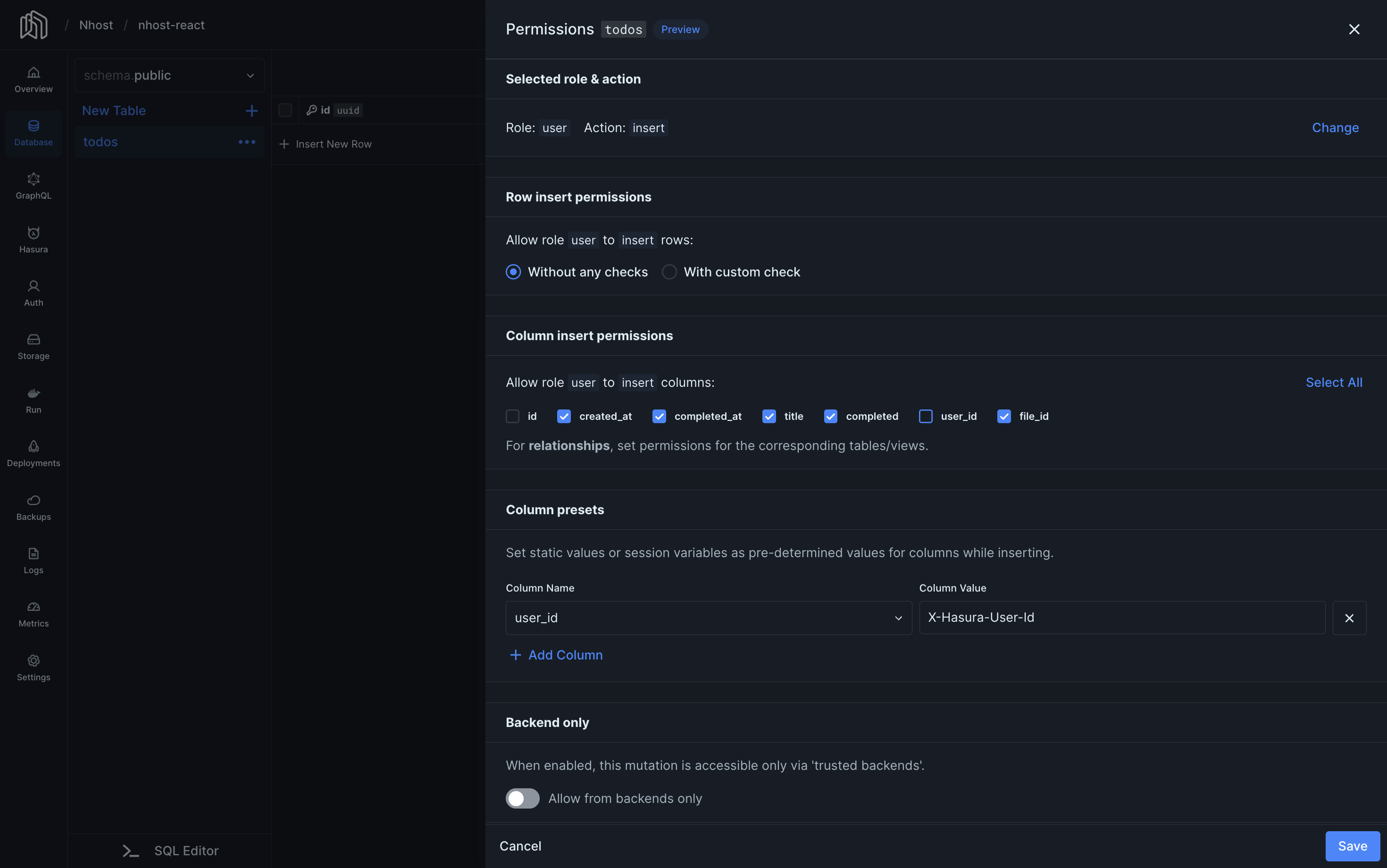
Here is a popular approach for insert permission for authenticated users.
- At the top of the page, click insert on the user role.
- Select Without any checks.
- Select the columns you want to allow users to insert. In our example, we do not mark
idnoruser_id, because they should not be inserted by the user. Theidis automatically generated by the database anduser_idis set using a column preset. - Under Column presets, set
user_idtox-hasura-user-id. This way, every new record’suser_idvalue is set to the ID of the user making the request.
Now, authenticated users are allowed to insert todos. Users are allowed to add a title when inserting a todo. The todo’s id is automatically generated by the database and the user_id is automatically set to the user’s id using the user_id = x-hasura-user-id column preset.
Select, Update and Delete Permissions
Section titled “Select, Update and Delete Permissions”Select, update, and delete permissions usually follow the same pattern. Here’s an example of how to add select permissions:
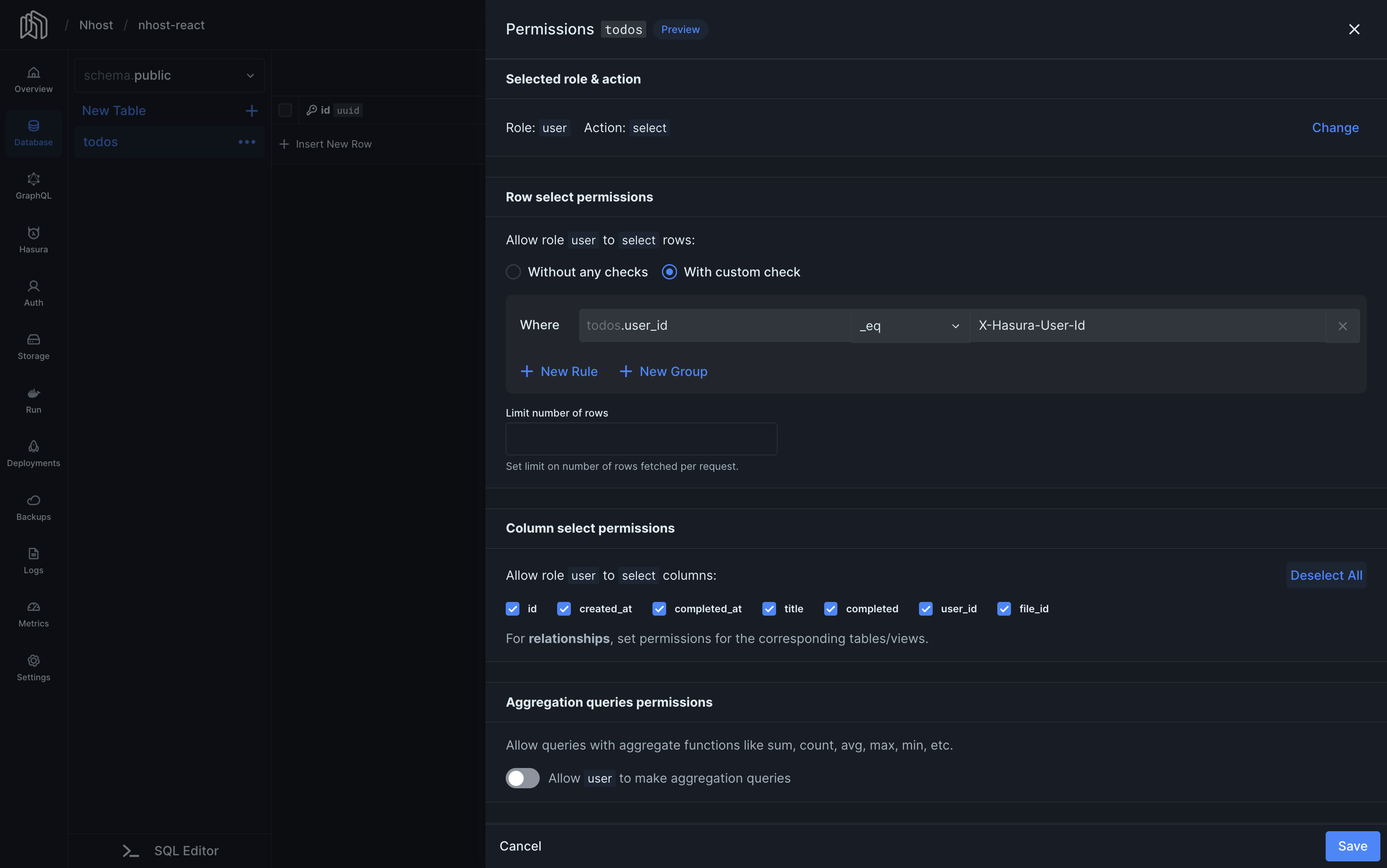
One of the most common permission requirements is that authenticated users should only be able to read their own data. This is how to do that:
- Go to the Database section in the Nhost Dashboard.
- In the context menu of the table you want to edit, click on Edit Permissions.
- Click on the role and operation you want to set.
- Select With custom check to create a new rule.
- Enter
user_id,_eqandx-hasura-user-idinto the rule form. This means that in order for users to read data, the user ID value in the database row must be the same as the user ID in the access token. - Limit the number of rows to 100 (or some other relevant number).
- Select the columns you want the user to be able to read. In our case, we’ll allow the user to read all columns.
- Click Save.