

Remote Schemas
Extend your GraphQL API by merging external GraphQL services
Remote Schemas GraphQL schema stitching API integration microservices third-party APIsRemote Schemas allow you to extend your GraphQL API by integrating external GraphQL services into a single, unified endpoint. This is useful when you need to combine data from multiple sources, integrate third-party GraphQL APIs, or connect microservices into your main API.
When you add a Remote Schema, its types and operations are merged with your existing GraphQL schema. Your clients can then query both your database and the remote service in a single request.
Use Cases
Section titled “Use Cases”- Third-party integrations: Connect to external GraphQL APIs like payment processors, CMS platforms, or analytics services. For example, use
@nhost/stripe-graphql-jsto query Stripe data directly from your GraphQL API - Microservices architecture: Unify multiple internal GraphQL services under one endpoint
- Custom GraphQL services on Nhost Run: Build your own GraphQL servers and deploy them on Nhost Run, then connect them via Remote Schemas. For example, you could create a dedicated billing service that handles subscription management and expose it through your main GraphQL API
- Legacy system integration: Expose existing services through your GraphQL API
Adding a Remote Schema
Section titled “Adding a Remote Schema”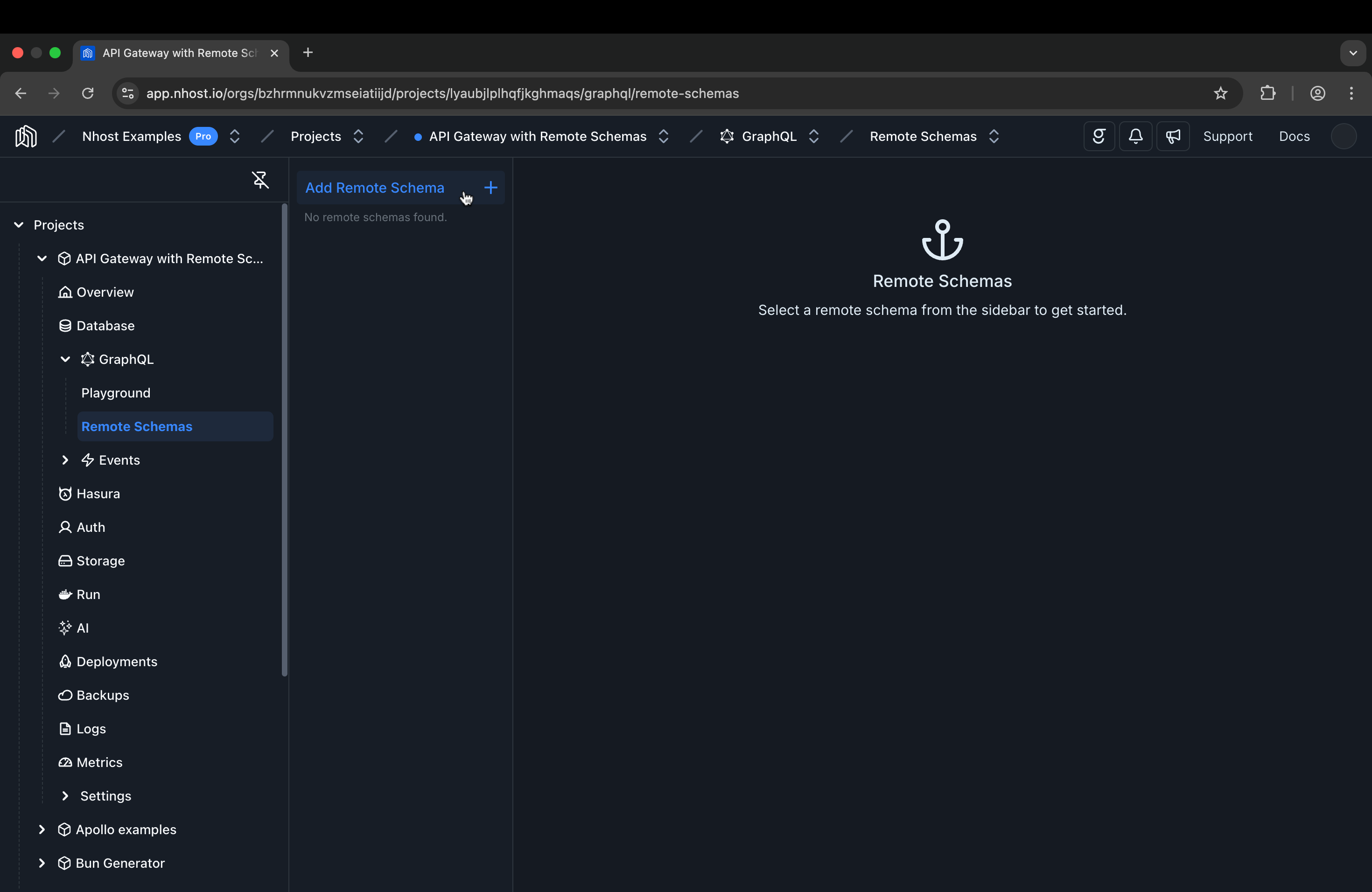
-
Navigate to Remote Schemas
In your project dashboard, go to GraphQL > Remote Schemas.
-
Create a new Remote Schema
Click Add Remote Schema to open the configuration form.
-
Configure the connection
Fill in the required fields:
- Name: A unique identifier for this Remote Schema (e.g.,
payments_api) - GraphQL Server URL: The endpoint URL of the remote GraphQL service
- Timeout: Request timeout in seconds (default: 60)
- Name: A unique identifier for this Remote Schema (e.g.,
-
Save and verify
Click Create to save. The schema will be fetched and merged with your API. You can verify the integration by checking the GraphQL Explorer for the new types and operations or in the Schema Preview section of the Remote Schema.
Configuring Headers
Section titled “Configuring Headers”Remote services often require authentication or custom headers. You can configure these in the Headers section when creating or editing a Remote Schema.
Static Headers
Section titled “Static Headers”Use static headers for non-sensitive values that don’t change:
| Header Name | Value |
|---|---|
x-client-id |
nhost-integration |
x-source |
main-api |
Environment Variable Headers
Section titled “Environment Variable Headers”For sensitive values like API keys, tokens, and credentials, use environment variables that reference Nhost Secrets. This keeps your credentials secure and makes it easy to rotate them without modifying your Remote Schema configuration:
| Header Name | Value |
|---|---|
Authorization |
Bearer {{PAYMENTS_API_TOKEN}} |
x-api-key |
{{EXTERNAL_API_KEY}} |
Forward Client Headers
Section titled “Forward Client Headers”Enable Forward Client Headers to pass headers from the original client request to the remote service. This is useful when the remote service needs to receive authentication tokens or other context from your users.
When enabled, headers from the client (like Authorization) are forwarded to the remote GraphQL server along with any additional headers you’ve configured.
GraphQL Customizations
Section titled “GraphQL Customizations”When merging schemas, naming conflicts can occur if the remote schema uses type or field names that already exist in your schema. Use GraphQL Customizations to add prefixes, suffixes, or namespaces to avoid conflicts.
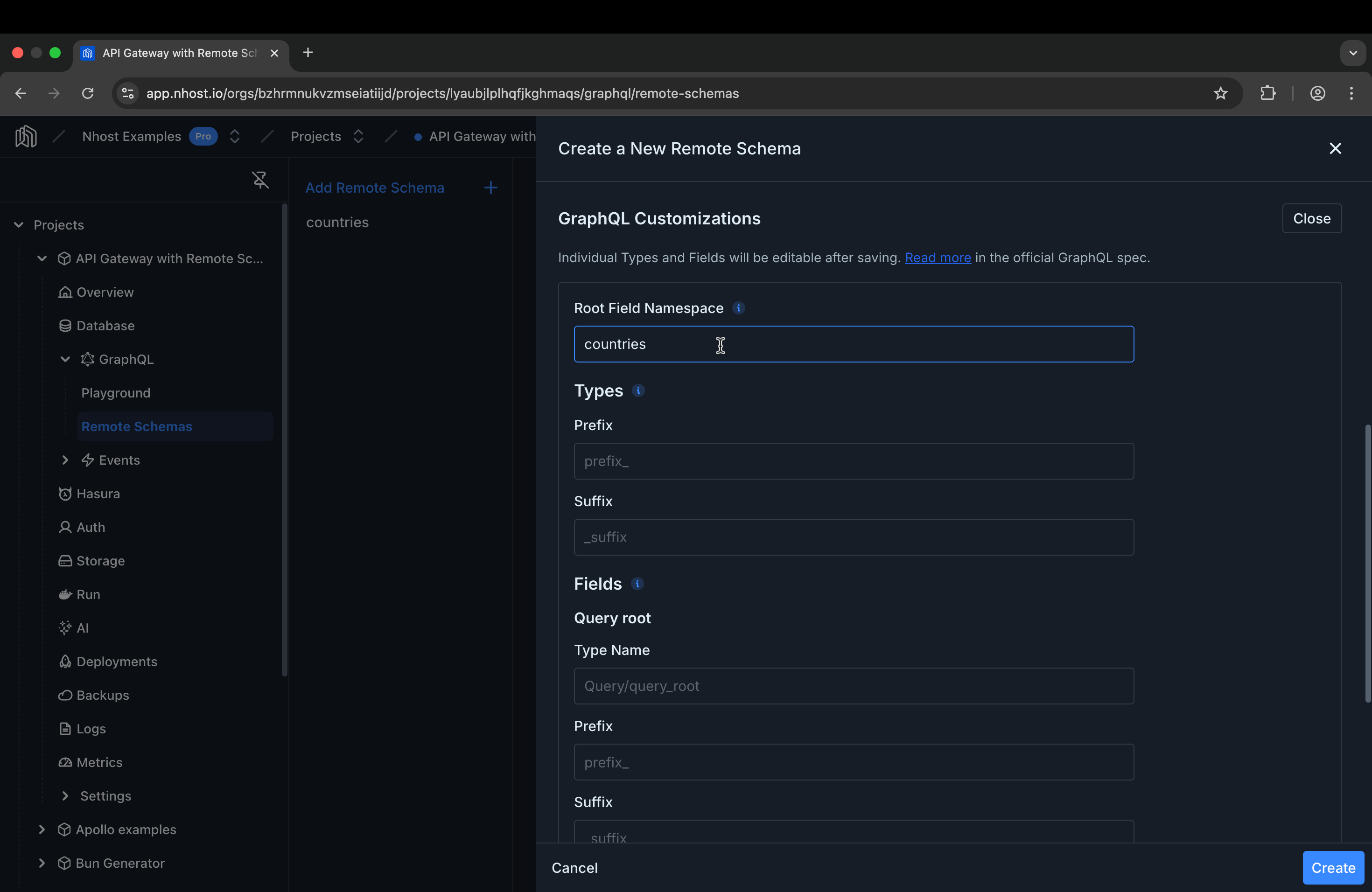
Root Field Namespace
Section titled “Root Field Namespace”Add a namespace to group all root fields from the remote schema under a single field. For example, setting the namespace to payments transforms:
# Beforequery {  getInvoice(id: "123") { ... }}
# Afterquery {  payments {    getInvoice(id: "123") { ... }  }}
Type Name Customization
Section titled “Type Name Customization”Add a prefix or suffix to all type names from the remote schema:
| Setting | Example Value | Result |
|---|---|---|
| Type Prefix | Payments_ |
Invoice becomes Payments_Invoice |
| Type Suffix | _External |
Invoice becomes Invoice_External |
Root Field Customization
Section titled “Root Field Customization”Similarly, you can customize query and mutation root field names with prefixes or suffixes to prevent naming collisions.
Permissions
Section titled “Permissions”By default, Remote Schema permissions are disabled, which means all Remote Schemas are public and all roles have unrestricted access to them. To restrict access and control which roles can query specific Remote Schema fields, you need to enable Remote Schema permissions.
Once enabled, access to Remote Schemas is restricted for all roles (except admin) unless you explicitly grant permissions.
Navigate to Settings > Hasura and enable the Remote Schema Permissions toggle.
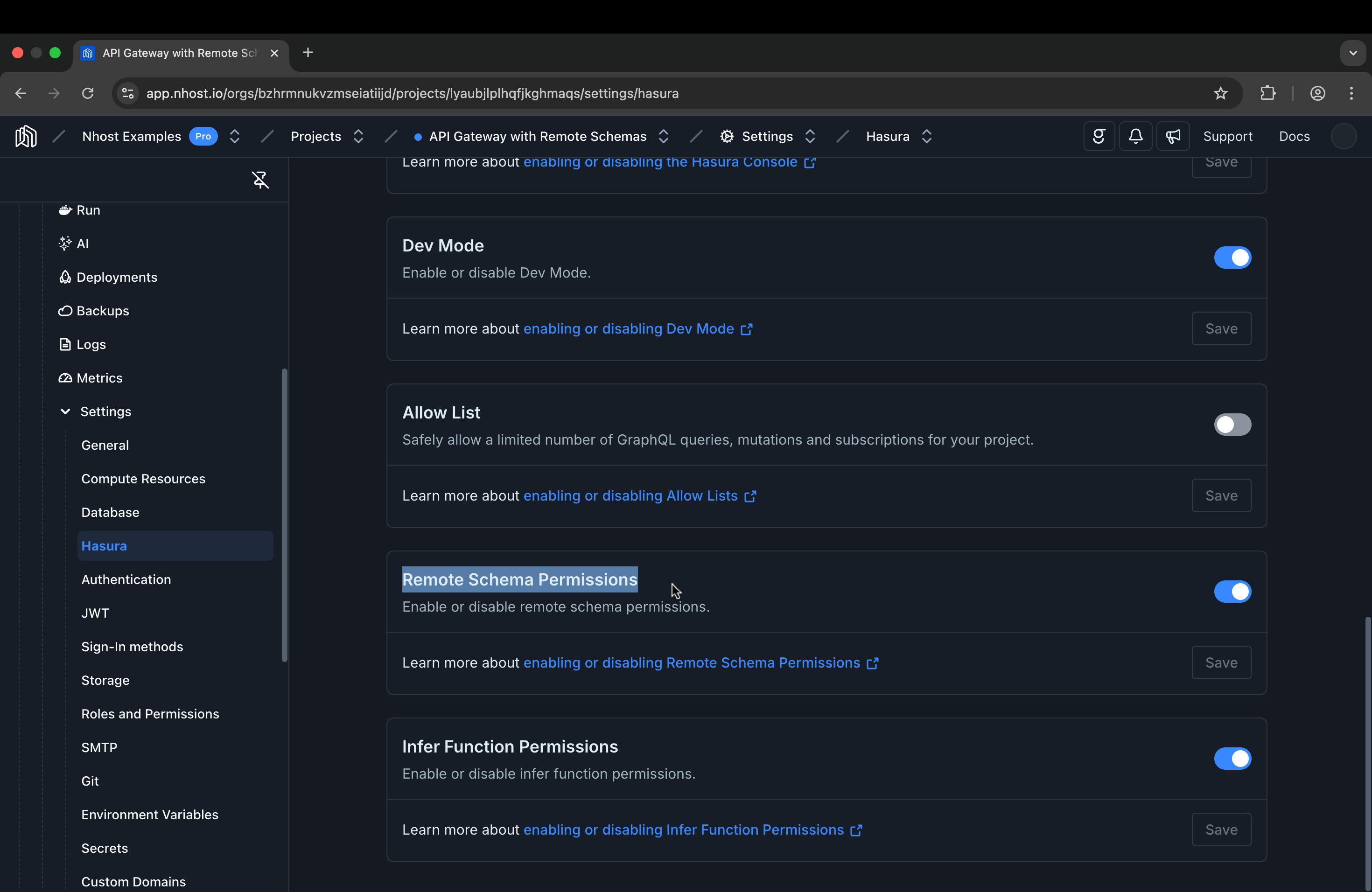
[hasura.settings]enableRemoteSchemaPermissions = trueConfiguring Role Access
Section titled “Configuring Role Access”Once enabled, you can configure permissions for each role:
-
Open the Remote Schema
Navigate to GraphQL > Remote Schemas and click on the Remote Schema you want to configure.
-
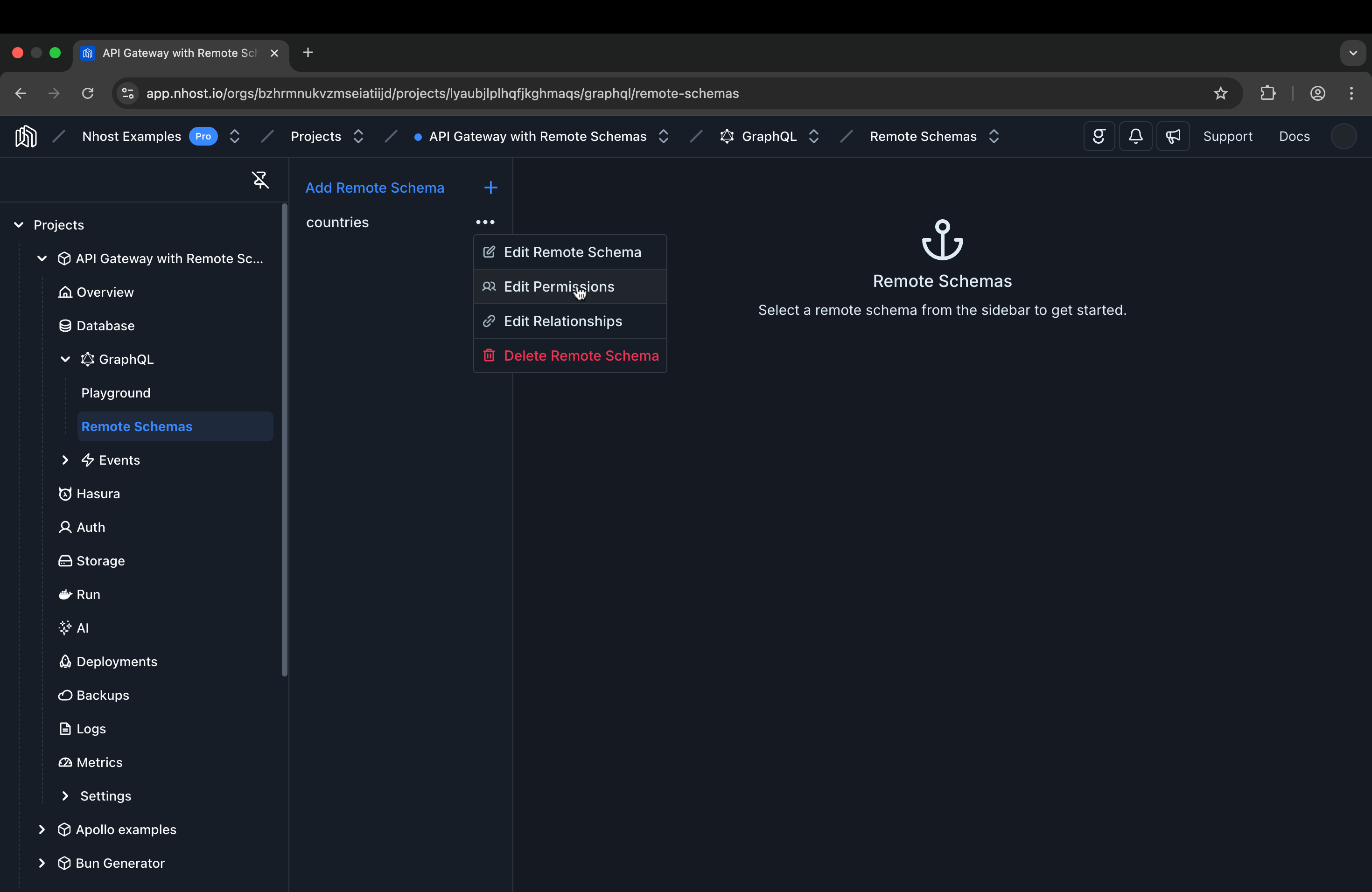
Go to Permissions
Click on the … menu for the Remote Schema, then select Edit Permissions to view the permissions table with all available roles.
-
Edit permissions for a role
Click on the Permission cell for the role you want to configure.
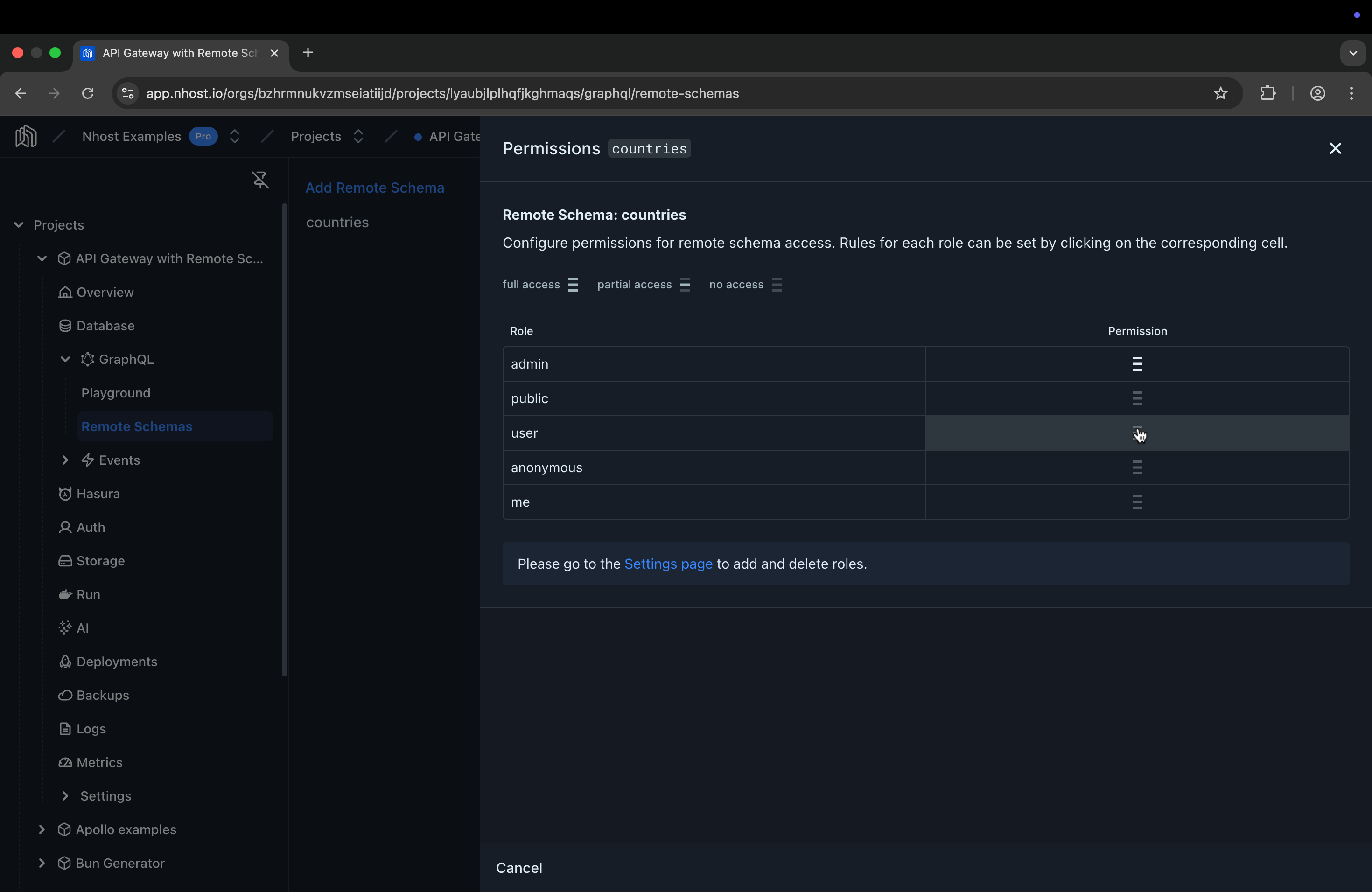
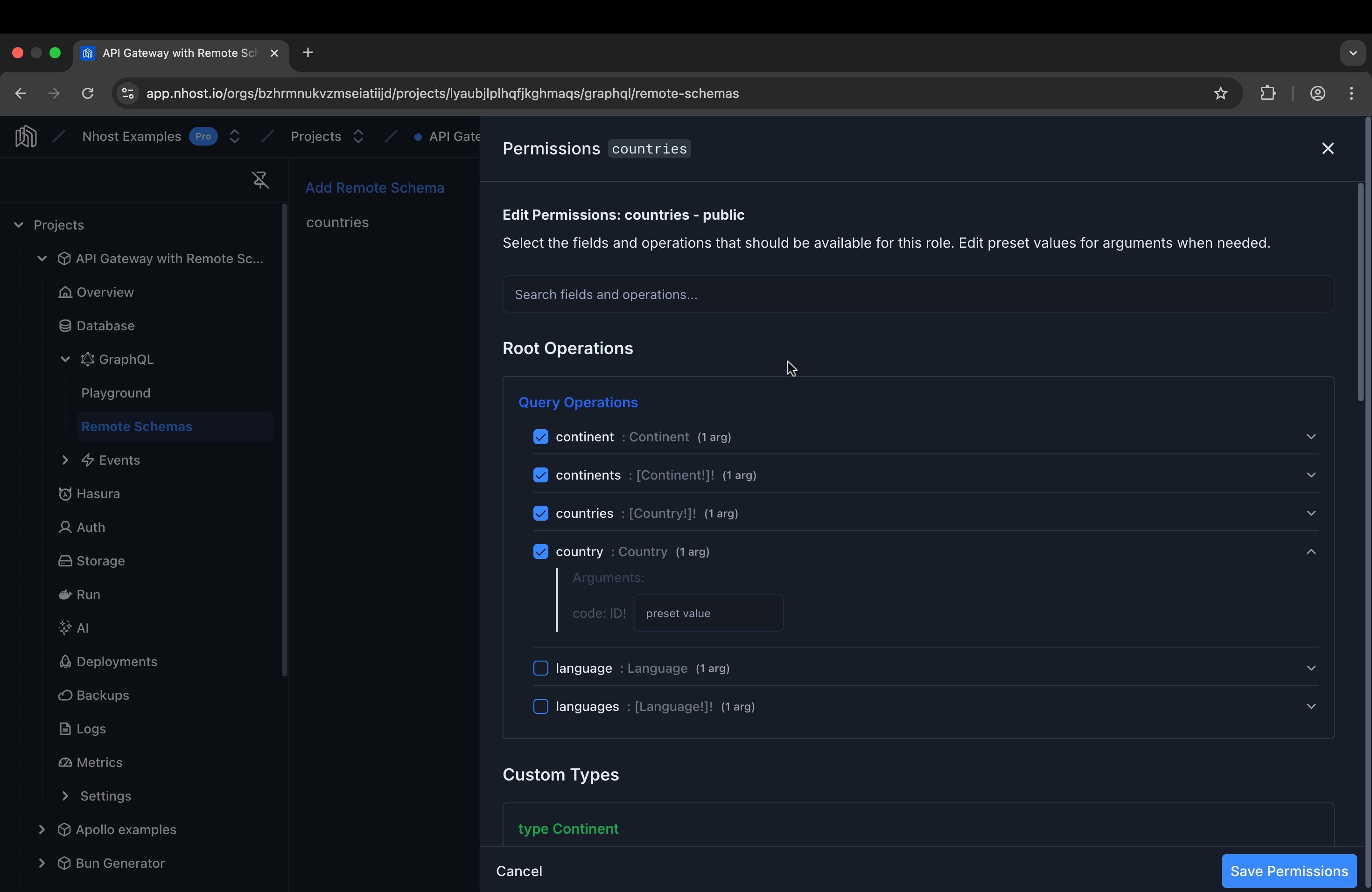
You’ll see a list of all available operations and types from the Remote Schema:
- Query operations: Each query field has a checkbox to grant or deny access
- Mutation operations: Each mutation field has a checkbox to grant or deny access
- Custom types: Each type exposed by the Remote Schema can be individually enabled or disabled
Check the boxes for the specific operations and types you want to allow for this role.
-
Save permissions
Click Save Permissions to apply your changes.
For more information about roles and permissions, see Permissions.
Argument Presets
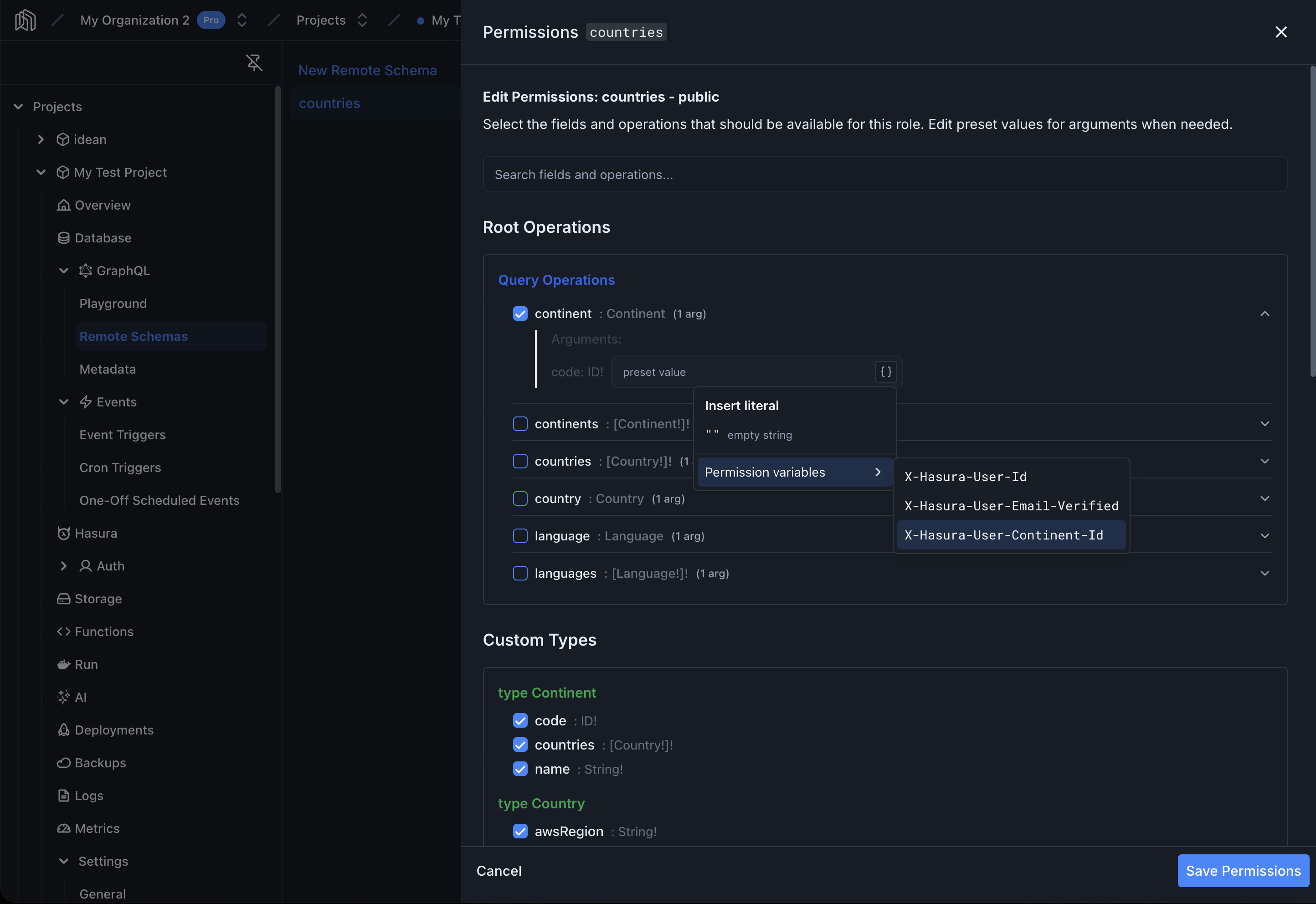
Section titled “Argument Presets”You can preset an argument’s value per role with the @preset directive. The value is auto-injected at request time and the argument is hidden from that role’s schema.
Expand a field’s row to reveal its arguments; each one has a preset input with an Insert-literal dropdown (the {} icon). The dropdown is gated by the argument’s type and offers null, "", true / false, enum values, and your project’s permission variables (X-Hasura-*). You can also type the literal directly.
Relationships
Section titled “Relationships”Remote Schemas can be connected to other parts of your GraphQL API through relationships. This enables powerful cross-service queries.
Remote Schema to Database
Section titled “Remote Schema to Database”Connect Remote Schema types to your database tables. For example, link a Payment type from your payments service to the users table:
query { users { id email # Payment data from Remote Schema payment { last_invoice subscription_status } }}Remote Schema to Remote Schema
Section titled “Remote Schema to Remote Schema”Connect types between different Remote Schemas to create relationships across external services.
To configure relationships, navigate to the Relationships tab of your Remote Schema and define the join conditions between types.
Troubleshooting
Section titled “Troubleshooting”Connection Timeout
Section titled “Connection Timeout”If you see timeout errors:
- Increase the timeout value in the Remote Schema configuration
- Verify the remote service is accessible from your Nhost project
- Check if the remote service has rate limiting that might be blocking requests
Authentication Errors
Section titled “Authentication Errors”If you receive 401 or 403 errors:
- Verify your API keys and tokens are correct
- Check that environment variables are properly set in your project settings
- Ensure the header configuration matches what the remote service expects
Type Conflicts
Section titled “Type Conflicts”If schema introspection fails due to type conflicts:
- Use GraphQL Customizations to add prefixes or suffixes to types
- Enable root field namespacing to isolate the remote schema
Permission Denied
Section titled “Permission Denied”If users receive permission errors when querying Remote Schema fields:
- Verify
enableRemoteSchemaPermissionsis set totruein your configuration - Check that the user’s role has been granted access in the Permissions tab
- Ensure you’ve deployed configuration changes by running
nhost uplocally or pushing to your cloud project